Available frameworks
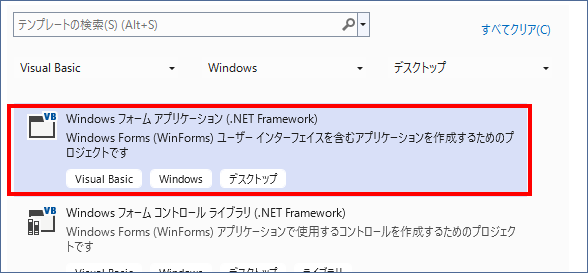
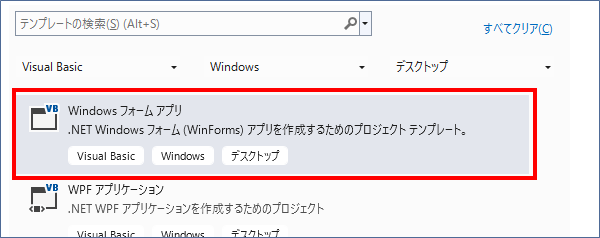
The only framework that can be used in the project is ".Net Framework". ".Net6.0" and others cannot be used.
Example: Visual Studio 2022
The following is available:
The followingNot available.
About compilation
FA-Engine's ActiveX is available in 32-bit and 64-bit versions. Below are the steps to compile the 32-bit version.
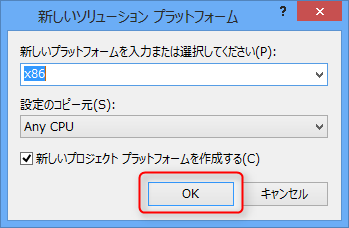
If you are compiling for 64-bit, select x64 instead of x86.
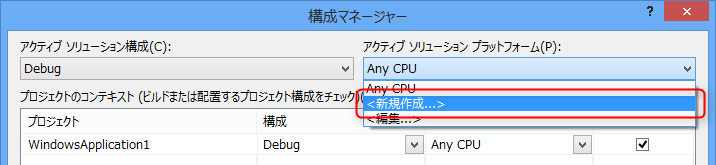
1.Select a configuration manager
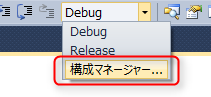
If the Configuration Manager is not displayed, open [Tools] - [Options] - [Projects and Solutions] - [General] and check [Show build configuration details].
2.Select Create New from the following settings:
3.Select X86 and click OK.
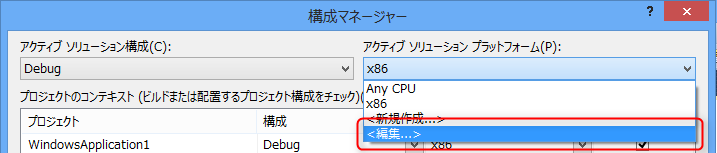
4.Select Edit
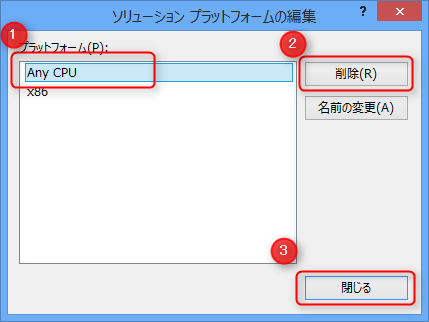
5.Select "Any CPU" and press the Delete button to delete the setting and close the dialog.
Embed FA-Engine into Visual Basic .Net
When creating a program using FA-Engine, you must first register the VisualBasic component settings. The registration procedure is as follows, using VisualBasic2010 as an example.
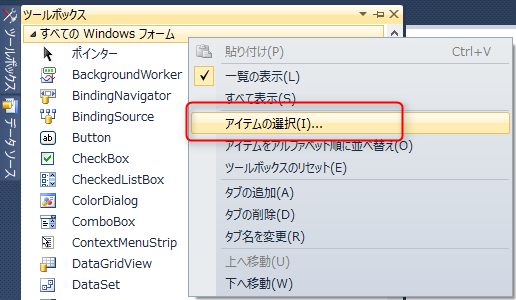
1.Right-click on the Toolbox and select Choose Items from the menu.
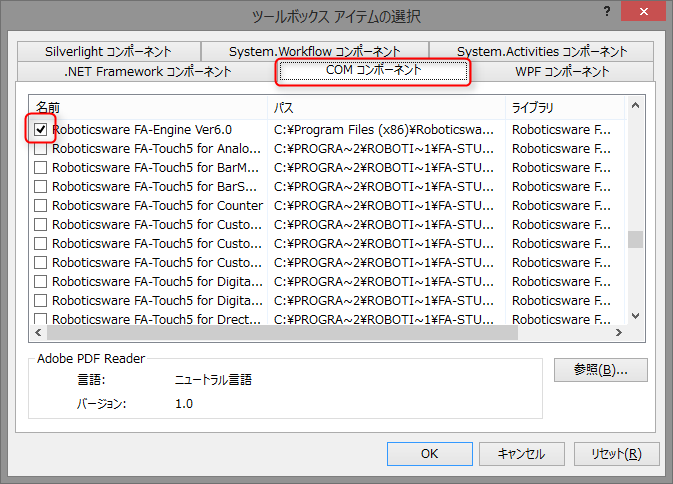
2.Check "Roboticsware FA-Engine Ver6" and click "OK".
3.Check that the following icons have been added to the Toolbox:
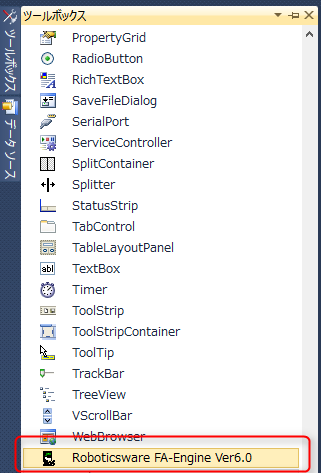
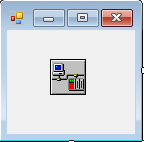
When using, select the icon and paste it into the form.
Application Configuration
FA-Engine consists of the following two applications:
1.ActiveX communication library (FAEngine6.ocx)
This is an ActiveX control that communicates with PLC. The control alone can communicate with all compatible PLC. In the following description, when "FA-Engine" is used, it refers to the ActiveX control in question.
2.Tag Editor (FAEngine6.exe)
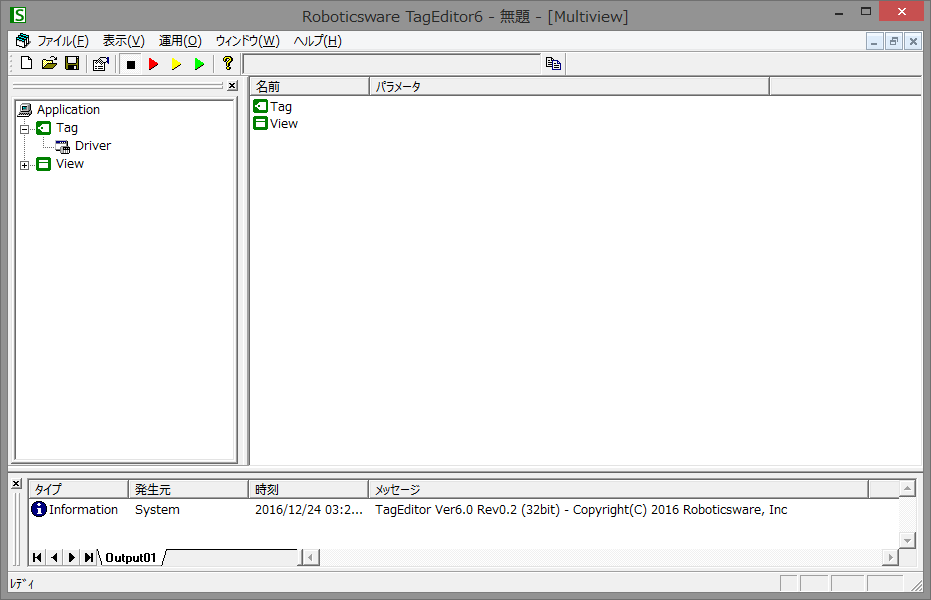
An editor for editing "tags". Tags are edited using the tag editor.