Static Parts
|
Static parts are parts that are primarily available as static images.
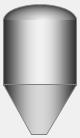
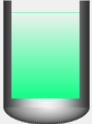
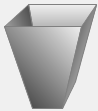
In addition to parts with 3D-style gradient representations such as tanks, pipes, and hoppers, piping lines and arrows are also available.
|
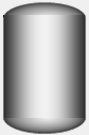
Each component with a gradient display has two color attributes, Fill Color 1 (_FillColor) and Fill Color 2 (_FillColorBack), and the gradient display is created by combining these two colors. The default color scheme is gray, but if you set Fill Color 1 to red, for example, the gradient will be red.
You can also freely use them as layout materials, such as stacking and combining multiple parts on a form.
Static Parts Example
|
|
|
|
|
|

Custom Properties
Display settings |
Paint color 1 |
_FillColor |
Specifies the fill color. For parts with gradation, the gradation is displayed using this property and Fill Color 2. |
Paint color 2 |
_FillColorBack |
Specifies the fill color (fill color 2). For parts with gradation, the gradation will be displayed using fill color 1 and this property. |
|
Border Color |
_BorderColor |
Specifies the border color. |
|
Border Thickness |
_BorderWidth |
Specifies the thickness of the border (for pipe parts, etc.). |
|
Background Color |
_BackColor |
Specifies the background color for parts that have transparent areas (areas that are the same color as the background). |
|
Liquid paint color 1 |
_LiquidColor |
Specifies the fill color for the liquid parts of parts that have liquid parts. |
|
Liquid paint color 2 |
_LiquidColorBack |
For parts that have liquid parts, specify Fill Color 2 for the liquid part. If the fill style is set to gradient type, a gradient will be displayed using Liquid Fill Color 1 and this property. |
|
Fill style |
_LiquidFillStyle |
For parts that have liquid areas, select the fill style for the liquid areas. |