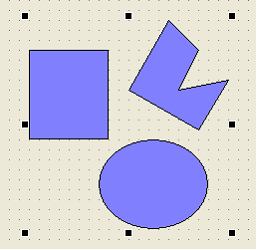
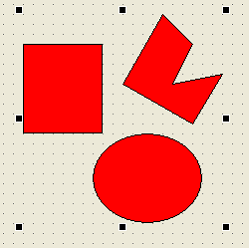
By using the Customize property of the common properties, you can define new properties for group controls and individual controls. These properties are called "custom properties."
For example, if you group multiple controls and define the FillColor property (background color) as a custom property of the group control, you can change the background color of each child object that is a member of the group all at once by simply changing the value of that property.
In addition to linking a property of a child object, you can also add it simply as a property by specifying the property's data type (in this case, you can create a unique property that is not linked to any property).
Example) To switch the FillColor property of three controls, group them and define a custom property for the group control.
■ CalligraphyExpression Specification
The Customize property has the following format:
[Property]
Custom property name = child object name.property name [, child object name.property name…][;additional parameters…]
Custom property name = property type [; additional parameters]
…
Available property types:
[bool]
[integer]
[number]
[string]
[multilinestring]
[color]
[font]
[filepath]
[filepaths]
Additional parameters: Parameter name: value. If you specify multiple parameters, separate them with semicolons.
ShowProperty:F (default value: T) - Show/hide property page
ShowBind:F (default value: T) ... Show/hide the bind page
List: Enumerated value...When displayed in the list box on the property page, specify the string to be enumerated in comma format.
Example: List:True,False *Only valid for [string].
Write [Property] on the first line, and define the custom properties from the second line onwards.
The "Custom property name" can be any name (alphabetical characters only). Then define the properties of child objects you want to group as custom properties, separated by commas.
If you want to define properties for multiple child objects, you can write them one after the other.

|
The [Property] on the first line can be omitted..
|
|
For information on naming custom properties, see "Naming Rules".
|
■Settings example
As an example, paste three shape controls like those in the image above and define their names (Name property) as Obj1, Obj2, and Obj3.
Next, define the Customize property as follows:
[Property]
_FillColor=obj1.FillColor, obj2.FillColor,obj3.FillColor
This will create a new _FillColor property for the group control, allowing you to change the FillColor properties of Obj1, Obj2, and Obj3 all at once.
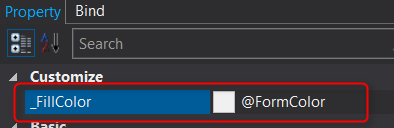
Also, if you want to define multiple custom properties, write them on multiple lines as shown below.
[Property]
_Fill=obj1.Fill, obj2.Fill,obj3.Fill
_FillColor=obj1.FillColor, obj2.FillColor,obj3.FillColor
This will create a new _Fill property for the group control, allowing you to change the Fill properties of Obj1, Obj2, and Obj3 all at once.
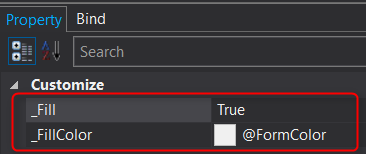
You can also hide custom properties from the property/bind page by adding the "ShowProperty" or "ShowBind" parameters.
[Property]
_Fill=obj1.Fill, obj2.Fill,obj3.Fill;ShowProperty:F
_FillColor=obj1.FillColor, obj2.FillColor,obj3.FillColor
This will hide the _Fill property from the property page but make it visible in the binding page.
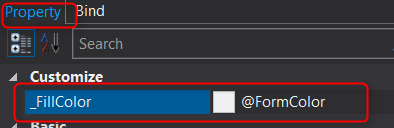 Property Page does not display _Fill
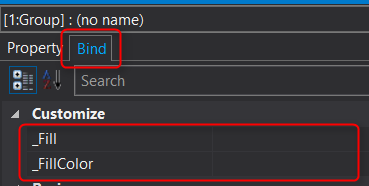 The Bind page shows
If you want to define a unique property that is not linked to any property, write it as follows (specify the data type):
[Property]
_Flag=[bool]
_Fill=obj1.Fill, obj2.Fill,obj3.Fill
_FillColor=obj1.FillColor, obj2.FillColor,obj3.FillColor
This creates a new _Flag property of type bool (True/False) on the group control.
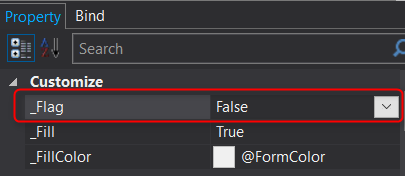
■ About the old format
The following is the old format for defining custom properties (the old version specifications before Ver5). The old format will continue to work as before for upward compatibility.
The format of the old Customize property is as follows:
[Custom property name], [Child object name.Property name], ...
[Custom property name], [Child object name.Property name], ...
...
After the custom property name, define the properties of the child objects you want to group together as custom properties, separated by commas.
If you want to define properties for multiple child objects, you can list them further after, separated by commas.
Also, if you want to define multiple custom properties, write them on multiple lines as shown below.
_Fill,Obj1.Fill,Obj2.Fill,Obj3.Fill
_FillColor,Obj1.FillColor,Obj2.FillColor,Obj3.FillColor
*The old format does not provide a way to specify the data type or whether to show or hide the property page.
|