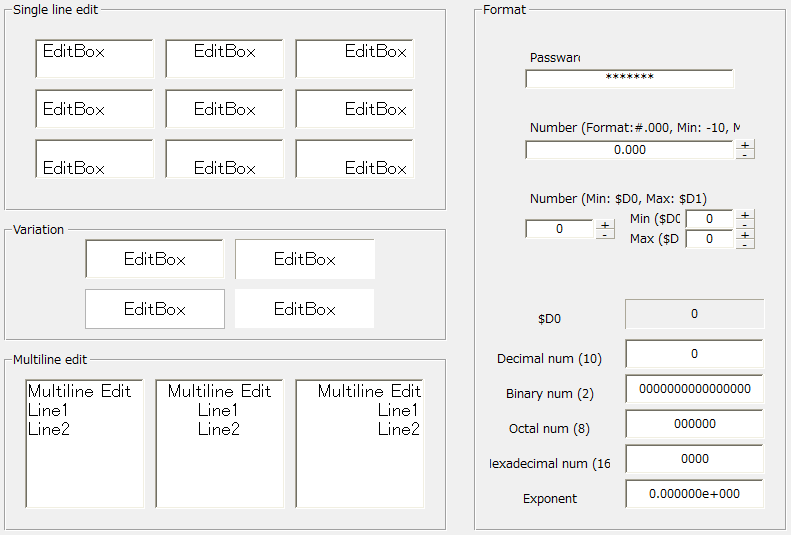
■ If TextType is TEXT
By specifying a number in TextFormat, you can specify the maximum number of characters that can be entered.
■ When TextType is NUMBER
If you want to restrict input to numbers only, set TextType to NUMBER.
In this case, there are two ways to specify TextFormat:
•Format(v1) - This is the old format (old format before Ver5). For details, see below.
•Format (v2) - This is the format specification method that has been extended since Ver6. For details, see below.
■ Format (v1)
Specify the parameters "Number format", "Minimum value", "Maximum value", "Radix", "Allow empty characters", "Input restriction type", "Error message", and "Comma separator" by separating them with a comma ",".
If you add the prefix "v1:" to the beginning, it will be identified as format (v1). If you omit this prefix, it will be considered as format (v1).
v1: Number format, Minimum value, Maximum value, Base, Allow empty string, Input restriction type, Error message, Comma delimited
For parameters that you do not want to specify, leave them blank and connect them with a comma. For example, if you do not want to specify a "minimum value", enter "number format, , maximum value" with two commas. If you do not specify a base, it will be a decimal number.
1) Number format
Use 0 and # to express the number of digits. If you do not specify anything, you can enter any number.
|
Number format
|
|
Example 1
|
00.000
|
A number with two integer digits and three decimal digits
|
Example 2
|
#.00
|
Any integer part, 2 decimal places
|
Example 3
|
#
|
Integer part is free, no decimals
|
Example 4
|
00.#
|
2 digits for integer part, free decimal part
|
2) Minimum value
The minimum value that can be entered. You can also specify a decimal point. If you do not specify anything, the minimum value will not be checked.
3) Maximum value
The maximum value that can be entered. You can also specify a decimal point. If you do not specify anything, the maximum value will not be checked.
4) Cardinal Numbers
The base of numbers that can be entered. Binary, octal, decimal, and hexadecimal can be specified, and they are specified as 2, 8, 10, and 16 (16s for lowercase). If nothing is specified, 10 will be used.
Formatting in TextFormat
|
radix
|
2
|
Binary
|
8
|
Octal
|
10
|
Decimal
|
16
|
Hexadecimal (uppercase)
|
16s
|
Hexadecimal (lowercase)
|
5) Allow empty strings
Specifies whether to allow blank characters. When set to "Y", blank characters are allowed, and when set to "N", blank characters are not allowed. Specifying nothing has the same meaning as "N". When blank characters are not allowed, if the operator presses the Enter key with blank characters (nothing entered), the number 0 will be converted according to the format and displayed. When blank characters are allowed, if the operator presses the Enter key without entering anything, it will be displayed as blank.
6) Input restriction type
Specifies how to check the maximum and minimum values. If nothing is specified, it will be set to "TYPING".
Formatting in TextFormat
|
Input Restriction Type
|
TYPING
|
This applies a numeric input restriction while you are typing. This is suitable when the minimum value is 0, or when the maximum and minimum values are exactly inverted (maximum 100, minimum -100, etc.). If the minimum value is not 0, such as maximum 24 or minimum 8, the TYPING method cannot be used, so select ENTER.
|
ENTER
|
After confirming the input (pressing the ENTER key), the maximum and minimum values are checked, and if they are outside the range, they are restored to the previously confirmed values.
|
7) Error Messages
Check the maximum and minimum values, and if they are out of range, specify whether to display an error message in a message box. This is only valid when the input restriction type is "ENTER". If nothing is specified, it will be the same as "NONE".
Formatting in TextFormat
|
Error message type
|
NONE
|
Not displayed.
|
Y
|
The message content will be automatically switched according to the locale.
|
JP
|
Displays error messages in Japanese.
|
EN
|
Displays error messages in English.
|
8) Comma-separated
Specify whether to separate every three digits with a comma. When "Y" is specified, a comma will be added every three digits. If nothing is specified, it will become "N". The comma separation is only displayed, and the comma will not be displayed when the operator enters.

|
If you want to create and display your own error message, you can create the message in the OnTextFormatError event and display a message box.
|
|
If you want to restrict the maximum and minimum input values to the current value of the tag rather than to a fixed value, you can also set a binding to the TextFormat property as follows:
Example: $D0 is the minimum value and $D1 is the maximum value
"," & CStr($D0) & "," & CStr($D1)
Even if the maximum or minimum value is changed while entering data in the edit box, the input limits will not change. After entering data, the maximum or minimum value will change when you start entering data again.
|
■ Format (v2)
Adding the prefix "v2:" to the beginning identifies it as format (v2).
In format (v2), the numeric display format can be made to behave according to the locale.
v2:DecimalPlaces,Min,Max,Format
DecimalPlaces: Specifies the number of decimal places. If omitted, "-1" (no specification) will be used.
Min: Minimum value. If 0x is added, it will be specified in hexadecimal (if omitted, the minimum value will not be checked).
Max: Maximum value. If 0x is added, it will be specified in hexadecimal (if omitted, no checking of the maximum value will be performed).
Format: Empty string or @LOCALE (follows the LocaleNumber root property) or @NUMBER or number format name.
*You can also specify individual actions by specifying properties at the end like this: .
*If nothing is specified, the behavior will be the same as if @NUMBER was specified.
For details about number formats, see "Number Formats".
|