|
Image control (Image)
Image control is a control that displays an image file.

|
The image formats that can be used are "JPEG format", "GIF format", "BMP format" and "PNG format".
*However, animations in the "GIF" format are not supported.
|
About transparency (Alpha property)
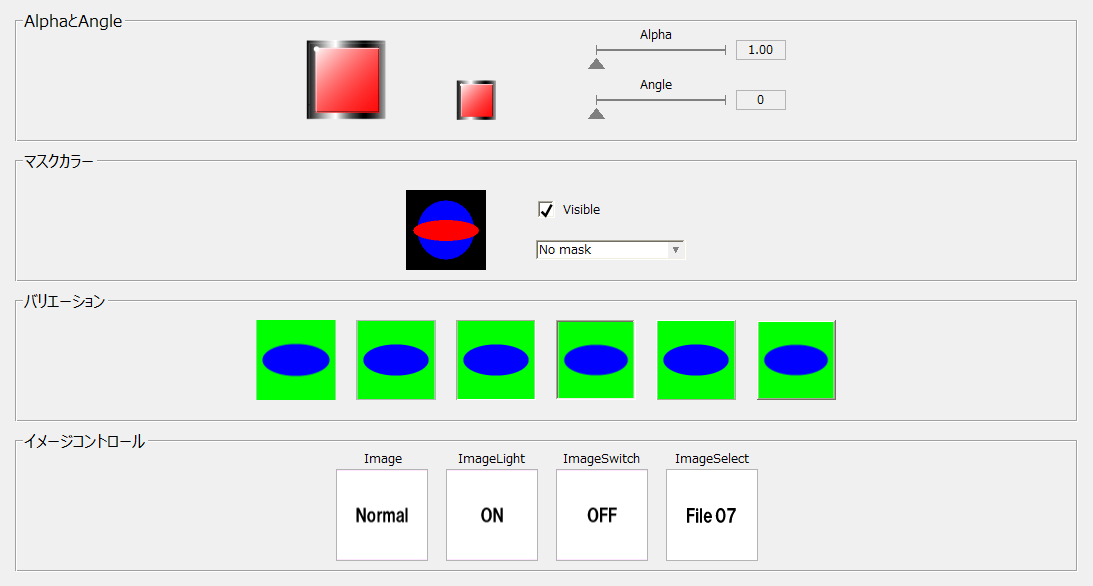
The Alpha property is used to make the image appear transparent. It can be set between 0 and 1. Setting the Alpha property to a number less than 1 makes the image more transparent.

|
Transparency is more CPU intensive than displaying a normal image.
|
|
About rotation (the Angle property)
The Angle property is used to rotate the image when it is displayed. It can be set between 0 and 360. If you set a number greater than 360 or less than 0, the remainder when divided by 360 will be applied. Setting the Angle property to a number other than 0 will rotate the image. The center of rotation is set to the center position by default. You can move the center of rotation by moving the following points with the mouse.
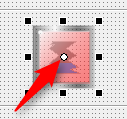
|
Please note that rotation places a greater load on the CPU than normal image display. In some cases, it may be possible to reduce the load by creating a rotated image file in advance using image software such as Paint, and then combining multiple image files to express the movement.
|
|
Rotation using the Angle property occurs at runtime, not while editing in Panel Editor.
|
|
About the mask color (MaskColor property)
The MaskColor property is used to display the background with a certain color as a background.
This property is mainly used to allow the background color of the image to be seen through.

|

|

|

|
No mask color
|
Mask in black
|
Mask in blue
|
Mask in red
|
|
Please note that masking puts more strain on the CPU than displaying a normal image. For example, you can reduce the load by creating an image file with the same background color as the form color in advance using image software such as Paint.
|
|
|