Dialog display (function button)
|
The dialog display function button is a component with a built-in function that displays a dialog (pop-up display) with a specified form as a child screen. |
By specifying the name of the form you want to display as a child screen in the Target Form property, the form will open as a dialog when you press the button.
Custom Properties
setting |
caption |
_Text |
Specify the string to be displayed on the button. |
Target form |
_TargetForm |
Specify the form name (actual form name) of the form you want to call. |
|
View Name |
_ViewName |
Specify the view name (any name). If you specify an empty string, the name specified in the target form will be the view name. For details, see the explanation of the OpenDialog method. |
|
Form Name |
_FormName |
Specify the form name that will be used as the reference name for the object from the script after the dialog is displayed. Specify any name that is different from the "Target Form." However, it must not overlap with the main form, the form name embedded in View control, or the form name of a dialog that is already being displayed. |
|
title |
_Title |
Specifies the string that will be displayed in the title bar of the dialog. |
|
Left |
_Left |
Specifies the left coordinate of the dialog. Specifying -1 will make it the center. |
|
Top |
_Top |
Specifies the top coordinate of the dialog. Specifying -1 will make it the center. |
|
Width |
_Width |
Specifies the width of the dialog. Specifying -1 will make it the width of the original form. |
|
Height |
_Height |
Specifies the height of the dialog. Specifying -1 will make it the height of the original form. |
|
Stretched Display |
_Stretch |
Specifies the display mode when stretching the form size to fit the dialog size. For details, see the Stretch parameter of the OpenDialog method. |
|
Display Type |
_DialogType |
You can specify the display type of the dialog (whether or not to have a close button, whether or not to have a title bar, etc.). For details, see the DialogType parameter of the OpenDialog method. |
|
Resize |
_Resize |
Specifies whether the displayed dialog can be resized. |
|
When switching screens |
_AutoClose |
You can choose one of the following actions: •Automatically close when switching back to the original screen •Maintain the dialog even when switching back to the original screen |
|
Advanced Settings |
Display base point X |
_BasePosX |
The base X-position when displaying. For details, see the BasePosX parameter of the OpenDialog method. |
Display base point Y |
_BasePosY |
The Y-axis position that will be the reference when displaying. For details, see the BasePosY parameter of the OpenDialog method. |
|
Modal Display |
_Modal |
If modal display is enabled, the dialog will be displayed modally (the parent screen cannot be operated). |
|
Open parameters |
Open parameters |
_OpenParam |
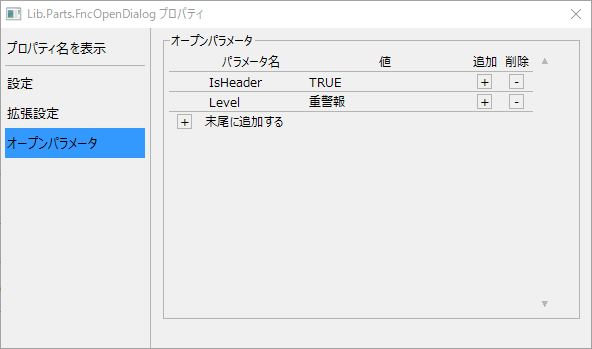
You can specify open parameters to call a form as a dialog. If you want to pass parameters to a screen library, set them in this property.
Although the open parameter settings can be entered directly from the property page, they can also be easily registered from the settings dialog of this part.
(Property Settings Dialog/Open Parameters)
|
|
This component uses the common method "OpenDialog". |
