|
List box control (ListBox)
List box control can display a multi-line text list, and allows you to select one of the lines.
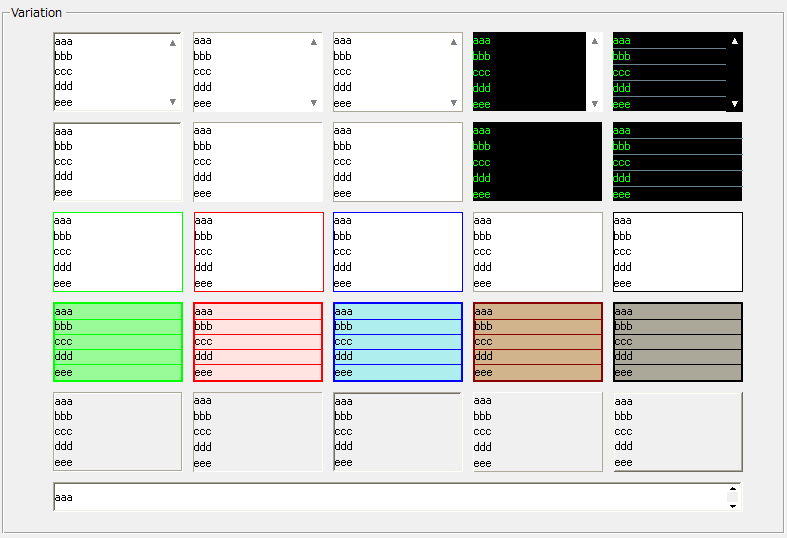
Text list settings
There are three ways to set a text list to List box control.
1) Set it in advance using the TextList property.
2) Use the AddText method to add one line at a time from the script.
3) Set them all at once from a script using the SetTextList method.
1) Set it in the TextList property in advance.
Set the TextList property in advance in the editor.
When displayed in a browser, the automatically set text list will be displayed. If you want to set multiple lines, enter them on separate lines.
2) Add one line at a time using the AddText method.
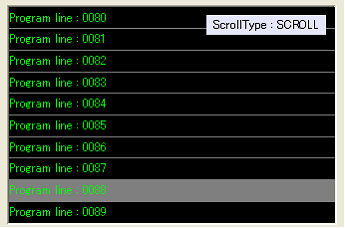
In the following sample, 1,000 rows are initially added to the list box using AddText.
|
event OnInitialize()
{
 for (var i = 0; i < 1000; i++)
 {
  this.AddText("Program line : " & ::CNumStr(i, 0, 4, F));
 }
}
|
|
3) Set them all at once using the SetTextList method.
When you press the Load button in the sample below, it loads the "samplelist.txt" file and sets it in the list control.
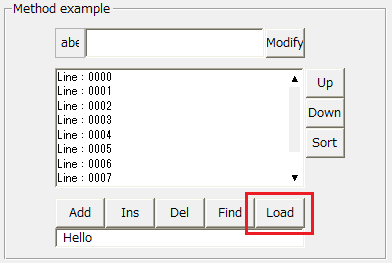
|
event OnMouseUp(button)
{
 var text;
 if (::LoadTextFile("samplelist.txt", text))
 {
  parent.EditList.SetTextList(text);
 }
}
|
|

|
Use the TextList property to define the initial settings of the text list. If you want to set/get the text list collectively in a script, use the SetTextList/GetTextList method.
|
|
Editing text lists
List box control provides methods for editing text lists.
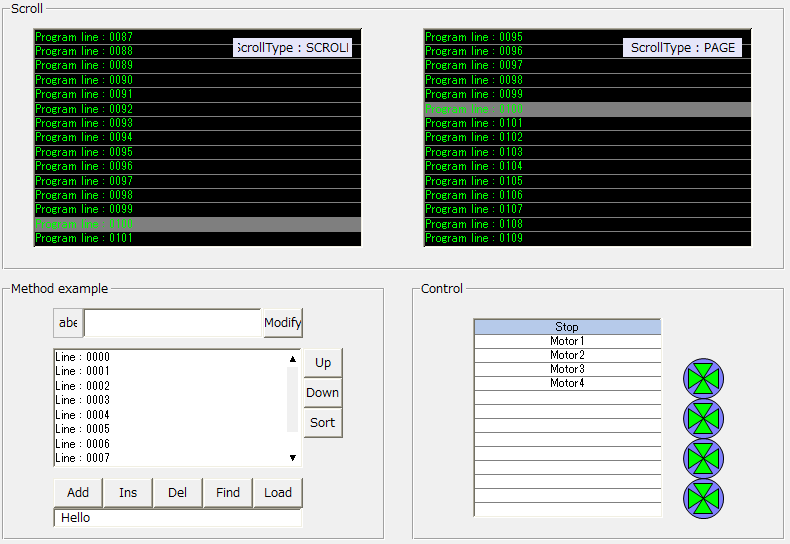
Below is an example using the above method.
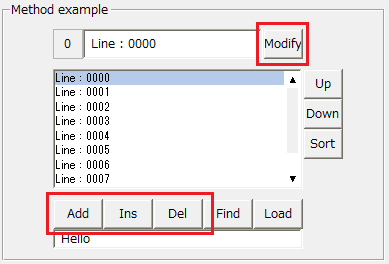
For information on how to call each method, please refer to the script written in the button in the sample image above.
|
About text list selection
List box control allows you to select one item from a multi-line text list. The display color of the selected line will be the color specified by the SelectColor property.
1) When an operator changes the row selection, the OnSelectChanged event is called.
In the following sample, the index and text of the currently selected row are displayed in an edit box using the OnSelectChanged event.
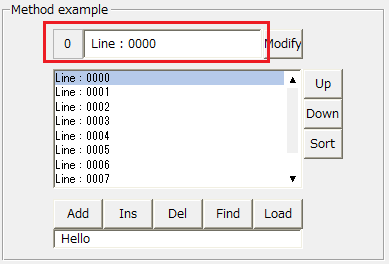
|
event OnSelectChanged(index, text)
{
 parent.ModifyEdit.Text = text;
 parent.IndexLabel.Text = index;
}
|
|
2) The index of the currently selected row (row number starting with 0) can be obtained using the SelectIndex property.
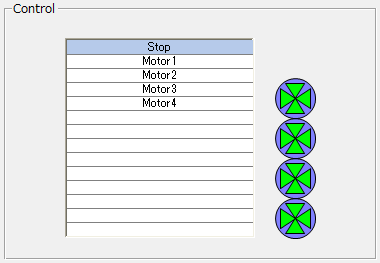
By output binding to SelectIndex (e.g. OUT : $D0), the currently selected index will be output to the tag in real time. In the following sample, the SelectIndex property is bound to the $D0 tag.
When you select the top row, $D0 becomes 0. As you move to the next row, the value of $D0 becomes 1, 2, 3, etc.
3) By input binding (e.g. IN : $D0) to the SelectIndex property, you can change the selected row in real time according to the tag value.
In the sample below, the SelectIndex property is input bound to an increment tag ($INC500) that increases by 1 every 500 ms.
4) If you want to know the contents (text) of the currently selected row, use the SelectText property instead of SelectIndex.
|
Scroll type
When the selected line moves, the display scrolls automatically.
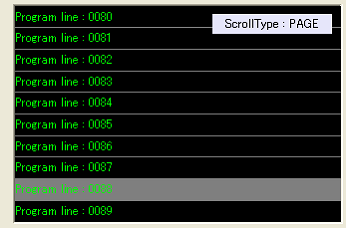
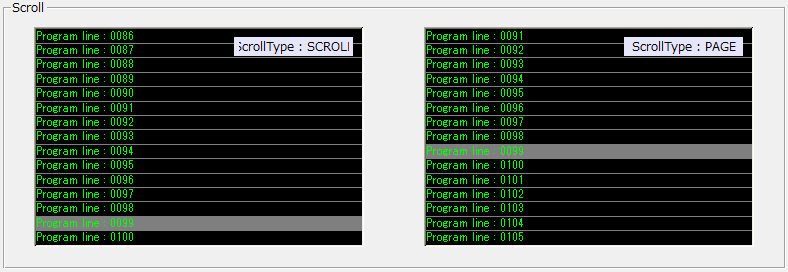
If the ScrollType property is set to "SCROLL", when the selected line is below or above the edge of the screen, the screen will automatically scroll so that the selected line does not go off the edge of the screen.
Also, if the ScrollType property is "PAGE", when the selected line is above or below the screen, a page will be paged up or down so that the selected line does not go off the screen. Below is a sample of the scroll type.
|
The ScrollHeadLines/ ScrollFootLines properties allow you to specify the number of lines you want to display above and below the currently selected line when automatic scrolling occurs. In the sample image above, both are set to 1, so one line will always be displayed below the currently selected line when automatic scrolling occurs.
|
|
About the GetData_/SetData methods
In addition to the text that is displayed, each row can contain data that is not displayed in the list.
This feature can be used when you want to store information other than text on each row. Data types are generic and can store Boolean, numeric, character, time, and arrays (including multi-dimensional).
The FindData method performs a search based on that data.
When searching, the value is first converted to a string and then searched. If it is an array, the first element is used as the search data.
|
Mouse wheel operation
List box control supports mouse wheel (up and down scrolling).
|
|