Horizontal scroll bar control/Vertical scroll bar control

<< Click to Display Table of Contents >>

Manual > Control Reference > Basics >

Horizontal scroll bar control/Vertical scroll bar control


Horizontal scroll bar control(HorizontalScrollBar)/Vertical scroll bar control(VerticalScrollBar)


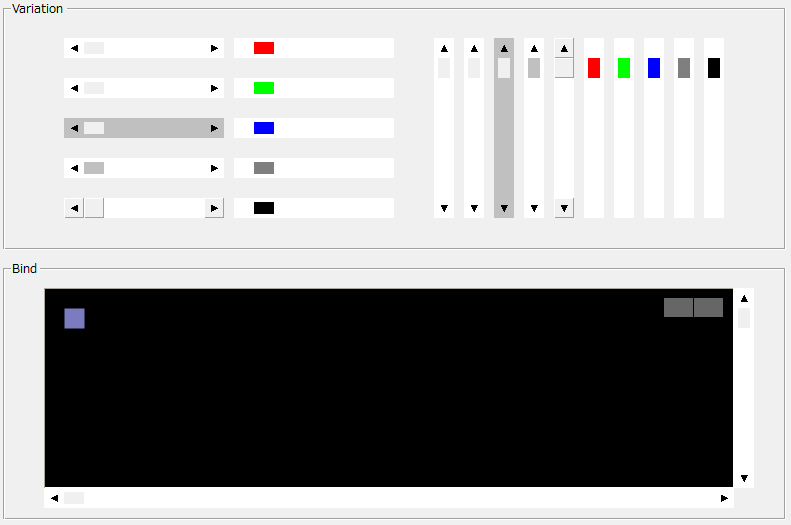
A scroll bar allows you to change the value within a range of maximum and minimum values by moving the button on the bar.


cr_0059


Scrollbar Settings


The value range is set using the Max (maximum value) /Min (minimum value) properties.

When the tracker (the movable square button on the scrollbar) is at the leftmost position, the Value property is at its minimum value.

When it is at the far right position, the Value property is at its maximum value. Pressing the left or right scroll buttons (arrow buttons) increases or decreases the Value property value.

The amount of increase or decrease is set by the SmallChange property. Pressing the bar part (part other than the scroll bar buttons) also increases or decreases the value in the same way.

The amount of increase or decrease is set by the LargeChange property.


Tag Binding


By output binding a numeric tag to the Value property, the operator can increment or decrement the analog value.

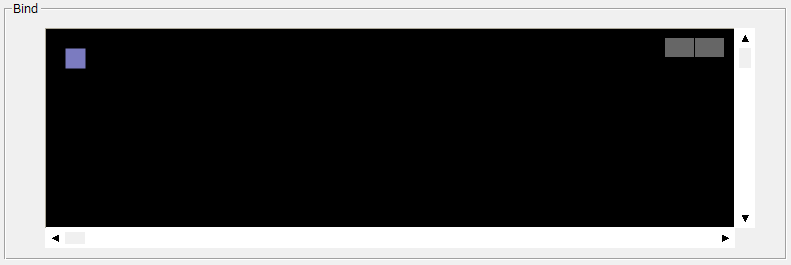
In the sample below, the blue square in the center is moved with the scrollbar.

The horizontal scrollbar is output bound to the X coordinate ($D0), and the vertical scrollbar is output bound to the Y coordinate ($D1).

Then, the X coordinate ($D0) is input bound to the Left property of the blue square, and the Y coordinate ($D1) is input bound to the Top property.


cr_0060


event


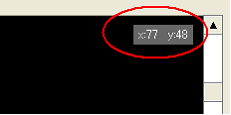
When the Value changes, the OnValueChanged event occurs. In the following sample, this event is used to display the current value.


cr_0061


// Horizontal scroll event 
event OnValueChanged(value)
{
parent.LabelX.Text = "x:" & ::CStr(value);
}

// Vertical scroll event 
event OnValueChanged(value)
{
parent.LabelY.Text = "y:" & ::CStr(value);
}