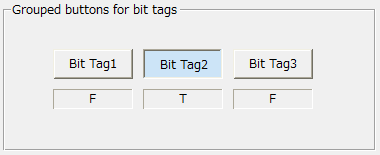
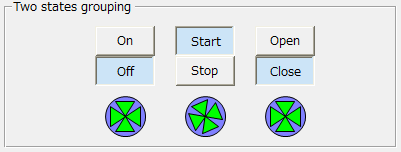
By grouping multiple buttons, you can use it in situations where you want the user to select only one option from multiple options.
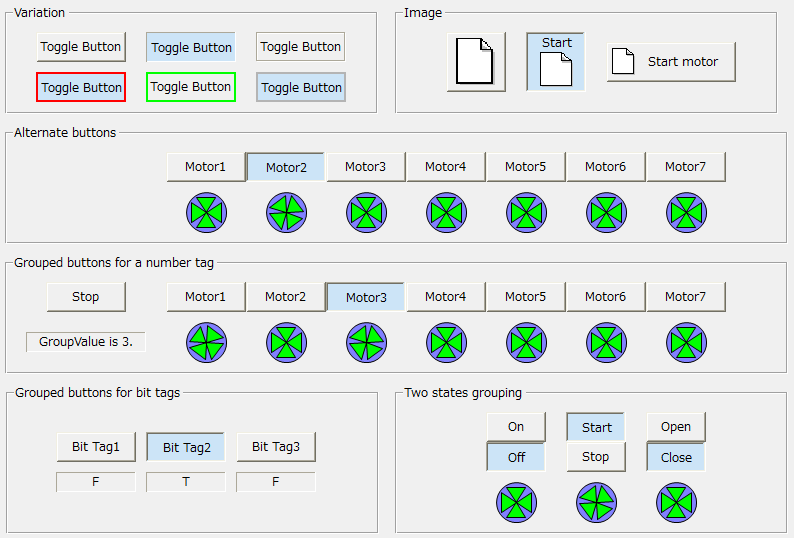
This sample is in the ToggleButton form of \\sample\control\controls.xml under "Grouped buttons for a number tag". In the sample, toggle buttons of Stop/Motor1/…/Motor7 are grouped.
1) In this state, Motor2 is selected.

2) When the operator selects Motor3, the Motor2 button is released and Moter3 becomes ON (pressed state).

The grouping steps are as follows:
1) Enter the name of each control you want to group into the Name property.
2) Choose a control from this group that will be the "parent." Choose one of the controls to be grouped as the parent.
3) In the GroupObject property of the parent control, set the names of the controls you want to group, separated by commas. At this time, you do not need to include the name of the parent control itself.
Example) GroupObject property: Motor1,Motor2,Motor3,Motor4,Motor5,Motor6,Motor7
4) Set the GroupThisValue property for each control to be grouped. GroupThisValue is the value used to identify which button in the group is pressed. Therefore, set a unique value for each control.
example)
GroupThisValue property of the Stop button: 0
GroupThisValue property of the Motor1 button: 1
…
GroupThisValue property of the Motor7 button: 7
5) Bind the tag that you want to notify when the switch is toggled to the GroupValue property of the parent control.
This binding allows you to change the tag's value (e.g. 0,1,2...) depending on the switch operation.
When a button in a group is pressed, the value of this property changes in real time according to the setting value of the GroupThisValue property assigned to that button.
In this example, when Motor2 is pressed, the parent control's GroupValue will be 2. When Motor5 is pressed, the GroupValue will be 5.
Note that the GroupValue property is read-only and is only displayed in the Bindings tab. When GroupValue changes, the OnGroupValueChanged event occurs.
|