About display modes
In the Display Mode tab, you can set whether or not to keep the display state of Panel Server.
Display mode is a function that preserves the display position and state of various views displayed on the Panel Server screen. The default setting is to save the state. If you do not want to save the state, or if you want to switch between different display forms to show the offline and online states, you must change the display mode settings.
How to set the display mode
Here's how to set the display mode:
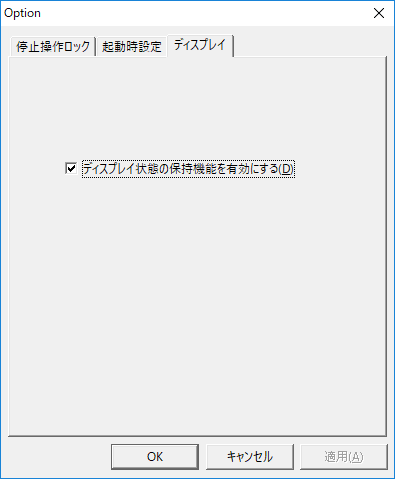
1.First, from the Panel Server menu, select "Operation" - "Options" to display the options screen and display the "Display" tab.
Check the box that says "Enable display state persistence."
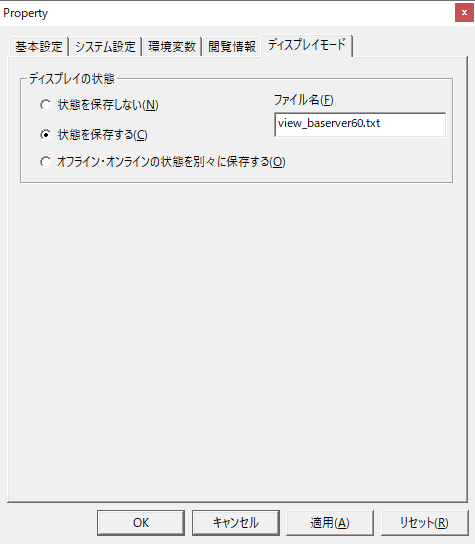
2.Next, right-click Application in the tree view to display its properties, and then view the "Display Mode" tab.
From the screen below, you can set whether to retain the state, the file name if you want to save it, etc.
|
The "Enable display state retention" setting is written to the registry. Therefore, it is necessary to set it for each environment in which it is deployed. This setting allows you to select whether or not to load the retention file for each environment. For example, you can handle cases where you want to display according to the retention file in the production environment, but not in the test environment. |

|
If the user changes the view position during operation and you want to restore the view state each time Panel Server is restarted, you can do so by setting the state save file to read-only. By making the file read-only, position information and other data will no longer be saved, and the installation file will be reloaded when the system is restarted. |