overview
FA-Panel has an animation function that allows you to dynamically move or change the shape of various objects attached to a form. By making good use of the animation function, you can not only instantly change the position of a control, but also move it gradually accelerating toward the destination coordinate position (or move it while rotating, etc), allowing you to give the graphic screen a richer expression.
Animation processing is performed by the "Animate" method. By specifying various parameters (destination coordinate information, operation mode, etc.) as arguments to this method and executing it, you can easily achieve a variety of animation effects.
Download the sample
You can download the animation samples below.
Use Cases
By using the animation function, you can add a variety of movements to the screen display.
Below are some examples:
■ Open and close controls with movement when they are shown or hidden
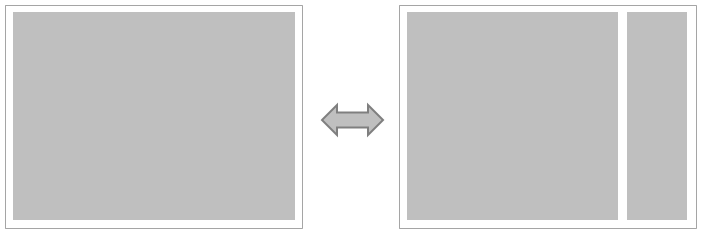
The image below is an example of how to show/hide auxiliary information (such as a list of detailed information) on the right side of the screen.
When opening and closing the list on the right, you can use animation effects to narrow the width of the list while widening the main content in the center.
■ Change the position of the controls (up and down, left and right, etc.)
The image below is an example of how the placement of controls on the screen can be moved up/down/left/right by using a switch button, etc.
You can use animation effects to change the display position and width of each control in response to button operations, etc.

■ Aligning controls
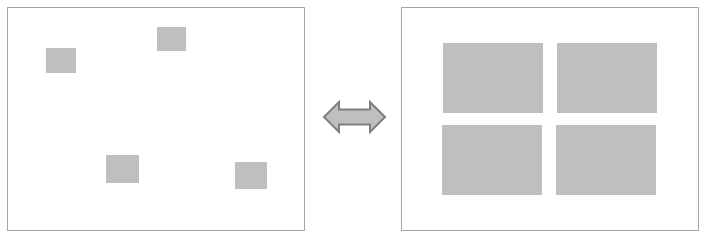
The image below is an example of how controls arranged like thumbnails on a graphic screen, such as a floor plan, can be moved together in one place by using the alignment button.
You can use animation effects to change the display position and size of each control in response to button operations.
|
The "Standard Framework" that comes standard with the Frame Library allows you to add sample monitoring screens. The sample screens in the Frame Library and various functions in the Screen Library (trend graphs, etc.) have animations applied in various places, which can serve as references for animation processing.
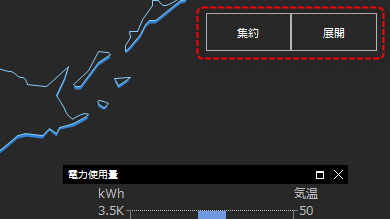
(Sample screen: Nationwide base 2 consolidation/expansion button)
|

|
If you want to reduce the load of movement processing due to animation, you can reduce the load by specifying the operation mode when specifying the movement algorithm to the Aminate method (for example, operation mode "2" prioritizes CPU load (animation will not be rendered smoothly, but CPU load will be kept as close as possible to normal load)). For details on operation modes, etc., see the "Animate" method in the Control Reference. |