What is Binding?
The monitoring screen must display dynamically according to changes in the PLC device values. In other words, it is necessary to somehow link the properties of each control pasted on the form, such as color, display position, and visibility, with the tags to which the PLC device values are mapped.
In developing applications using this package, you can assign and link tags to various properties of controls placed on a form. This linking mechanism is called "binding." By binding a tag to a property of a control, you can give the control dynamic behavior based on changes in PLC values, for example. Alternatively, you can write to a PLC device by rewriting the tag value from the screen via the control to which the tag is bound.
Binding is a very powerful feature, and in addition to simply binding the raw value of a tag to a property, you can also write calculations using arithmetic operations and functions, and judgment processes using conditional expressions. You can also bind tags to almost any property.
Binding can be broadly divided into two directions: IN (input binding) and OUT (output binding). When you set an input binding, the property value will automatically change immediately after the tag value changes. Conversely, when you set an output binding, the tag value will automatically change immediately after the property value changes.
Also, if you want to input and output tags simultaneously with one property, you can use the setting INOUT (input/output binding). INOUT is a specification method that combines both input and output binding.
■ Input Binding

■ Output Binding

■ Input/Output Binding

The binding process is performed according to the binding format defined for the desired property.
|
For example, if you set an input binding to the Text property of Label control, it will always display the latest value of PLC. |

|
Alternatively, if you set an output binding to the Value property of an edit control, the value edited in the edit control will be written to the PLC. |
|
There is no need to be aware of bindings when using parts in the parts library. Each part in the parts library can be used simply by making simple property settings. |

How to set the binding
The format after IN/OUT/INOUT in the bind format is written according to the arithmetic expression syntax. In the arithmetic expression syntax, in addition to simply specifying the tag path, you can also write expressions such as arithmetic operations and functions.
You can set the bindings from one of the following locations:
1) Binding Dialog
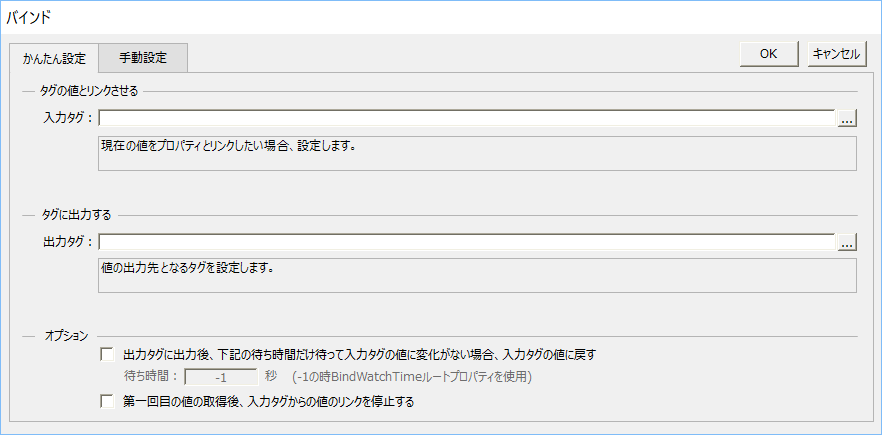
(The Bind Dialog) is provided as a screen for binding settings. The easiest way to set up a binding is to use the Easy Setup tab of the Bind Dialog. In the Easy Setup tab of the Bind Dialog, the binding format is automatically generated based on information such as condition expressions and tag paths entered on the screen, without the need to write out all of the complex binding format.
2) Bindings tab of the Properties page
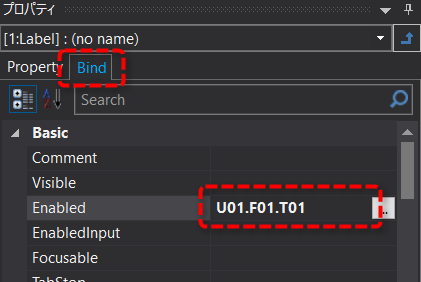
You can also enter the binding format directly from the Binding tab of the Properties page.