How to use the parts library
You can freely select parts from the library tab in Panel Editor and paste them into your form.
1.From Panel Editor, select the “Library” tab at the top of the screen.

The parts library is displayed in the main view.
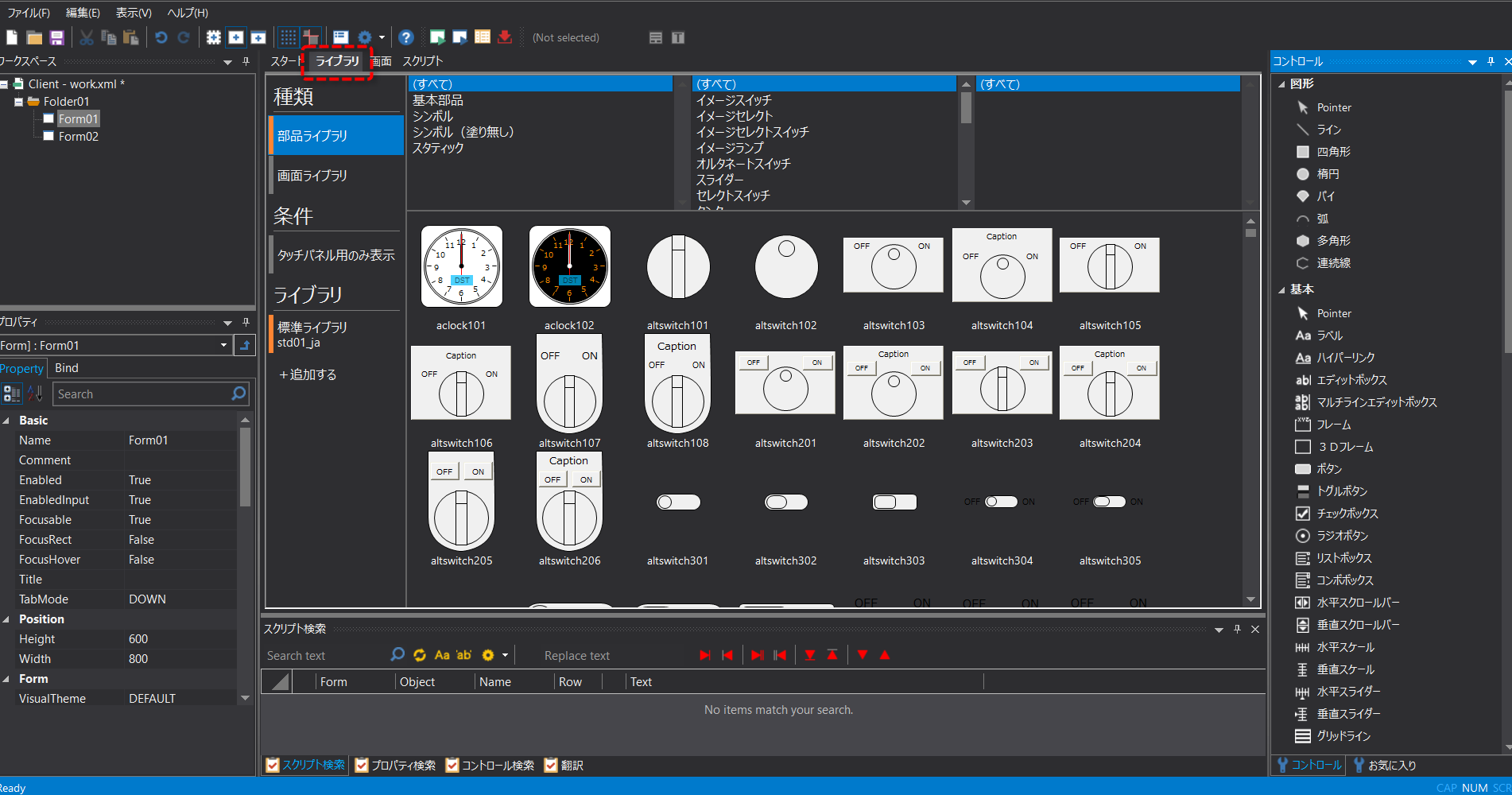
If the Parts Library is not displayed, make sure that the type is set to "Parts Library."
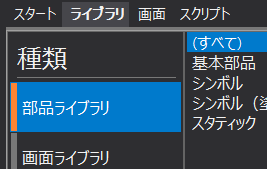
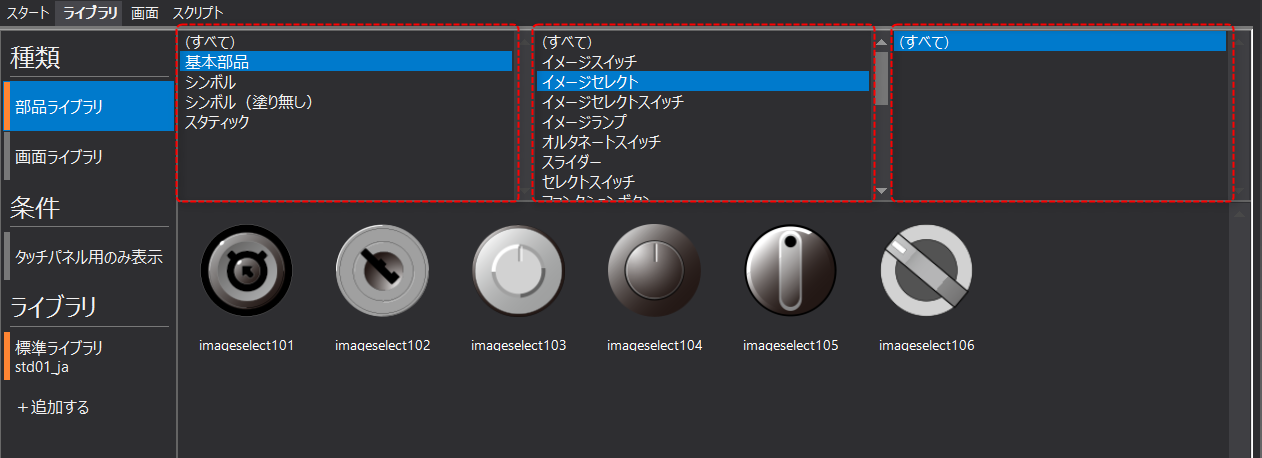
2.The search tool at the top of the screen allows you to narrow down the search to find the part you are looking for.
Below is the result after narrowing down the results by "Basic Parts" and "Image Select".
3.To paste a part onto the form, select the desired part with the mouse and, while holding down the left mouse button, drag it to the "Screen" tab (while keeping the mouse button pressed).
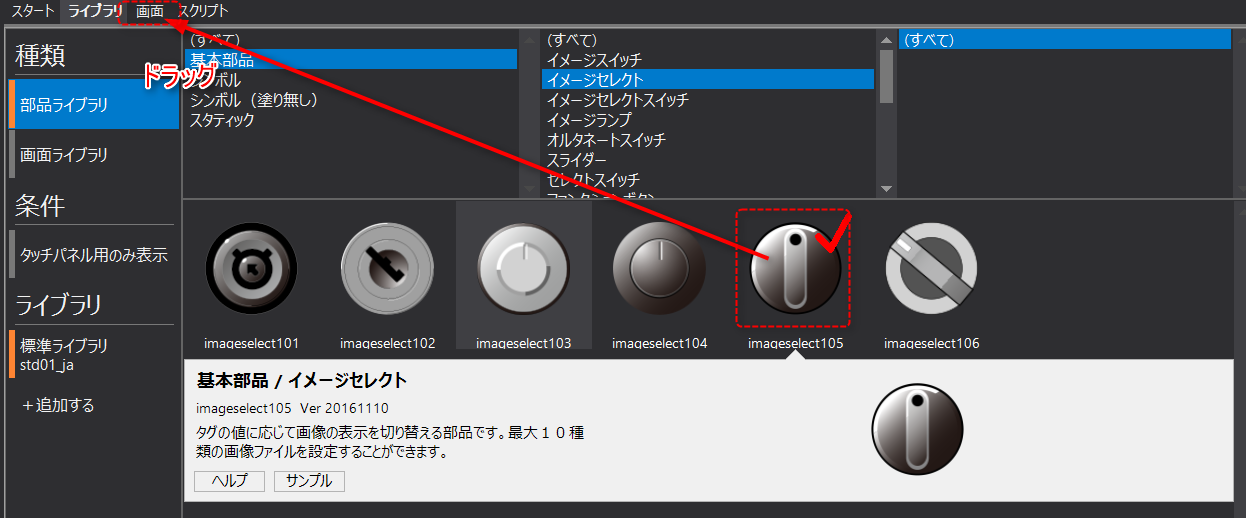
The main view will then switch to the form. Release the mouse over the desired location on the form to paste the part.
|
You can also copy it from the parts library using "Ctrl+C" and paste it onto the form using "Ctrl+V".
|
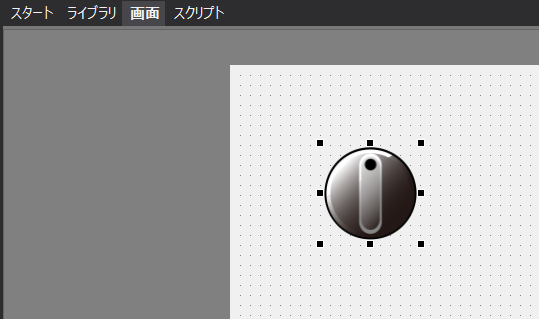
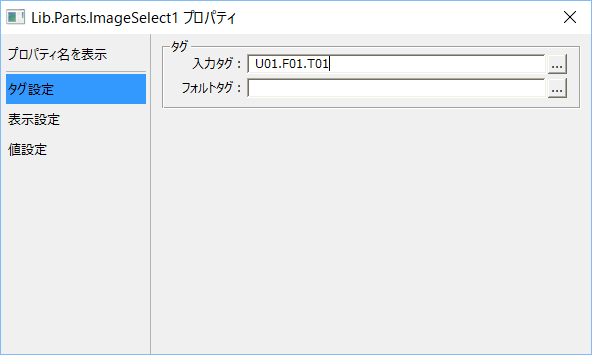
4.Double-clicking the pasted component will display the settings dialog. Set the necessary information for the component, such as input tags.
|
By setting the "FocusHover" property of the form to which the component is attached to True, a focus frame will be displayed when you move the mouse cursor over the component to be operated. |
