How to migrate to Ver6
Here's how to migrate from Ver5 to Ver6.
subject |
Contents |
Client Configuration Files (Panel Editor)
|
Client configuration files (xml) developed with Panel Editor of Ver5 cannot be opened directly from Panel Editor of Ver6. You must convert them to client configuration files for Ver6 by following the conversion procedure.. Furthermore, even if you are migrating a system that has already been developed (and is currently in operation) with Ver. 5, be sure to convert it into a client setting file for Ver. 6 and run it in Ver. 6 before running the screen in Ver. 6's Panel Browser.
For conversion procedures, please see "Converting client configuration files for Ver. 6" below.
In addition, a new "visual theme" function has been added to Ver6. By using visual themes, you can freely change the appearance of the screen, such as the display color, by switching themes during operation. If you want to make a client configuration file developed with Ver5 Panel Editor compatible with visual themes, you can do so by converting it to a visual theme after the conversion process described above. For details, see "Compatibility with Ver6 designs (compatibility with visual themes)" below.
|
Server configuration file (Panel Server) |
Server configuration files developed with Ver5 of Panel Server do not require any special migration work. They can be opened as is in Ver6 of Panel Server.
However, please note the following points:
1)In version 6 and later, the Daily/Monthly/Yearly Report action only works in the 32-bit version. If you run it online in the 64-bit version, the Daily/Monthly/Yearly Report action will not be executed.If you want to migrate to Ver6 while keeping your actions intact, please install and use the 32-bit version.
2)Some communication drivers are limited to 32-bit operation from Ver6 onwards. If you want to continue using these drivers, please install and use the 32-bit version. For details, please refer to "Functions discontinued with the upgrade to FA-Panel6" below.
3)In addition, the discontinued functions described below in "Functions discontinued by the upgrade to FA-Panel6" cannot be migrated to Ver6.
|
Other data files etc. |
Starting with Ver6, all functions are now officially compatible with Unicode.
Due to this change, the various data files (such as CSV files) that each function saves externally have been changed from the ANSI format of the previous version to the UTF-8 (with BOM) format.
Furthermore, ANSI format data files and master files for each action (for example, historical data (CSV), summary aggregation data, alarm master, summary master, etc.) generated in previous versions do not require any special conversion work and can be read as is (when overwriting and saving using the functions of this package, they are automatically converted to UTF-8 and saved).
Therefore, if you migrate a monitoring system that was running on Ver5 to Ver6, various data files will be saved in UTF-8 format, so you will not be able to revert back to Ver5. When migrating your system, we strongly recommend that you always keep backup data in case you need to revert back to Ver5.
|
Integration with external systems |
With support for Unicode,Files output from this package (such as CSV files) are all saved in UTF-8 format from Ver6 onwards. If some sort of functional linkage has been built, such as an external system importing data files output by this system, some kind of correction may be required in the part of the external system that imports the data.
Furthermore, when loading files generated by external systems with this package, the files can be loaded without any problems even if they are saved in ANSI format.
|
|
All functions are now fully Unicode-compatible in Ver6 and later. Data files that each function saves externally (such as CSV files) will be in UTF-8 format instead of the ANSI format of previous versions. There is no need to perform any special conversion work for ANSI format data files and master files for each action that were generated in the previous version, and they can be directly loaded into the new version (when loading, the file type is determined, and if it is in ANSI format, it will be loaded in ANSI format. When saving over a file, it will automatically be converted to UTF-8 and saved). |

Converting client configuration files for Ver6
At FA-Panel,In order to open a client configuration file developed with Ver. 5's Panel Editor in Ver. 6's Panel Editor, a conversion process must be performed..
Please follow the steps below to convert to Ver6.
Conversion from Ver5 to Ver6
Prerequisites:
•To convert client configuration files developed with Ver. 5, you will need FA-Panel Ver. 5 Panel Editor.
•The version of Panel Editor for Ver5 must have the patch "Rev13" or later applied. The patch file for Ver5 can be obtained from the RoboticsWare Web site.
•Client configuration files converted for Ver6 cannot be opened with Ver5's Panel Editor. In case you need to revert to the previous version, we strongly recommend that you make a backup of the client configuration files you are converting before converting them..
Workflow:
*Before performing the conversion, be sure to manually copy the target client configuration files and make a backup.
1.Start Panel Editor Ver5 and open the client configuration file to be converted.
2.From the Panel Editor menu, select File > Save for Ver6.
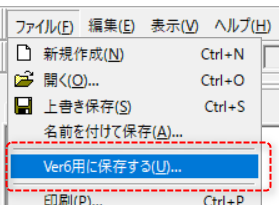
*If your version of Panel Editor is older than Rev13 of Ver5, the menu items in the image above will not be displayed. Please obtain and apply the patch.
3.The conversion process is now complete. Close Panel Editor Ver5.
4.Start Panel Editor Ver6, open the client configuration file saved in "3", and verify that each form is displayed correctly.
Conversion from Ver4 to Ver6
Prerequisites:
•To convert client setting files developed in Ver. 4, you need FA-Panel Ver. 5 Panel Editor. The Ver. 5 installer can be obtained from the RoboticsWare Web site.
•The version of Panel Editor for Ver5 must have the patch "Rev13" or later applied. The patch file for Ver5 can be obtained from the RoboticsWare Web site.
•Client configuration files converted for Ver6 cannot be opened with Ver4's Panel Editor. In case you need to revert to the previous version, we strongly recommend that you make a backup of the client configuration files before converting them..
Workflow:
*Before performing the conversion, be sure to manually copy the target client configuration files and make a backup.
1.Start Panel Editor for Ver5 and open the Ver4 client configuration file to be converted.
2.For the rest of the procedure, please follow the same procedure as "Conversion from Ver5 to Ver6".
Compatible with Ver. 6 design (compatible with visual themes)
A new feature in version 6 is the "visual theme" feature. By using visual themes, you can freely change the appearance of the screen, such as the display color, by switching themes during operation. If you want to make a client setting file developed with Panel Editor in version 5 compatible with visual themes, you can do so by converting it to a visual theme after the conversion process described above (※Support for visual themes is not required).
If you want to enable visual themes, follow the steps below.
Prerequisites:
•The conversion process described above in "Converting the client configuration file for Ver. 6" must be completed.
Workflow:
See "Convert to a visual theme".
Functions whose specifications have changed due to the upgrade to FA-Panel6
With the upgrade from FA-Panel5 to Ver6, the specifications of the following functions have been changed.
If you are using any of the following functions in the previous version, you must be careful when upgrading.
■ Changed features
Browser script and Script Ver2 Action |
Route Methods |
Starting with Ver6, strings are processed internally in UNICODE, so there is no distinction between half-width and full-width characters. As a result, the behavior of Ver. 5 and Ver. 6 will change when you use the following methods to handle strings that contain full-width characters.
Target Method StrLen / LeftStr / RightStr / MidStr / FindStr
Example 1)
In Ver5, "aiu" is full-width and abc is half-width, so the return value of StrLen is 9. From Ver6 onwards, the distinction between half-width and full-width characters will no longer exist, and the return value of StrLen will be 6.
Example 2)
Since all the characters in the above examples are half-width, Ver5 and Ver6 will behave the same and the return value of StrLen will be 6.
|
||
Similarly, from Ver6 onwards, strings will be processed in UNICODE, so the default behavior of the following methods will change.
Target Method
Ver5) Delete half-width spaces. Ver6) Delete spaces from both half-width and full-width spaces.
If you want the same behavior as Ver5, make sure to specify a half-width space as the second argument of the method.
|
Functions discontinued due to upgrade to FA-Panel6
With the upgrade from FA-Panel5 to Ver6, the following functions have been discontinued.
If you are using any of the following functions in the previous version, you must be careful when upgrading.
■ Discontinued Features
View |
Report View |
Report View is deprecated.
|
Log Data Graph View |
The Log Data view has been deprecated.
|
|
Communication features |
Communication Driver |
The following communication drivers have been discontinued:
•Yokogawa Electric FA-M3 AT compatible CPU module •Yokogawa Electric FA-M3 Ethernet (email) equivalent to LE11-0T •SMC Thermo-con RS-232C HEC105W/HEC205W equivalent •Microsoft Office(Excel/Word/Powerpoint)
However, from Rev11 onwards, the Microsoft Office(Excel) driver is available.
|
■Only 32-bit version is provided (※Discontinued from 64-bit version)
action |
Action |
The Daily/Monthly/Yearly Report action only works in the 32-bit version. You can open the configuration file in the 64-bit version of Panel Server, but this action will not work if you run it online.
|
Communication features |
Communication Driver |
The following drivers only work in 32-bit version.
•Mitsubishi Private Protocol Communication Driver
|
Communication interface version constraints
Please be sure to check the restrictions listed in "Communication interface version restrictions".