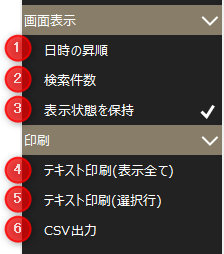
Alarm history setting menu
#
|
name
|
explanation
|
1
|
Date and time ascending
|
Switch the display order of the list between ascending and descending order of occurrence date and time.
|
2
|
Number of searches
|
Set the number of results to search.
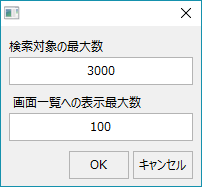
Maximum number of search targets
|
Specify the maximum number of alarm history data to search. If you specify 0, the search will search all the data that has occurred so far. Therefore, the search time will increase as the amount of data increases.
|
Maximum number of items to display on the screen list
|
Specify the maximum number of searched data to display on the screen. If you specify 0, it will be the same as the maximum number of search results.
|

|
If the maximum number of search targets is set to "3000" and the maximum number of items displayed in the screen list is set to "100", the behavior will be as follows.
•For example, if the total number of alarm history data items is 10,000, first 3,000 items of the total number will be selected for extraction (3,000 items from the start date if a date period is specified).
•Next, the search criteria will be narrowed down from the data to be extracted. For example, if the number of historical data items that match the search criteria is 200, 100 of those 200 items will be displayed on the screen. |
|
3
|
Maintain Visibility
|
The settings changed on the screen will be retained. Note that the settings are saved for each client.
|
4
|
Text printing
(Show all)
|
The alarms displayed in the alarm list can be output as a text file. Printing can be done from a text editor (such as Notepad).
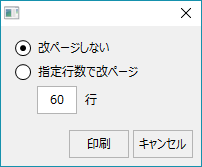
Also, when outputting, a selection screen will be displayed for selecting how to handle line breaks.
|
5
|
Text printing
(selected row)
|
The alarms selected in the alarm list are output as a text file. Printing is performed from a text editor (such as Notepad).
Also, when outputting, a selection screen will be displayed for selecting how to handle line breaks.
|
6
|
CSV Output
|
The displayed contents of the alarm list will be output to a CSV file.
|