Bar Meter 2
|
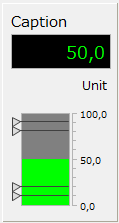
Bar Meter 2 is a component that displays the numerical value received from the tag on a bar meter. In addition to the meter display, it also has a numerical display. |
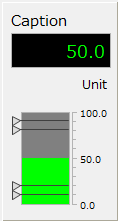
Specify the tag to be displayed in the input tag (_TagIn). You can specify any numeric format, such as the number of decimal places, whether to display delimiters, etc.
You can also set upper-upper, upper-limit, lower-limit, and lower-lower-limit thresholds on the meter to display lines and change color when the threshold is exceeded (or when the lower limit is exceeded).
In addition to the input tag, by specifying a tag for fault identification in the fault identification tag (_TagFault), it is also possible to display a fault based on signals such as equipment abnormalities received from downstream.
Custom Properties
Tag configuration |
Input Tags |
_TagIn |
Specify the tag path of the input tag. |
Fault Identification Tag |
_TagFault |
Specifies the tag path of the fault identification tag. |
|
Display settings |
Number Format |
_Format |
Specifies the number format. |
Decimal point position |
_DecimalPlace |
Specify the number of decimal points as an integer. |
|
caption |
_Caption |
Specify a caption. |
|
unit |
_Unit |
Specify the units. |
|
Minimum |
_Min |
Specifies the minimum value, which is used as the display width of the bar graph. |
|
Maximum |
_Max |
Specifies the maximum value, which is used as the display width of the bar graph. |
|
Center Display |
_MeterCenter |
Specifies whether to display in the center. If enabled, the display will be centered. |
|
Median |
_MeterCenterValue |
Specify the median value when performing center display. |
|
Scale Display |
_ShowScale |
Set whether or not to display the scale. |
|
Display color settings |
Value Text Color |
_ValueTextColor |
Specifies the color of the value text. |
Value Background Color |
_ValueFillColor |
Specifies the background color of the value. |
|
Caption Color |
_CaptionColor |
Specifies the color of the caption. |
|
Unit Color |
_UnitColor |
Specifies the color of the units. |
|
Background Panel |
_BackPanelColor |
Specifies the color of the background panel. |
|
Meter Color |
_MeterColor |
Specifies the meter display color. For parts that do not use color changes due to upper and lower limits, the color will be displayed according to the setting value of this property. |
|
Meter Background Color |
_MeterBackColor |
Specifies the meter background color. |
|
Scale Line Color |
_ScaleColor |
Specifies the scale line color. |
|
Scale text color |
_ScaleTextColor |
Specifies the scale text color. |
|
HiHi color |
_MeterHiHiColor |
HiHi Specifies the color to be displayed when a limit is exceeded. This is used for the meter color and the limit mark (triangle next to the meter). |
|
Hi color |
_MeterHiColor |
Specifies the display color when the Hi limit is exceeded (same as above). |
|
Lo color |
_MeterLoColor |
Specifies the display color when the value falls below the Lo limit (same as above). |
|
LoLo color |
_MeterLoLoColor |
LoLo Specifies the display color when the limit is exceeded (same as above). |
|
Normal meter color |
_MeterNormalColor |
Specifies the meter display color under normal conditions. For parts that use color changes based on upper and lower limits, the display color under normal conditions will be displayed according to the setting value of this property. |
|
Normal mark color |
_LimitNormalColor |
Specifies the color of the limit mark display during normal operation. |
|
Limit Line Color |
_LimitLineColor |
Specifies the color of the limit lines displayed on the meter. |
|
Limit Settings |
HiHiActivation |
_HiHiEnable |
Specifies whether to enable the HiHi limit. |
Enable Hi |
_HiEnable |
Specifies whether to enable the Hi limit. |
|
Lo enabled |
_LoEnable |
Specifies whether to enable the Lo limit. |
|
LoLoActivation |
_LoLoEnable |
Specifies whether to enable the LoLo limit. |
|
HiHiLimit |
_HiHiLimit |
Specifies the limit setting value for the HiHi limit. |
|
Hi Limit |
_HiLimit |
Specifies the limit setting value for the Hi limit. |
|
Lo Limit |
_LoLimit |
Specifies the limit setting value for the Lo limit. |
|
LoLoLimit |
_LoLoLimit |
Specifies the limit setting value for the LoLo limit. |
|
others |
Display value |
_Value |
You can directly assign a display value to this property from a script. |
Usage Example
1) Input tag specified/No fault identification tag
Displays the value of the tag specified in the input tag.
|
The number is displayed according to the number format and decimal places defined in the custom properties. |
|
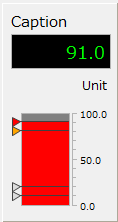
If you enable the limit display, the limit will be displayed according to the threshold value specified in the properties. The example on the left is one where the HiHi limit is exceeded.
|
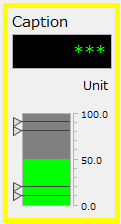
If the quality flag of the input tag is BAD, a fault is displayed.
|
The part will be framed in yellow and will flash. |
|
There are various number formats available (e.g. "@de" for Germany, "@ja" for Japan, etc.). The number format can also be customized. For example, you can freely specify the string to be displayed in a fault state (e.g. ***). For details about number formats, see Number Formats. |

2) Input tag specified/Fault identification tag
If you specify a fault identification tag, you can receive the fault status of the device via the tag. For example, if you can receive a fault status (such as a sensor abnormality) from the downstream side as a signal separate from the device's measurement value, you can specify the tag path of that signal as the fault identification tag to display the fault along with the state of the quality flag of the input tag.
|
When the fault identification tag is False, the value received in the input tag is displayed normally.
|
|
A fault is displayed when the fault identification tag is true or when the quality flag of the input tag is bad. |
3) Assigning values via script
You can display any numeric value entered from the script without specifying an input tag.
If you want to assign a value directly from a script, do so to the "_Value" property.
|
If you assign a value directly from a script, you cannot use a fault identification tag. For more information about scripts, see "Scripts". |
4) Change the number format
You can change the number format to display numbers in a variety of formats.
|
In this example, the number format is specified as "@de" (Germany). The same format is reflected in both the numeric display and the gauge display.
*In German format, the decimal point is displayed as a comma instead of a period. |
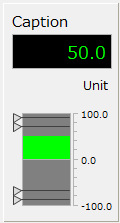
5) Meter center display
Enabling center display allows you to center the meter.
|
In the example on the left, the settings are as follows:
_Min...-100 _Max...100 _MeterCenter ・・・True _MeterCenterValue ・・・0
|