Image Switch
|
The image switch is a component for ON/OFF operation using an image file. It can be used as both a lamp and a switch. |

Specify the tag to be input as the input tag (_TagIn) and the tag to be output as the output tag (_TagOut). The image display will be dynamically updated every time the tag value changes.
By specifying a tag for fault identification in the fault identification tag (_TagFault) separate from the input tag, a fault can also be displayed based on signals such as device abnormalities received from downstream.
Custom Properties
Tag configuration |
Input Tags |
_TagIn |
Specify the tag path of the input tag. |
Output Tags |
_TagOut |
Specifies the tag path of the output tag. |
|
Fault Identification Tag |
_TagFault |
Specifies the tag path of the fault identification tag. |
|
Value/Switch Setting |
ON value |
_RaiseValue |
Set the value that is considered to be ON. True is set by default (same as "1"). You can also set a value other than True according to the meaning of ON/OFF of the target signal. The value of this property will also be used for the ON value written to the tag by switch operation. |
OFF value |
_LowerValue |
Set the value to be considered as OFF. False is set by default (equals "0"). You can also set a value other than False according to the meaning of ON/OFF of the target signal. The value of this property will also be used for the OFF value written to the tag by switch operation. |
|
Switch Type |
_SwitchType |
Select the switch type. •A_SWITCH ・・・ON while pressed, OFF when released •B_SWITCH ・・・OFF while pressed, ON when released •ON_SWITCH ... Press to turn on output (OFF no output) •OFF_SWITCH ... Press to turn OFF output (no ON output) •ALTERNATE_SWITCH ... Each time you press it, the output switches between ON/OFF |
|
Display settings |
Default Image |
_CurrentImage |
Specifies the image to be displayed at initial display. The types of image files that can be handled are the same as those of the ImageLight control. |
ON Image |
_LampOnImage |
Specifies the image to be displayed when ON. |
|
OFF Images |
_LampOffImage |
Specifies the image to be displayed when OFF is activated. |
|
Input assistance settings |
Confirmation screen display |
_IsConfirm |
If enabled, a confirmation dialog will be displayed during operation. Note that if the switch type is A_SWITCH or B_SWITCH, the confirmation screen will not be displayed even if this property is enabled. |
Confirmation message |
_ConfirmMsg |
Specify the confirmation message to be displayed on the confirmation screen. |
|
Error Message |
_ErrorMsg |
Specifies the error message to be sent when a write error occurs. |
|
Operation history output |
_Log |
If enabled, the operation history will be output when a value is written. If you want to output the operation history in a standard project that uses the standard framework, enable the operation history setting from the system administration settings screen. For details, see "Operation History Settings". If you want to output the operation history in an original project that does not use the standard framework, define Alarm server to record the operation history and set the root DefaultFireAlarm property appropriately. |
|
Operation Message |
_LogMsg |
Specify the message to be output to the operation history. |
Switch Type and Output Value
The output values for the output tags for each switch type are as follows:
Switch Type |
specification |
A_SWITCH |
•When the switch is pressed, write _RalseValue to _TagOut. •When the switch is released, write _LowerValue to _TagOut. |
B_SWITCH |
•When the switch is pressed, write _LowerValue to _TagOut. •When the switch is released, write _RaiseValue to _TagOut. |
ON_SWITCH |
•When the switch is pressed, _RalseValue is written to _TagOut.
|
OFF_SWITCH |
•When the switch is pressed, _LowerValue is written to _TagOut.
|
ALTERNATE_SWITCH |
•When the switch is pressed, the inverted value of the input tag is written. When the input tag is ON, _LowerValue is written to _TagOut, and when the input tag is OFF, _RaiseValue is written to _TagOut. |
Usage Example
1) Lamp switch
The state of ON/OFF is identified by a single tag. When the value of the input tag (_TagIn) is the ON value (_RaiseValue), it is ON, and when the value of the input tag (_TagIn) is the OFF value (_LowerValue), it is OFF, and the corresponding image is displayed.
_TagIn: Specify the tag path of the input tag
_TagOut: Specify the tag path of the output tag.
_TagFault...optional
_SwitchType: Select the switch type according to your purpose.
Below is an example of operation for switch type "ALTERNATE_SWITCH".
|
When you click on the lamp switch part, the inverted ON value/OFF value of the input tag is written to the output tag. The currently set value on the left is OFF, so the ON value will be written. |

|
As a result of the ON value being written to the output tag, the input tag became the ON value and the lamp display became the ON image. |
|
Clicking again writes the OFF value to the output tag and changes the lamp display to the OFF image. |
|
When the quality flag of the input tag is BAD or the fault identification tag is True, a fault is displayed. When a fault is displayed, a yellow frame will be displayed and flashing, and switch operation will be disabled. |

|
If the same tag is used for both input and output, specify the same tag path for the input tag and output tag. |

|
By setting the "FocusHover" property of the form to which the component is attached to True, a focus frame will be displayed when you move the mouse cursor over the component to be operated. |
2) Confirmation screen display
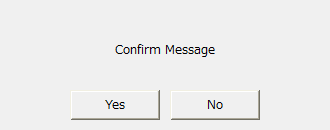
If you enable the confirmation screen display (_IsConfirm), a confirmation dialog (Yes/No) will be displayed when you perform a write operation.
|
If Yes is selected in the dialog, the value will be written to the tag.
|