Operation history settings
In user management, by linking with the standard event history function, you can record information such as the user name of the currently logged in user in the event history (alarm history).
This section describes how to set up the operation history.
|
The easiest way to link with the operation history of user management is to link with the event history function provided as a screen library. On the other hand, you can also link with your own built Alarm server action. For details on how to build alarms, see "Alarms" in Building Main Functions. |

■ Operation history settings
To set up operation history, select the "User Management" tab on the System Settings screen and select "Operation History" from the menu.
|
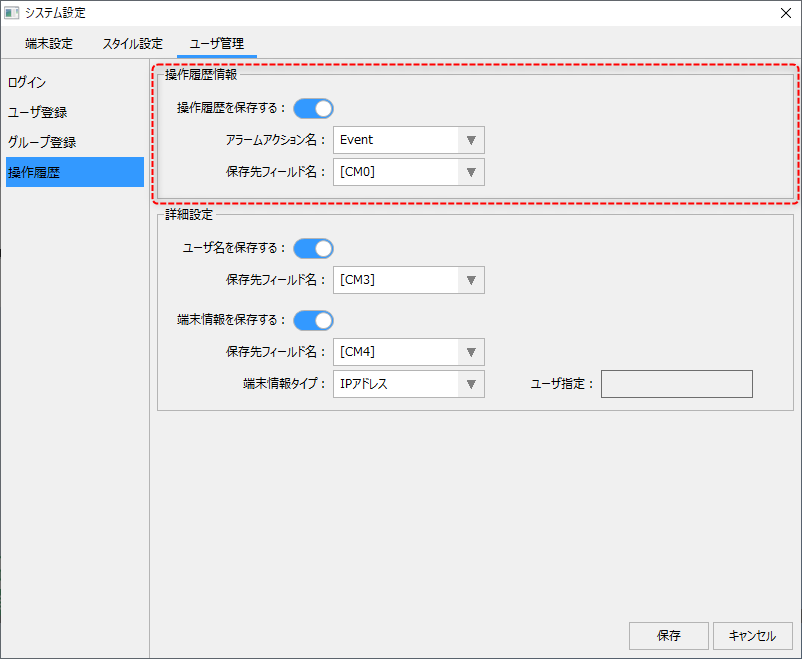
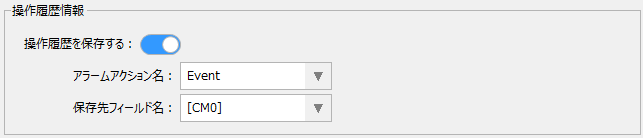
First, in the Operation History Information section, set whether or not you want to save the operation history.
To enable this function, enable "Save operation history", select the action name of Alarm server to be linked from the combo box, and select the alarm field name to save the operation history messages from the combo box.
|
|
Next, in the advanced settings, set whether or not to include the user name and device information in the operation history.
To save the user name, enable "Save User Name" and select the alarm field name in which to save the information from the combo box. Similarly, you can also save device information, which can include the IP address of the device on which the user performed the operation, the PC name, or a character string that you define yourself on the screen.
|
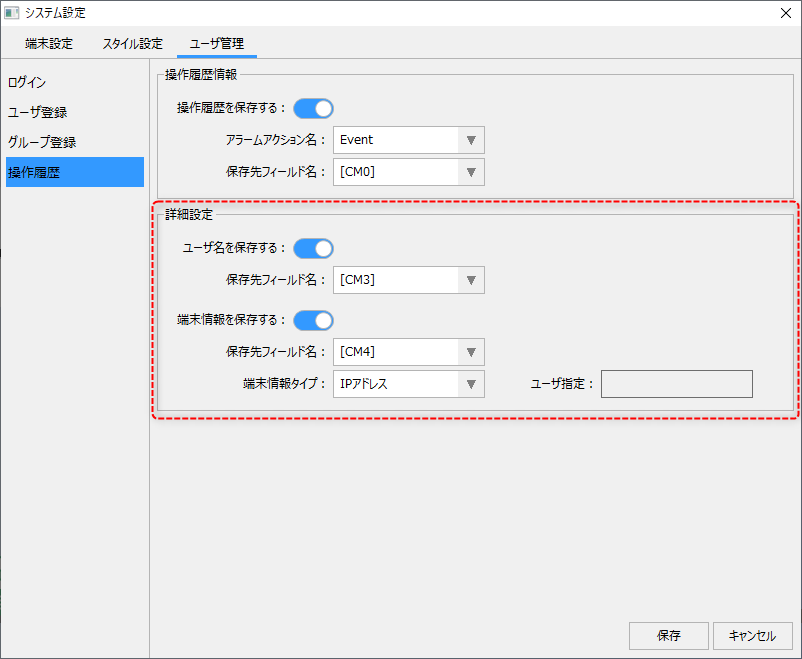
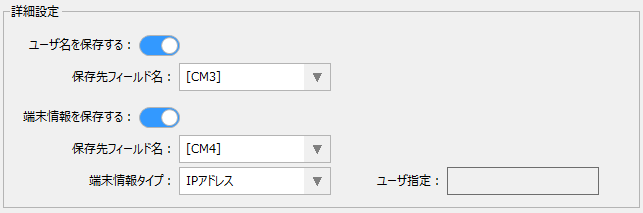
Furthermore, if you select "User Specified" from the Terminal Information Type combo box, the User Specified edit box will become active and the specified string will be included in the operation history as terminal information.
