Standard Controls and Parts Libraries
In the ultimate sense, the process of creating a graphic screen in FA-Panel is the task of attaching "parts" to a form, assigning tags to those parts, and defining their behavior. The parts provided for creating graphic screens can be broadly divided into two types: "standard controls" and "part libraries."
■ Standard Controls
Standard controls are the smallest unit of components and are made up of basic components such as shape components such as lines and rectangles, buttons, edit boxes (boxes for entering numbers or characters), and grids (components for displaying tables).
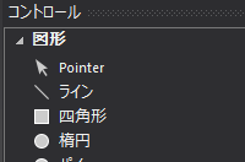
If you want to draw the shape of a structure such as equipment or devices on the screen as a graphic, or if you want to display a static string of characters fixedly at the top of the screen, you can express it by combining standard controls such as lines, rectangles, labels, etc. Also, if you want to create a user interface with buttons to accept operations (implementing scripts), grids, combo boxes, list boxes, etc., the simplest method is to use standard controls.
■ Parts library
The parts library is a group of parts that can be used simply by pasting them on the screen and making simple settings. It consists of highly functional parts such as numeric display, numeric input, lamp display, and meter display.
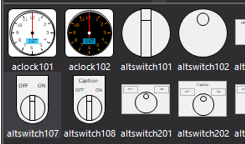
If you want to display lamps, numbers, meters, etc. on the screen based on tag values, or if you want to write numerical parameters or perform ON/OFF operations from the screen, the easiest way is to use parts from the parts library. Furthermore, each part that makes up the parts library (rectangles, lines, labels, etc.) uses a standard control, and the parts library is created by combining standard controls.
Comparison of standard controls and part libraries
Below is a comparison of standard controls and part libraries.
needs |
Standard Controls |
Parts Library |
You want to create a static picture on the screen (such as a picture of a facility structure or a partition on a floor plan).
|
[○] Pictures can be created by combining lines, rectangles, continuous lines, etc.
|
[×] Not applicable.
|
When you want to display a static string of characters on the screen (such as the name of equipment or signal).
|
[○] By using Label control, you can display a fixed string of characters.
|
[×] Not applicable.
|
If you want to display equipment photos or image data of drawings in the background of the screen, etc.
|
[○] By using Image control, you can display any image data on the screen.
|
[×] Not applicable.
|
When you want to display a lamp using image data (for example, when you want to change the lamp image displayed depending on the tag).
|
[△] By using Image light control, image select control, etc., it is possible to display a lamp based on an image. It takes more time than using a parts library. |
[○] Lamp parts for images are provided, and they can be easily used by simply specifying a tag. |
If you want to display a lamp or numbers on the screen based on the tag value.
|
[△] This can be achieved by pasting and binding controls, but it takes more effort than using a parts library.
|
[○] Components such as numerical displays, lamp switches, and image lamps are available, and they can be easily used by simply specifying tags.
|
If you want to write numerical parameters or ON/OFF operations from the screen.
|
[△] This can be done by pasting a control and binding it, but if you need operation confirmation (Yes/No) or a confirmation button, you will need to create a script.
|
[○] The mechanism described above is already built into the parts.
|
If you want to create a Windows-like GUI, such as a combo box or list box.
|
[○] This can be achieved by using controls such as combo boxes, list boxes, and grids (※However, scripts are required).
|
[×] Not applicable.
|
If you want to display graphic symbols (valves, pumps, etc.) on the screen.
|
[△] It is possible to create symbols from scratch by combining rectangles, lines, etc. This takes more time than using a parts library.
|
[○] This can be achieved simply by selecting the desired symbol from the graphic symbol parts, pasting it onto the screen, and setting a tag.
|