Polygon control

<< Click to Display Table of Contents >>

Manual > Control Reference > Shapes >

Polygon control


Polygon control (Polygon)


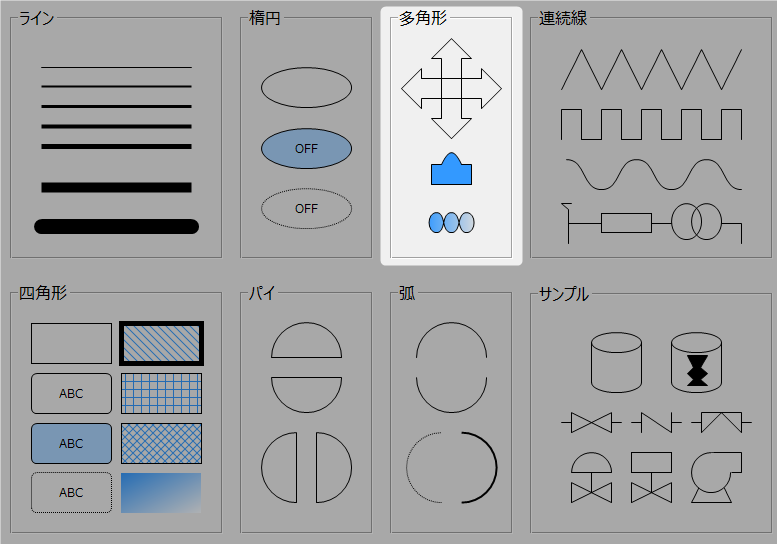
Polygon control is a control for drawing polygonal shapes.


cr_0173


hmtoggle_plus0How to draw a polygon(Polygon)


After selecting the Polygon(Polygon) control on the control bar, use the mouse to add points one after another on the form. Double-click at the final point to complete the drawing. If you forget to double-click at the point you wanted to make the final point, double-click at the position of the last point added to complete the drawing. Polygon(Polygon) shapes are automatically closed (the starting point and final point are automatically connected), so there is no need to overlap the final point with the starting point.


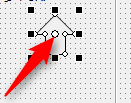
You can modify the shape of a polygon (Polygon) control even after it has been created. When you move the mouse to each of the points below, the mouse will display a + sign. Drag and drop each point to modify the shape.


cr_0026


You can also add, delete, or insert points after creating a polygon (Polygon) control using the Points property, which has the following format:


X coordinate of point 1, Y coordinate of point 1, X coordinate of point 2, Y coordinate of point 2, ... X coordinate of final point, Y coordinate of final point,


Example: If there are four points

465,240,447,256,430,256,430,290


If you want to add, delete, or insert points, edit the Points property directly.


hint

Polygon (Polygon)In addition to straight lines, the control can also draw Bezier curves. For instructions on how to draw Bezier curves, see "Editing Bezier curves".


hmtoggle_plus0Rotate

Polygon control can be rotated by binding. The rotation angle is set with Angle. Set the center of rotation with the RotateX/RotateY properties, or move the center handle below with the mouse.


cr_0179


hint

Rotation using the Angle property occurs at runtime, not while editing in Panel Editor.


hmtoggle_plus0Use as a switch

2D shape controls have a SwitchValue property that switches between ON/OFF when pressed with the mouse.


1) When the value changes, the OnSwitchChanged event occurs.

2) You can bind a tag to SwitchValue to set the tag's value to ON (TRUE) or /OFF (FALSE).

3) The SwitchType property determines how the SwitchValue changes when the mouse is pressed. The SwitchType property can be selected from the following five types.


SwitchType setting

Switch Type

explanation

A_SWITCH

A-contact switch

While pressed, SwitchValue will be turned ON.

B_SWITCH

B-contact switch

While pressed, turns SwitchValue OFF.

ON_SWITCH

ON switch

When pressed, it turns SwitchValue ON.

OFF_SWITCH

OFF Switch

When pressed, it turns SwitchValue OFF.

ALTERNATE_SWITCH

Alternate Switch

When pressed, it inverts SwitchValue (when OFF it turns it ON, and when ON it turns it OFF).