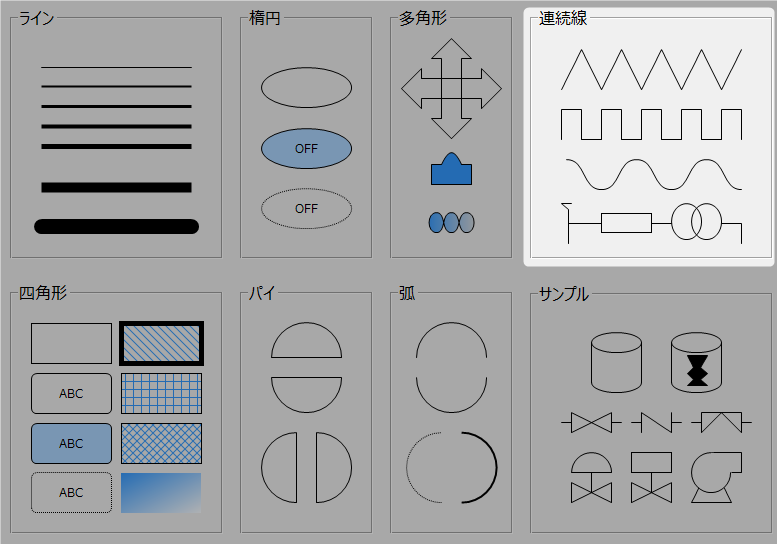
After selecting the Polyline control on the control bar, use the mouse to add points one after another on the form. Double-click at the last point to complete the drawing. If you forget to double-click at the point you wanted to make the last point, double-click at the position of the last point added to complete the drawing.
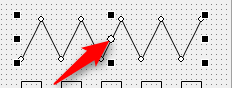
You can modify the shape of the Polyline (Polyline) control even after it has been created. When you move the mouse to each of the points below, the mouse will display a + sign. Drag and drop each point to modify the shape.

You can also add, delete, or insert points after creating a Polyline control using the Points property. The Points property has the following format:
X coordinate of point 1, Y coordinate of point 1, X coordinate of point 2, Y coordinate of point 2, ... X coordinate of final point, Y coordinate of final point,
Example: If there are four points
465,240,447,256,430,256,430,290
If you want to add, delete, or insert points, edit the Points property directly.
|