Blinking cycle
When specifying the blinking frequency as an argument for various methods for displaying values, you can either directly specify a number in milliseconds (e.g., 1000) or specify a format such as "@FAST".
Here, formats such as "@FAST" are called "blink cycle formats".
In the following dialog box that is displayed in the Bind dialog box, you can specify the blink cycle by manually entering the blink cycle, or you can select a preset blink cycle and apply it.
(Blink settings dialog)
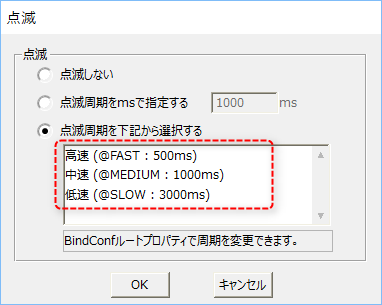
The following blinking cycles are available as default.
@FAST ... Fast blinking (default 500 millisecond cycle)
@MEDIUM ... Medium speed blinking (default 1000 millisecond cycle)
@SLOW ... Slow blinking (default 3000 millisecond cycle)
The blink cycle settings that are listed in the Blink Settings dialog can be defined in the BlinkConf root property.
By setting this property, you can customize the blink cycle setting of the system by overwriting existing format names such as "@FAST".
Blink cycle format specifications
■ Format specifications
[@blinking period format name]
Interval=number
First, define the blink cycle format name by enclosing it in [ ]. The format name written within [ ] must start with "@".
Then, write Interval=number on the line following the line that defines the blink cycle format. The number specified here will be interpreted as milliseconds.
If you want to add multiple formats, you can create a new section in [ ] and define them one after the other.
[@blinking cycle format name 1] Interval=200
[@blink cycle format name 2] Interval=300 ...
|
Customization example (BlinkConf Root property)
For reference, here is an example of customizing the BlinkConf route property.
■Customizing @FAST
As an example, we will change the cycle of "@FAST" provided by the system.
Open the BlinkConf route properties setting screen and enter the following:
[@FAST] Interval=700 |
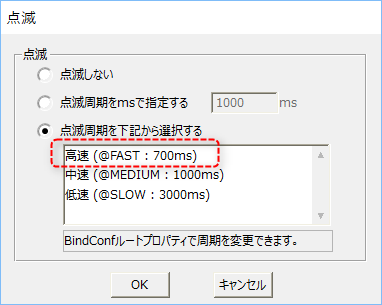
If you display the blinking dialog after setting the BlinkConf route property, you can see that the @FAST period has been changed to 700ms (the default is 500ms).
|
When an error occurs in each part in the part library, a blinking yellow frame is displayed. This is due to the following bind expression set in the "InnerFrameColor" property of the part's group object.
B.Blink($_Fault$,"@FAST,@FaultColor")
In this binding expression, @FAST is passed as the blinking process period. Therefore, by customizing the cycle of "@FAST", you can change the blinking cycle of all parts in abnormal situations all at once.
|

|
The system's standard blinking cycles, "@FAST", "@MEDIUM", and "@SLOW", are defined internally as follows (note: the numbers represent milliseconds):
[@FAST] Interval=500
[@MEDIUM] Interval=1000
[@SLOW] Interval=3000
|
■ Add your own cycle
As an example, we will add a new periodic format.
Open the BlinkConf route properties setting screen and enter the following:
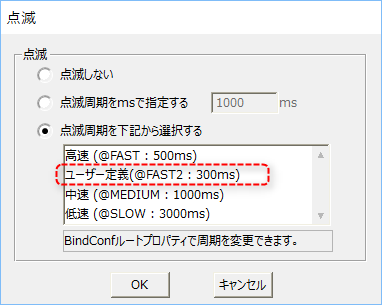
[@FAST2] Interval=300 |
If you display the blinking dialog after setting the BlinkConf root property, you will see that @FAST2 has been newly added as a user definition.