Edit box control (Basic)
Edit box control allows you to input characters and numbers from the screen. For example, you can use it when you want to write numbers entered from the screen to PLC.
This section only introduces the editing operations for the controls.
1.Select Basic Edit box control from the Control View.
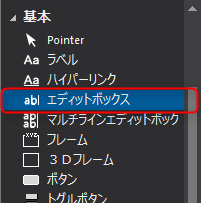
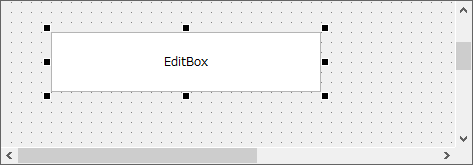
Paste it onto the form just like any other control.
An edit box is displayed.
2.Edit box input constraints
The
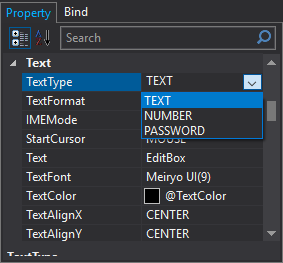
Edit box has an important property called "TextType". By setting TextType, you can restrict the characters that can be entered. There are three types that can be set with this property: TEXT, NUMBER, and PASSWORD. TEXT allows any string to be entered, NUMBER allows only numbers to be entered, and PASSWORD displays the entered characters as asterisks "*".
Three types of
TextType can be specified: TEXT, NUMBER, and PASSWORD.
When you run it at runtime, you will see the following:
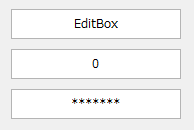
The three edit boxes above are set, from top to bottom, as TEXT, NUMBER, and PASSWORD. Only numbers can be entered into NUMBER. Any characters can be entered into TEXT. The characters entered into PASSWORD are displayed as "*". When using edit boxes to enter data from the screen, you can prevent input errors by using different settings according to the type of data you are entering.
|
You can resize the edit box in the same way as other controls. You can also set various styles for the edit box, just like with other controls. Styles such as alignment, font, and color settings can be changed in the Properties view. |
