Frames (Basic)
The Frame control, 3D frame control, is a control that can be used for various purposes. Frames are suitable for bundling and expressing multiple parts with similar purposes. 3D frames can be used to create a taut screen layout effect by skillfully arranging three-dimensional panels on the screen.
|
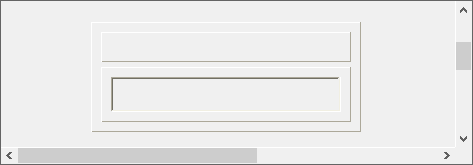
The appearance of the frame changes depending on the visual theme you select. If you select a 3D type theme, the frame will be displayed in a concave-convex appearance.
|

1.Select Basic Frame control from the Control View.
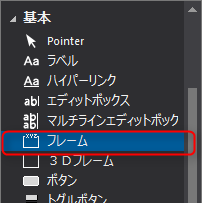
Paste it onto the form just like any other control.
Frames were displayed.
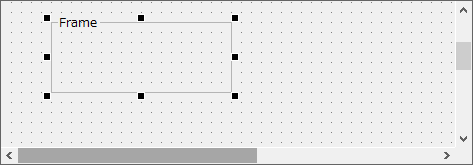
To change the text of a
frame, edit the “Text” property.
Here, it is “Group1”.
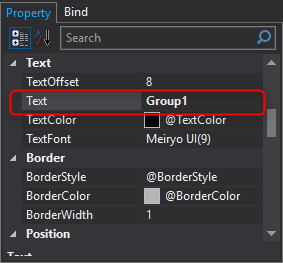
The text of the frame is now “Group1”.
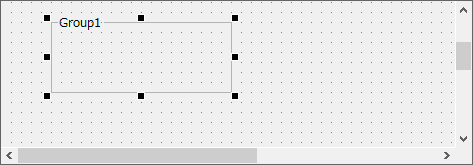
You can visually represent a group by placing parts with the same purpose or meaning inside a frame.
2.Let's try using 3D frame control. Select the basic 3D frame control from the control view.
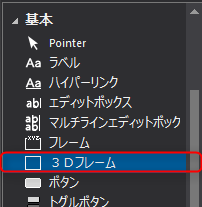
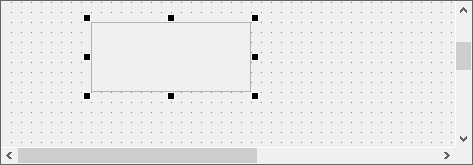
Paste it onto the form just like any other control.
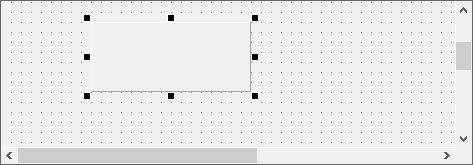
3D frame is displayed.
You can specify the 3D appearance of the 3D frame, such as raised or recessed. The setting is specified in the “BorderStyle” property.
Default is @BorderStyle4.
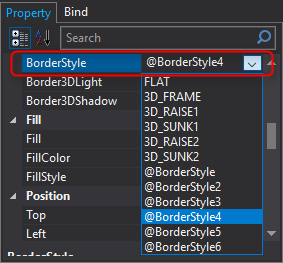
Let's change this to "3D_RAISE1".
The 3D frame now appears to pop out.
|
By using these representations and combining and arranging multiple 3D frames, you can create neat screen layouts and component layouts.
3D frame combination examples The appearance of the frame will change depending on the visual theme you select. If you select a 3D type theme, the frame will be displayed with a concave/convex appearance as shown above.
|