Pie control (shape)
Pie control allows you to draw a sector shape.
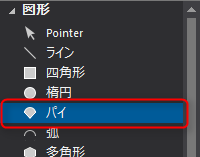
1.From the control view, select the shape Pie control.
In the same way as when placing Ellipse control, place the mouse over the position you want to use as the start point of the "ellipse" you want to cut out the sector, and drag diagonally to the position you want to use as the end point.
As an example, try drawing from the top left to the bottom right.
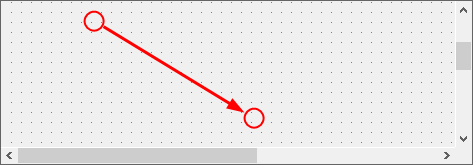
The base of the sector has been drawn.
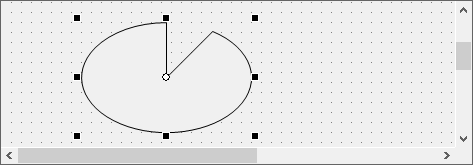
2.Edit the pasted object to the desired shape. Editing is done from the Properties view.
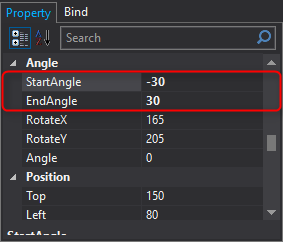
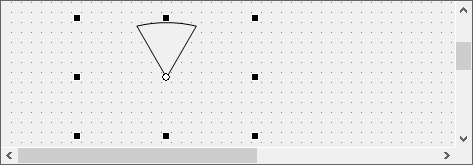
The idea is to imagine the sector as part of a completed ellipse, with one revolution being 360 degrees and the apex of the ellipse being 0 degrees. Then, enter the angle of the start position of the sector in the "StartAngle" property, and the angle of the end position in the "EndAngle" property. You can also enter negative values here. As an example, try entering -30, 30.
The result is a sector shape like this:
|
For instructions on how to change the fill and border color, resize the control, etc., please refer to Rectangle control. |
