Defining Frame Divisions
Defining a frame using the root property DefaultFrame is similar to defining a frame in html when creating a Web page.
Below is an example of dividing a frame into two columns. First, define how many frames to divide at the FRAMESET level, then define each frame at the FRAME level.
<FRAMESET Cols="50%,*" Main="Frame1"> <FRAME Name="Frame1" BaseFormName="Form01" FormName="FrameForm1"></FRAME> <FRAME Name="Frame2" BaseFormName="Form02" FormName="FrameForm2"></FRAME> </FRAMESET> |
|
The main screen is divided into two frames and displayed. |
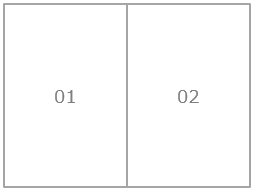
The Cols of FRAMESET is set to "50%,*", which means that the left column will be displayed in two columns with 50% width, and the right column will be displayed with the remaining width (i.e. 50%). For example, if you set Cols="30%,30%,20%,*", four columns will be displayed.
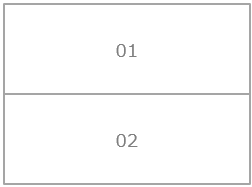
Cols sets the frame split on columns, similarly Rows can be used to set the frame split on rows, for example Rows="50%,*" will split the frame on 2 rows.
|
The main screen is divided into two frames and displayed. |
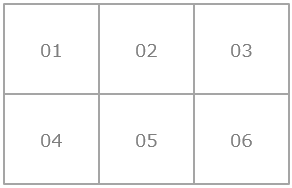
You can specify Cols and Rows at the same time. For example, if you specify Cols="30%,30%,*" Rows="50%,*", the result will be divided into 3 columns and 2 rows.
|
The main screen is divided into a frame of 3 columns and 2 rows. |
You can also include a FRAMESET inside a FRAMESET (nesting). You can set FRAMESET to any level.
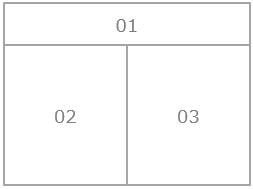
Example: In a frame with two rows, define a frameset with two more columns for the bottom row of frames.
<FRAMESET Rows="100,*" Main="Frame3"> <FRAME Name="Frame1" BaseFormName="Form01" FormName="FrameForm1"></FRAME> <FRAMESET Cols="200,*"> <FRAME Name="Frame2" BaseFormName="Form02" FormName="FrameForm2"></FRAME> <FRAME Name="Frame3" BaseFormName="Form03" FormName="FrameForm3"></FRAME> </FRAMESET> </FRAMESET> |
|
The main screen is divided into two rows, top and bottom, and the bottom row is further divided into two columns for display. |
|
When using split frame display, the indentation of the outer frame that Panel Browser originally has may overlap with the indentation of the frame frame, which may look unnatural. If you set the root property ShowBrowserBorder to FALSE, the outer frame of Panel Browser will not be displayed, allowing for a clean display. |
