What is a Frame?
|
There are two ways to split the display area of the screen: using frames and using View control.We recommend using View controlThe reason is that when you use frames, you cannot dynamically change the layout of the frame using scripts. For more information about View control, see "View control (embedding forms)".
|

One of the screen display methods of FA-Panel is to divide the screen into several "frames", display multiple forms you have created in each frame, and display the whole screen as one. To divide the screen into frames, define the frame in the root property DefaultFrame. The form displayed in each frame can also be switched during runtime.
|
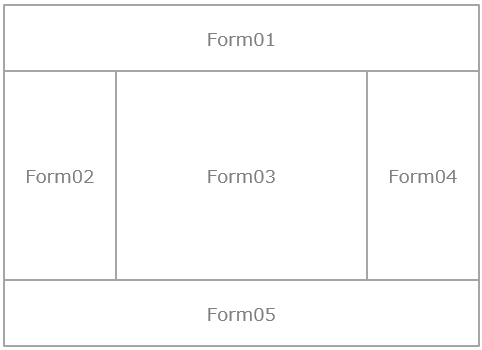
Download the sample
Sample frames are available below.
What is Main?
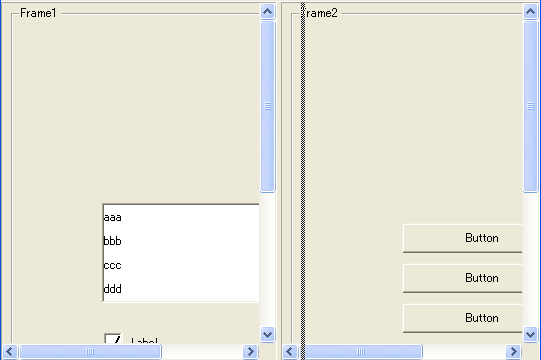
The frame specified in the "Main" parameter of FRAMESET is treated as the main screen, and will be the primary frame in which a form will be displayed when the OpenForm method is called. In the example below, "Frame1" will be the main screen, and when you enter "::OpenForm("Form03")", Form03 will be displayed in Frame1 (the frame on the left). If you want to switch forms in frames other than the main screen during runtime, use the OpenViewForm method.
<FRAMESET Cols="50%,*" Main="Frame1"> <FRAME Name="Frame1" BaseFormName="Form01" FormName="FrameForm1"></FRAME> <FRAME Name="Frame2" BaseFormName="Form02" FormName="FrameForm2"></FRAME> </FRAMESET> |
About form names in frames
The Name / BaseFormName / FormName parameters of FRAME are similar to the first three arguments of the OpenDialog method used to display a dialog.
Name is the view name given to the frame. The view name is the name specified when you want to switch the form displayed in each frame using the OpenViewForm/SetZoom methods, etc. Additionally, BaseFormName is the name of the original form to be displayed in the frame. The original form name is the form itself created in Panel Editor. Additionally, FormName specifies the name of the form object when the form is actually displayed in the frame.
Example) Open Form03 as FrameForm03 in a frame with the view name "Frame1".
::OpenViewForm ("Frame1", "Form03", "FrameForm03"); |
When referencing the form from a script, use the name specified in FormName.
Example) Reference from a script when "FrameForm1" is specified for FormName
::FrameForm1.FillColor = "#FF0000"; |
This form name (FormName) cannot be duplicated among all currently open forms, including dialogs and View control.
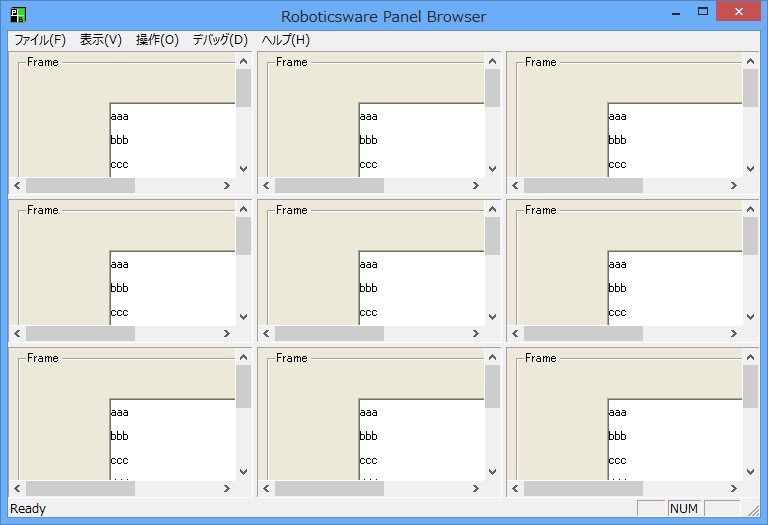
In addition, if you specify a different form name (FormName) for the same original form, you can open the screen of the same original form (BaseFormName) in multiple frames simultaneously, as shown below.
Example) Displaying the same original form in nine frames simultaneously
FRAMESET Parameter
The parameters of FRAMESET are:
Parameters |
Commentary |
Cols Rows (Required) |
Define columns (Cols) and rows (Rows). Specify the size of each column or row, separated by a comma. Sizes can be specified in the following three ways:
1) Numbers If you specify a number, it will be a fixed width in pixels - it will not change size even if you make the Panel Browser bigger or smaller.
2) Number % If you specify a percentage, the size will be determined based on the current size of Panel Browser. For example, if you specify 50%, the frame size will increase by 50% as you increase the size of Panel Browser.
3) * If you specify an asterisk, the size will be auto-adjusted.
Example: Cols = "50, *, 50" Three columns are defined, the left and right columns are fixed at 50 pixels, and the center column is sized to the width of Panel Browser minus the sum of the left and right column sizes (100 pixels).
Example) Cols = "33%, 33%, *" Rows = "25%,25%,25%,*" Define 12 frames (3 columns x 4 rows).
|
Main (Required) |
Within a frameset, multiple frames are defined, and the frame that will be the main screen is specified. Forms opened with the OpenForm method will be opened in the main screen. *If multiple levels (nesting) are used, only the Main setting of the topmost FRAMESET will be effective. |
ColMovableSeparators RowMovableSeparators |
Sets whether the separators for each frame can be moved with the mouse.
|
ColMins RowMins |
To make a frame movable, specify "Y", to make it immovable, specify "N". There are only the number of separators, the number of frames minus 1, and specify Y or N as many times as the number of separators, separated by commas.
Example) Cols = "50, *, *, 50" ColMovableSeparators="N,Y,N" Only the separator between the second and third frames is movable.
If nothing is specified, all separators can be moved with the mouse (if FrameSpacing is specified as 0, separators cannot be moved even if "Y" is specified).
|
ColMins RowMins |
The minimum size of each column and row. If you specify the size in Cols/Rows in a way other than pixels, each size will be automatically adjusted according to the size of Panel Browser, but you specify the minimum size at that time. Specifying -1 means that there is no particular specification.
Example: Cols = "50, *, *, 50" ColMins = "-1, 30, 30, -1" Set the minimum size of columns 2 and 3 to 30 pixels
|
FrameSpacing |
Space between frames (separator size), specified in pixels. If nothing is specified, 4 is specified. If 0 is specified, the separator size will be 0, and the separator will not be movable with the mouse.
example) FrameSpacing="10"
|
FrameSpacingColor |
The color of the spaces between frames (separator color). Specify the color text. If nothing is specified, the Windows standard form color will be used.
example) FrameSpacingColor="#FF0000"
|
BorderStyle |
The border style of the frameset. "NONE" - no frame (if form and separator colors are the same, the separator will not be displayed) You can make it invisible.) " FLAT " - Black line frame (no stereoscopic display) "3D_SUNK1" - Display as a sunken frame in 3D (separators appear raised). "3D_SUNK2" - Shows a deeper depression than 3D_SUNK1.
|
FRAME Parameters
The parameters of FRAME are as follows:
Parameters |
Commentary |
Name (Required) |
The view name (used in OpenViewForm/SetZoom, etc.).
|
BaseFormName (Required) |
Specify the name of the original form you want to display in the frame. |
FormName (Required) |
Form name (any name). Specify the form name to reference it as an object from the script. It must not overlap with the form names of dialogs, forms embedded in View control, or forms in other frames. |
Stretch |
Expand the form size to fit the frame size. If nothing is specified, "DEFAULT" will be set.
"NONE" - no stretching "STRETCH_FULL" - Stretch to fit the frame size "STRETCH_KEEPRATE" - Stretch the image to fit the frame (keep aspect ratio) "DEFAULT" - default value (same as root property Stretch) |
AlignmentX AlignmentY |
If you specify "NONE" for Stretch, the form will be displayed at a fixed size. In that case, if the frame size becomes larger than the form size, specify where to display the form. If nothing is specified, it will be displayed in the center.
In the case of AlignmentX "LEFT" - Left justified "Center" - Display in the center horizontally "RIGHT" - Right-justified
In the case of AlignmentY "TOP" - Left justified "Center" - Display in the vertical center "BOTTOM" - Right-justified
Example) AlignmentX="LEFT" AlignmentY="TOP" The text is displayed aligned to the top left.
The color outside the form area can be specified with the form property ViewFillColor. By specifying the same color as the form color, the form will appear to be expanded even if the frame size is larger than the form size.
|
ScrollBarX ScrollBarY |
If you specify "NONE" in Stretch, the form will be displayed at a fixed size. In that case, if the frame size becomes smaller than the form size, specify whether to display scroll bars. If nothing is specified, scroll bars will be displayed automatically.
"AUTO" - Scrollbars will be displayed automatically when needed. "Y" - Scrollbars will always be displayed regardless of frame size. "N" - Scrollbars will never be displayed, regardless of frame size.
|
BorderStyle |
The border style of the frame. "NONE" - no border (if the form and separator colors are the same, you can make the separator invisible) " FLAT " - Black line frame (no stereoscopic display) "3D_SUNK1" - Display as a sunken frame in 3D (separators appear raised). "3D_SUNK2" - Shows a deeper depression than 3D_SUNK1. |