What is View control?
"View control" is one of the controls that can be placed on a form and is a component that allows you to embed and display other forms on a form.
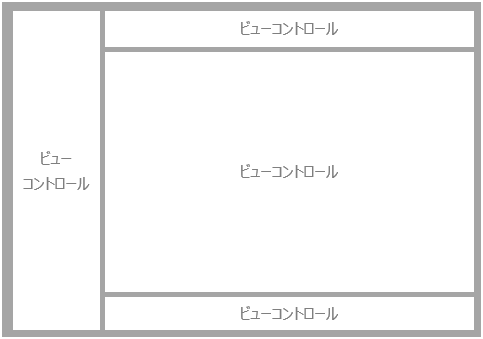
By placing multiple View control and creating multiple display frames on the form, you can split the screen and display it.
|
There are two ways to split the display area of the screen: using frames and using View control.We recommend using View controlThe reason for this is that when using frames, the layout of the frame cannot be changed dynamically using scripts. For more information about View control, see the Control Reference "View control". |

Static embedding with View control
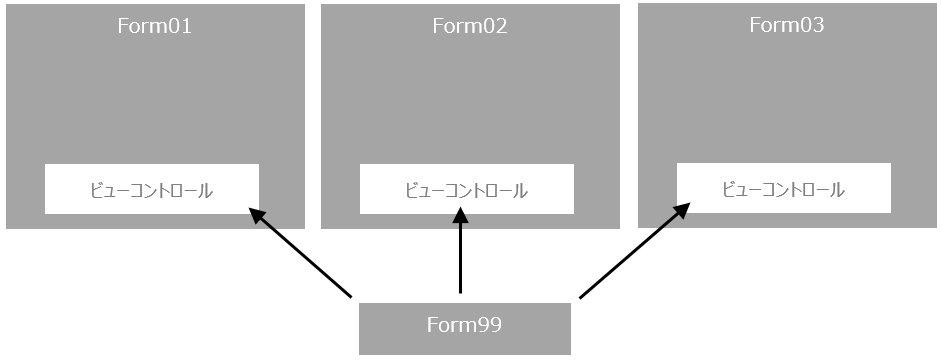
For example, if you want to make the parts that you want common to all screens, such as menu buttons to be displayed at the bottom of the screen, you can create them as a separate form and then embed them in the View control placed on each form so that they are displayed commonly.
The usage procedure is as follows:
1.Create a normal form (for example, let's use the form name "Form01").
2.Create the form you want to embed commonly (for example, let's name the form "Form99").
3.Paste View control into Form01.
4.Set the properties of View control as follows.
Properties |
Configuration Example |
Commentary |
BasedFormName |
Form99 |
Specify the form name of the form body to be embedded. |
When you set up the above and run it, Form99 will be embedded and displayed in View control pasted into Form01.
|
When placing multiple View controls that embed the same form within the same form, set a unique name in the FormName property of the View control. |
Dynamically switch forms to embed in View control
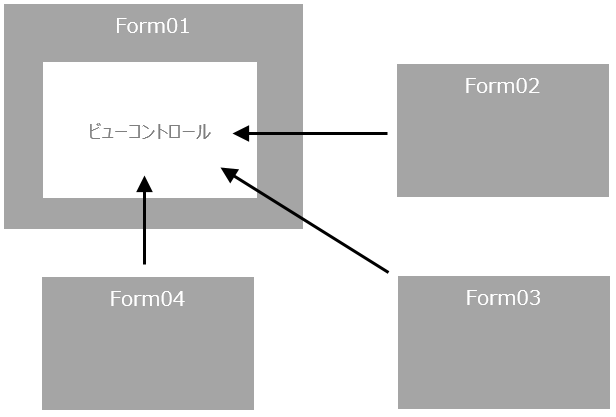
You can freely switch between forms embedded in View control during execution.
For example, you can create one main form that contains common displays such as menus, place View control in the area on this form where you want to display a graphic screen, and then use the screen switching buttons on the main form to switch between the graphic screen forms embedded in the views.
The usage procedure is as follows:
1.Create the form to be displayed as the main form (for example, let's use "Form01" as the form name).
2.Create the forms you want to embed in the main area (View control) (as an example, we will use the form names "Form02", "Form03" and "Form04").
3.Paste View control in the center of Form01. This View control will be the main area.
4.Set the properties of View control as follows.
Properties |
Configuration Example |
Commentary |
ViewName |
View01 |
Set the view name for View control. This name is required to reference it from the script. In this example, we will use "View01". |
BasedFormName |
Form02 |
Specifies the name of the form body to be embedded and displayed at initial display. |
5.Set the route properties as follows:
Properties |
Configuration Example |
Commentary |
DefaultView |
View01 |
Specify the view name of View control to display the switching form. By defining it in this way, the above View control will be recognized as the default view when referenced from a script. |
6.Add three screen switching buttons to Form01 and write the following script in the "OnMouseUp" event of each button.
//Form02 Call button
event OnMouseUp(button)
{
	::OpenViewForm("","Form02");
}
//Form03 Call button
event OnMouseUp(button)
{
	::OpenForm("","Form03");
}
//Form04 Call button
event OnMouseUp(button)
{
	::OpenForm("","Form04");
}
When you execute the above process, Form02 will be embedded in the View control pasted into Form01 and will be initially displayed.
When you click the screen change button, the display of View control will change to the target form.
|
The same movement as above can be achieved with the following structure:
Below is an example that uses the OpenForm method of View control.
1.Create the form to be displayed as the main form (name the form "Form01"). 2.Create the forms you want to embed in the main area (View control) (name the forms "Form02", "Form03", and "Form04"). 3.Paste View control in the center of Form01. This View control will be the main area. 4.Set the properties of View control as follows.
5.Add three screen switching buttons to Form01 and write the following script in the "OnMouseUp" event of each button.
//Form02 Call button
event OnMouseUp(button)
{
	parent.View01.OpenForm("Form02","subForm02");
}
//Form03 Call button
event OnMouseUp(button)
{
	parent.View01.OpenForm("Form03","subForm03");
}
//Form04 Call button
event OnMouseUp(button)
{
	parent.View01.OpenForm("Form04","subForm04");
}
|