Pasting and editing controls
Here we will explain how to paste and edit controls in Panel Editor.
Screen creation is done by pasting controls and other components onto a form. The key to pasting a control is to select the desired control from the Control tab in the Control view, and then paste it onto the target form. Here we will explain the pasting and editing procedure for Rectangle control as an example.
1.Paste Rectangle control
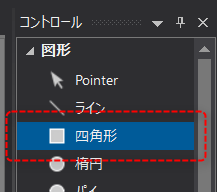
From the "Shape" control in the Control tab, select the "Rectangle" control.
On the form, place the mouse where you want the rectangle to start, and then drag diagonally to where you want the rectangle to end.
|
Drag from the top left to the bottom right.
|

|
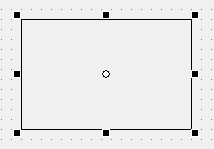
A rectangle object is created on the form.
|
2.Editing a Rectangle
|
When you select a rectangle object with the mouse, square marks are displayed around the object and it is in selected state. If you want to change the shape of the rectangle, drag any of the marks with the mouse.
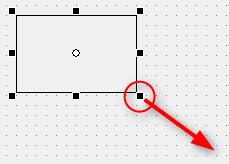
Here, try dragging the mark in the bottom right corner diagonally downwards to the right. |
|
The rectangle has become larger diagonally downward to the right.
|
3.Modifying properties
By modifying the properties of an object you can change its color, text, font etc. You can change the properties from the Properties tab of the Properties page.
(Property Page)
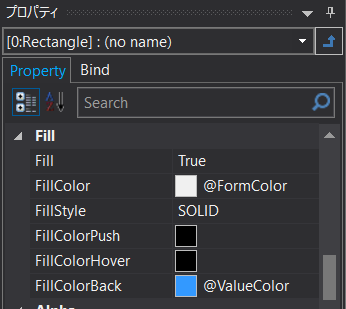
Alternatively, you can change it from the properties dialog.
The properties dialog box appears when you double-click on an object on the form.
(Example of properties dialog)
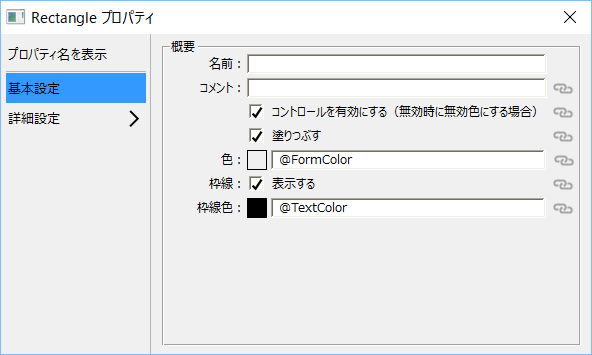
Here, we will change the color of the rectangle.
|
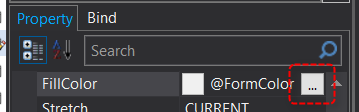
Select the rectangle object and change the “FillColor” property from the property page. When you select the FillColor row and click the "..." button that appears, a color selection dialog will pop up.
|
|
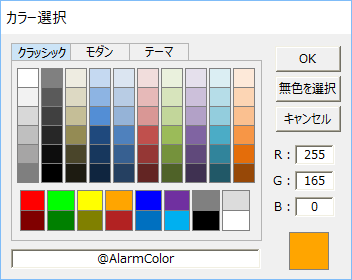
Select the desired color from the dialog (we'll choose red here).
|
|
The rectangle's fill is now red.
|
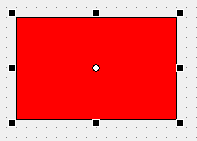
You can edit various properties of an object as described above.
|
In addition to selecting a color from the color palette, you can also specify a color by directly entering the RGB value. Example) Red: #FF0000, Green: #00FF00, Blue: #0000FF |

|
Visual themes have been added as an extended feature from Ver6. Names beginning with "@", such as "@FormColor" and "@TextColor", which are pre-registered as the initial color setting values, represent color formats included in the visual theme. When you specify a format with @, a color defined in the system according to the selected visual theme is automatically selected. You can change the visual theme system-wide by changing the VisualTheme property of root. Alternatively, you can change the theme for each form individually by changing the VisualTheme of Form. For more information about visual themes, see "Root Properties". |
|
The Text property can also be changed in the input box below at the top of Panel Editor.
*You can edit the Text property value and change the text font.
|