Editing Controls
Panel Editor provides many functions for editing objects. Editing functions can be selected from the "Edit" menu of Panel Editor, or from the menu that appears when you right-click an object.
|
The menu is divided into several groups, such as "Order" and "Arrange/Align." By selecting the desired function from the menu, you can change the display hierarchy of objects (foreground, background, etc.), and perform editing operations such as copying, cutting, pasting, and aligning.
|
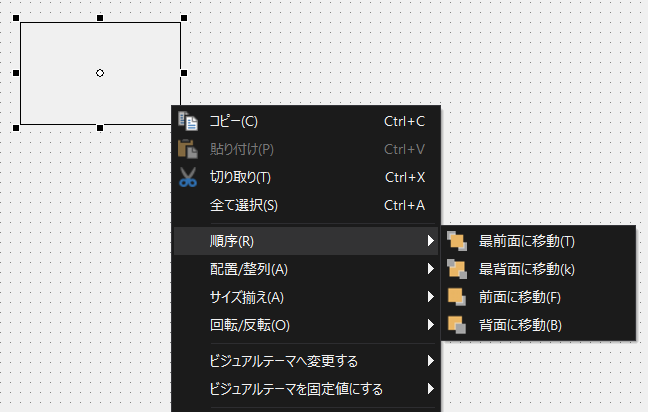
The editing functions available are as follows:
group |
Feature Name |
Feature Description |
edit |
Undo (Ctrl+Z) |
Reverts edited content to its previous state (Undo).
|
Redo (Ctrl+Y) |
Redo one of the edits that was reverted with Undo (Redo).
|
|
Copy (Ctrl+C) |
Copies the selected object.
|
|
Paste (Ctrl+V) |
Paste the selected object.
|
|
Cut (Ctrl+X) |
Cuts the selected object.
|
|
Select All (Ctrl+A) |
Selects all the controls on the form at once.
|
|
Delete all breakpoints |
Removes all breakpoints set in the script editor.
|
|
Reload the image |
Reloads the image file and redraws the image display.
|
|
Show grid |
Show the grid.
|
|
View the guide |
View the guide.
|
|
Locking a control from moving |
Locks the movement of the control. This prevents the control from being moved accidentally when it is selected.
|
|
Show mini property box |
Enables the display of the mini property box.
|
|
order |
Bring to Front |
Bring the control to the front.
|
Send to Back |
Sends the control to the back.
|
|
Bring to Front |
Bring the control to the front.
|
|
Send to Back |
Sends the control to the back.
|
|
Placement/Alignment |
Left justified |
Aligns the left positions of the selected controls.
|
Align center horizontally |
Aligns the selected controls horizontally at their centers.
|
|
Right |
Aligns the right positions of the selected controls.
|
|
Top Align |
Aligns the top positions of the selected controls.
|
|
Center Vertically |
Aligns the vertical centers of multiple selected controls.
|
|
Bottom Align |
Aligns the bottom of the selected controls.
|
|
Align Left and Right |
Space the selected controls horizontally.
|
|
Align Vertically |
Vertically space the selected controls.
|
|
Size Matching |
Make width even |
Makes the selected controls evenly spaced.
|
Make the height even |
Makes the selected controls evenly sized.
|
|
Make height and width the same |
Makes the selected controls the same height and width.
|
|
Rotate/Flip |
Rotate left 90 degrees |
Rotate the control 90 degrees left.
|
Rotate right 90 degrees |
Rotate the control 90 degrees to the right.
|
|
Flip Horizontal |
Flip controls horizontally
|
|
Flip Vertical |
Flip the control upside down
|
|
Change the visual theme |
All Properties |
All properties of the selected controls that have values that differ from the default values defined in the visual theme will be converted to the visual theme format. |
Color Property |
Of the properties of the selected controls, only Color-related properties such as FillColor and BorderColor will be converted to the visual theme format if their values are different from the default values defined in the visual theme. |
|
BorderStyle Property |
Of the properties of the selected controls, only the properties related to BorderStyle will be converted to the visual theme format if their values are different from the default values defined in the visual theme. |
|
Set visual theme to a fixed value |
All Properties |
For all properties of the selected controls, the property values defined in the visual theme format will be replaced with fixed values. For example, a color format defined as @TextColor will be replaced with a fixed value in RGB format, starting with #000000. |
Color Property |
Of the properties of the selected control, only the Color related properties will be replaced with fixed values defined in the visual theme format. |
|
BorderStyle Property |
Of the properties of the selected controls, only the properties related to BorderStyle will be targeted, and the property values defined in the visual theme format will be replaced with fixed values. |
|
Rotation center position |
Re-center the control |
Moves the control's rotation center back to the center of the control. |
rock |
Locking Controls |
Locks a control. A locked control cannot be moved with the mouse. For example, you can lock a background image to prevent it from being moved accidentally.
|
Unlock |
Releases a locked control.
|
|
Grouping |
Grouping |
Groups two or more controls together.
|
Ungroup |
Ungroup.
|