Importing a Form from a Screen Library
As an example, this section explains how to import a trend graph from the screen library into a skeleton project created by "Create a new framework" on the start screen.
1.Switch the tab in Panel Editor's main view to "Library" and select "Screen Library" from the type selection.
The main view will then switch to a list of screen libraries, with thumbnails of each screen library displayed.
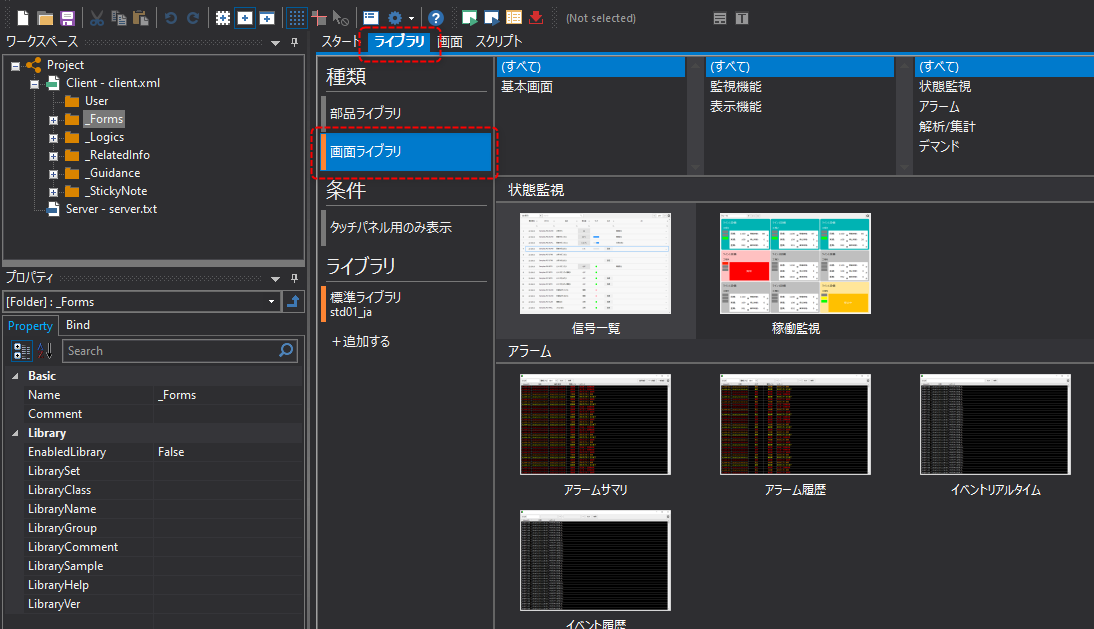
2.You can select the screen library you want to import from the thumbnails in the list and import it by dragging and dropping.
To do this, select the desired screen library from the thumbnails and drag and drop it onto "Client" in the workspace (in the example below, "Trend Graph" is selected).
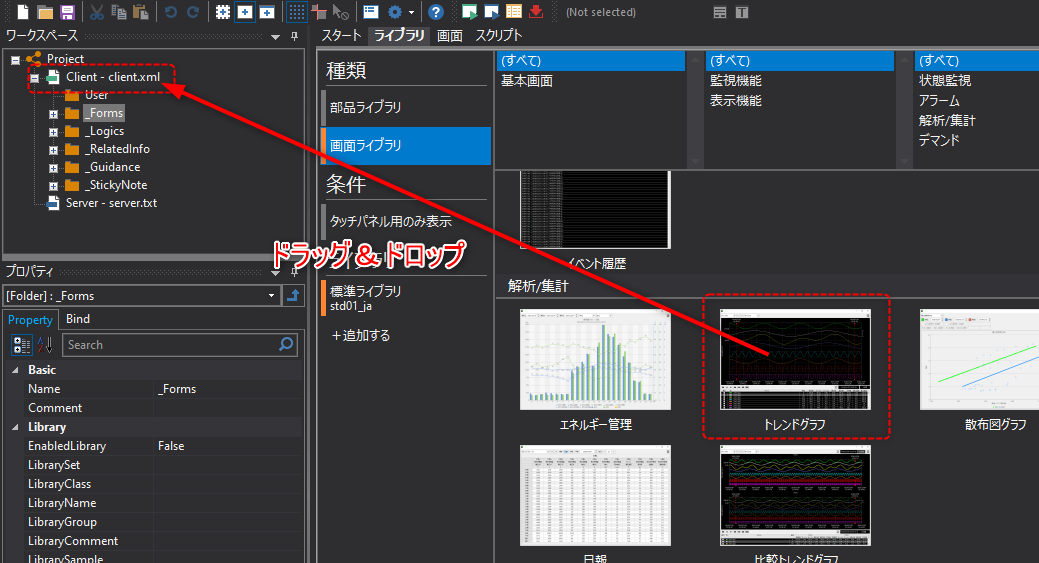
This will copy the entire set of forms required for the trend screen library into a folder and import them into the client settings of your project.
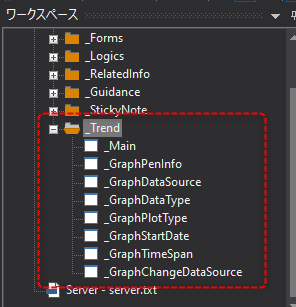
Below is an example of the trend graph screen library (the entire "Trend" folder) being correctly imported.
|
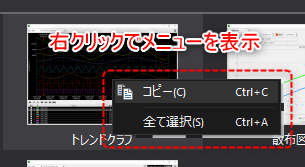
In addition to the drag-and-drop import method described above, you can also right-click a thumbnail in the screen library, copy it, and paste it into the target client setting file to import it.
|