Selecting multiple objects at the same time
You can select multiple objects at the same time.
To select multiple objects at the same time, drag the mouse to select a range.
|
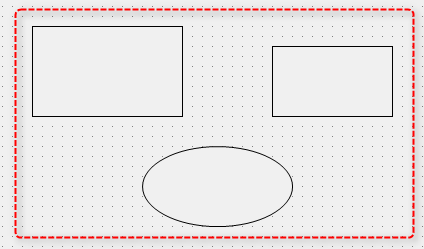
Surrounding all objects,Hold down the left mouse buttonDrag from the top left to the bottom right to specify the area.
|
|
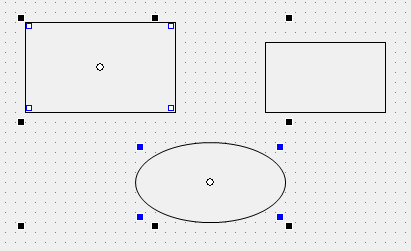
Three objects are selected at the same time.
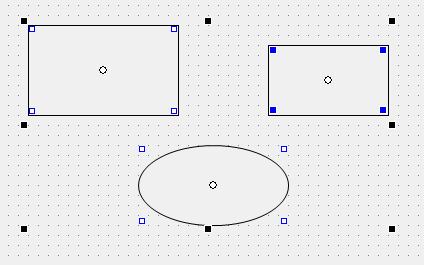
You can also select multiple objects at the same time by holding down the Ctrl key and clicking the objects one by one.
|
|
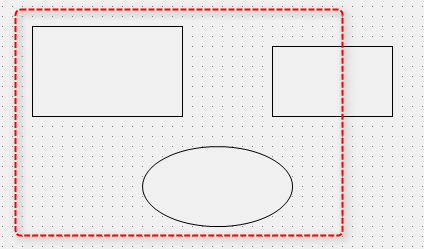
Furthermore, when selecting an area using the left mouse button, even a part of an object will be selected if it is included in the selection area.
In the example on the left, the rectangle on the right is only partially included in the selection. |
|
When selecting a range using the left button, all three objects within the selection range were selected at the same time.
|
|
If you hold down the right mouse button while selecting an area, only objects that are entirely within the area will be selected..
In the example on the left, the rectangle on the right is not entirely included in the selection. |
|
When selecting a range using the right button, only two objects that are completely contained within the selection range are selected at the same time.
|