Add a part library to your favorites
You can register frequently used parts as "favorites."
Normally, the control view on the right side of the screen is used to select controls such as buttons and labels, but if you select the "Favorites" tab on the bottom right, the display will switch to "Favorites." By registering library parts in the Favorites tab, you can paste and use them more easily.
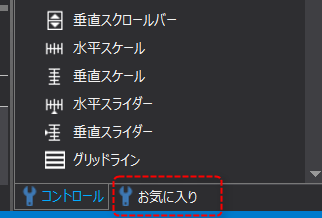
1.Select "Favorites" from the tab at the bottom right of the Panel Editor screen.
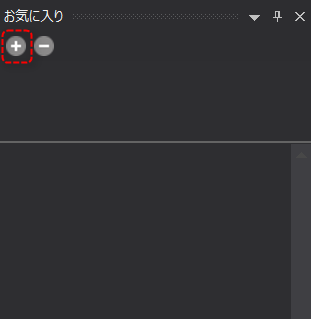
The control view has been switched to the Favorites tab. Currently, there are no favorites registered.
To register your favorites, click the "+" button to create a library.
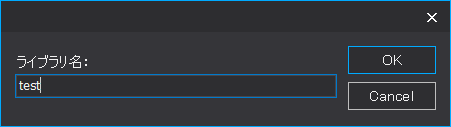
2.A dialog box for entering the library name will appear, so enter any name and click OK. In this example, we will use "test".
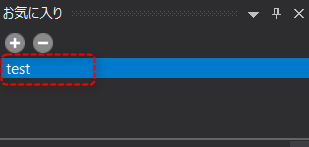
3.The library "test" has been created.
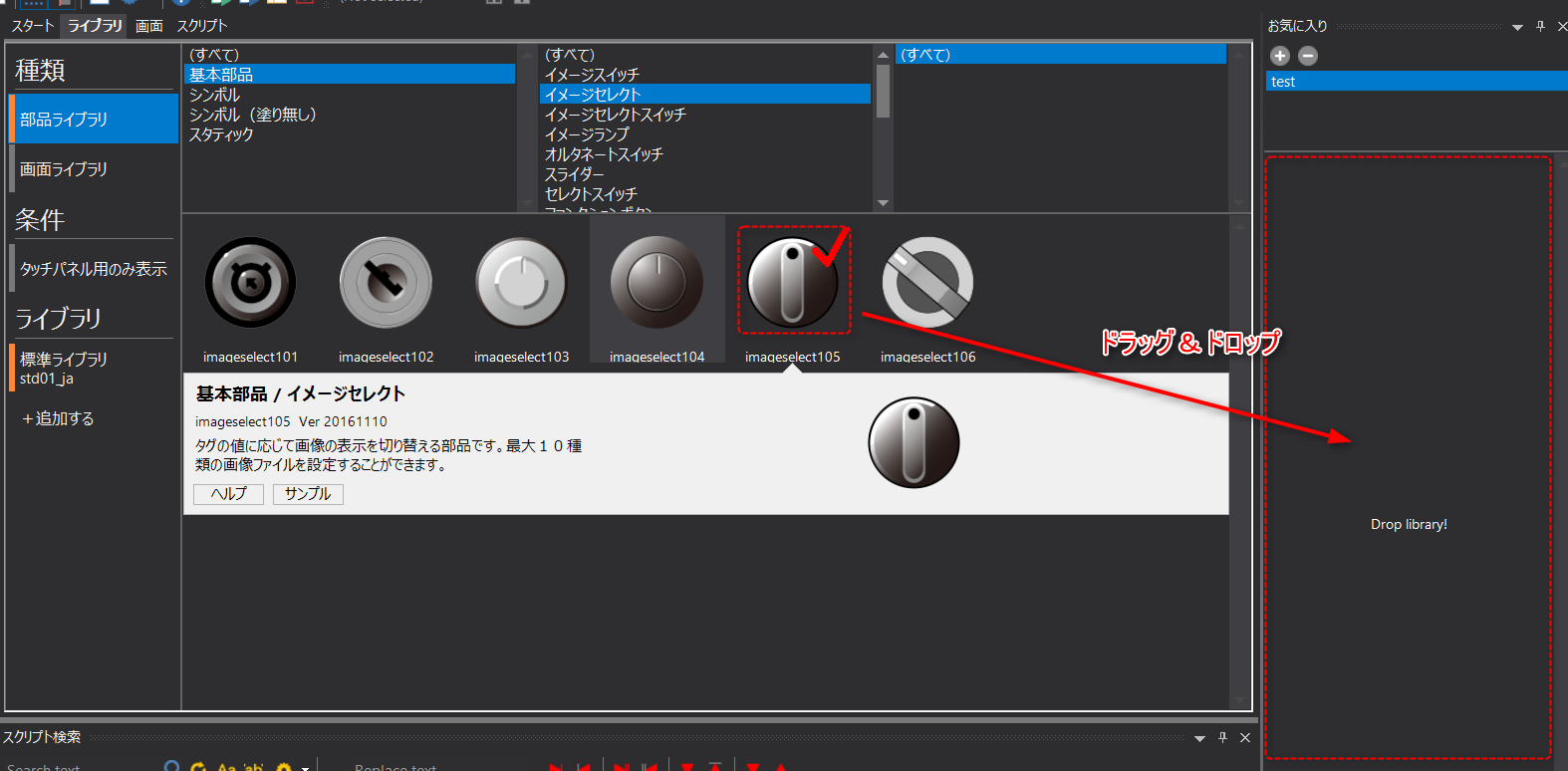
4.Select the part you want to register as a favorite with the mouse and drag and drop it onto the favorites view.
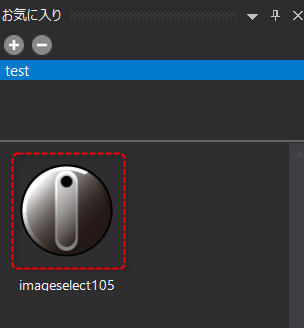
5.The part has been added to your favorites.
|
To use a favorite, open the Favorites tab, select the desired part, and drag and drop it onto the form where you want to paste it.
Alternatively, you can select the target part in the Favorites tab, copy it with "Ctrl+C," and then paste it in the same way on the destination form with "Ctrl+V."
|
|
The Favorites tab is a function provided exclusively for the parts library, and only parts from the parts library can be added to the Favorites tab. Users cannot directly add group parts that they have created themselves.
|
