Add another project to a project
You can add additional projects to a project.
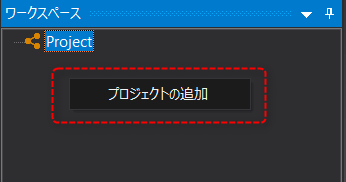
1.From the workspace, right-click on any white space (*Please right-click on the blank area of the workspace, not on the project.).
Then the following menu will be displayed:
|
From the menu that appears, select "Add Project."
|
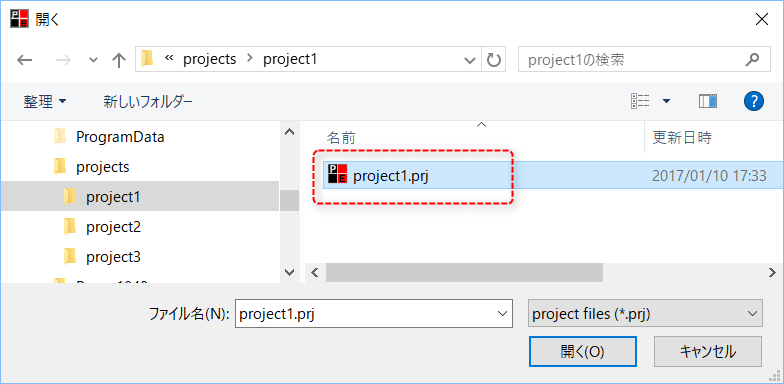
2.A file selection dialog will appear, so select the project file you want to add to your project and click "Open".
|
As an example, select "project1.prj".
|
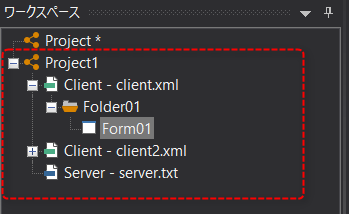
3.The project has been added.
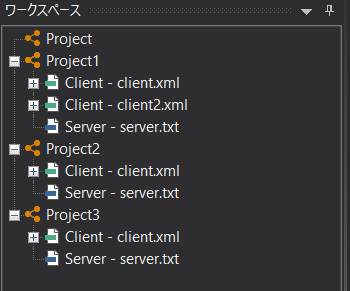
You can add multiple projects using the same procedure.
|
You can change the project name from the workspace view in Panel Editor using the following method.
•With the project selected, press the "F2" key •Right click on the project and select "Rename"
In addition, in the workspace view, the display name of the project is displayed as "Project" unless you change it. This is not a problem when working with a single project, but when multiple projects are displayed together, it becomes difficult to distinguish them from the display name. In such cases, changing the project name will make it easier to manage. |

|
By clicking the icon below from Panel Editor, you can start Panel Server with the server configuration file of the currently selected project open. However, if Panel Server is already running, the running Panel Server will be displayed in the foreground.
(Server startup icon)
|