Form Snapshot
Forms created in Panel Editor can be saved as image files (bmp/jpg). This can be done from the Panel Editor File menu.
■ Save the form as an image file
To save the form to an image file, select the image file format you want to save in from the File > Screenshot menu.
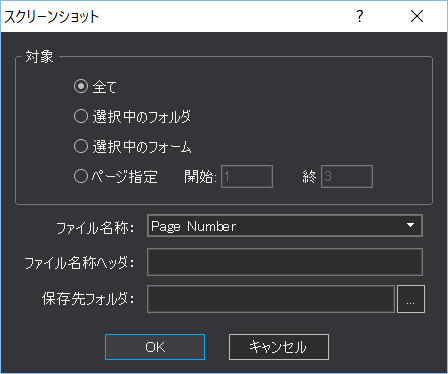
When you select an image format, the following dialog will appear. Set the form you want to save, the file name, etc., and click the OK button.
|
Target: Specifies the form to be saved.
All: Applies to all forms Selected folder: Only the selected folder is included Selected form: Only the selected form is targeted Page specification: Specify the range of the target form by page
File Name: Select a file name rule from the following:
1) Page Number 2)Form Name 3)Folder Name + Form Name
File Name Header: You can add a prefix to the file name.
Destination Folder: Select the destination folder for the image files. |