About the search function of Panel Editor
Panel Editor has a powerful search function.

By using the search function, you can search for any keyword used in scripts or properties, and instantly select the target object or replace it with any string. In addition, a mechanism is provided that allows you to freely set the search range, and it is possible to search across multiple setting files and objects, such as by selected control, form, folder, client setting file, selected project, or everything in the project.
In addition, the control search function allows you to specify search conditions for any property of a control and perform a search on an object-by-object basis. A powerful feature of the control search is that it allows you to completely replace the property settings and script code of the searched object, or even replace the searched object itself with another object. By making good use of these functions, you can significantly improve the efficiency of development work for monitoring screens using Panel Editor.
■ Search view
Search operations are performed from the Search view in Panel Editor. In the default layout, the Search view is displayed at the bottom of the Panel Editor screen.
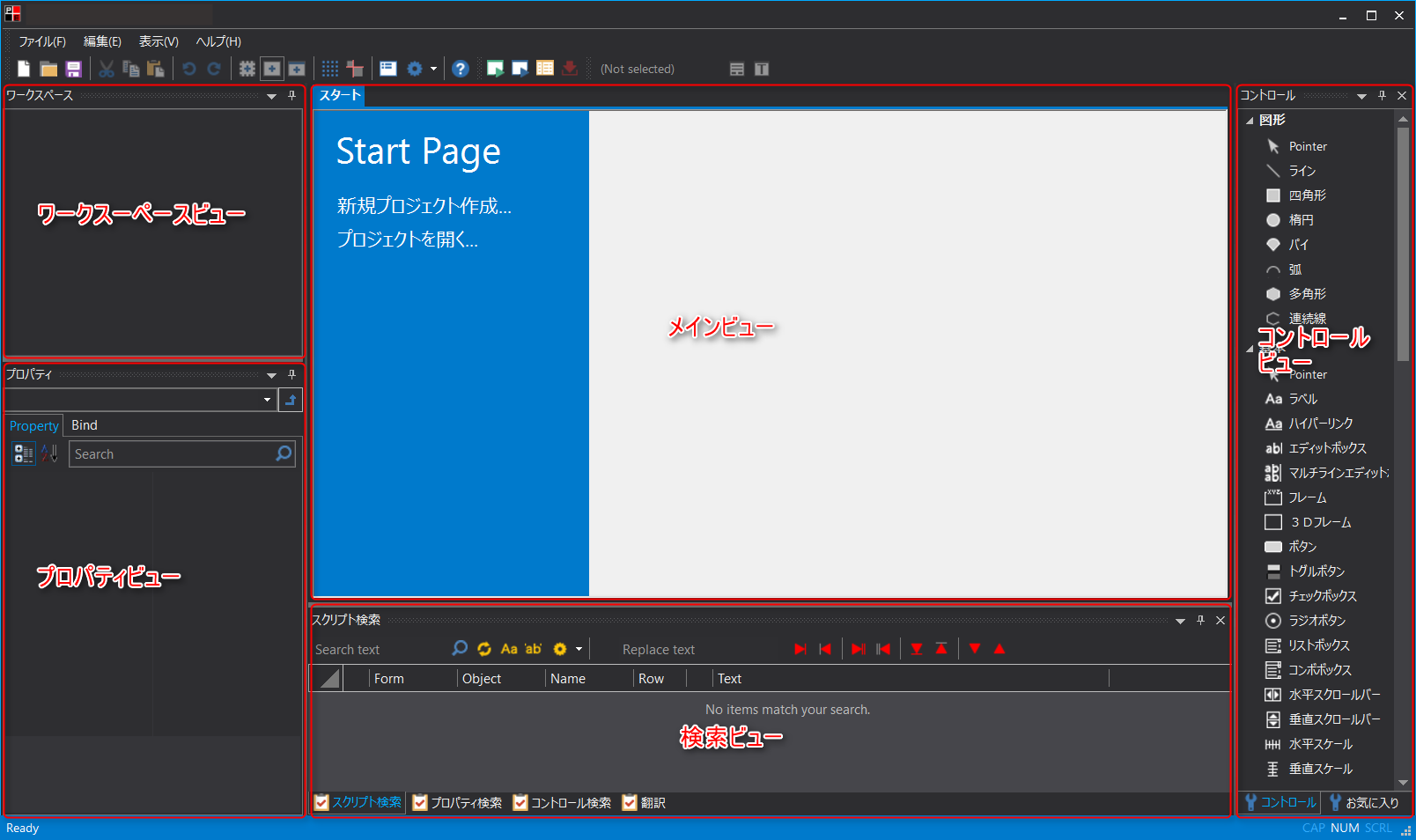
■ Search types
The search function of Panel Editor has the following three functions:
Search function |
overview |
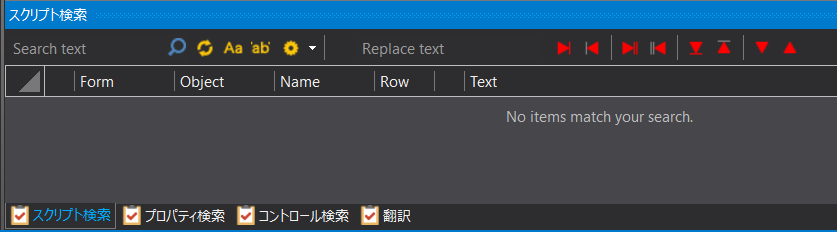
Search for the script.
In addition to searching and replacing strings, you can instantly select the target object by selecting it from the displayed list.
|
|
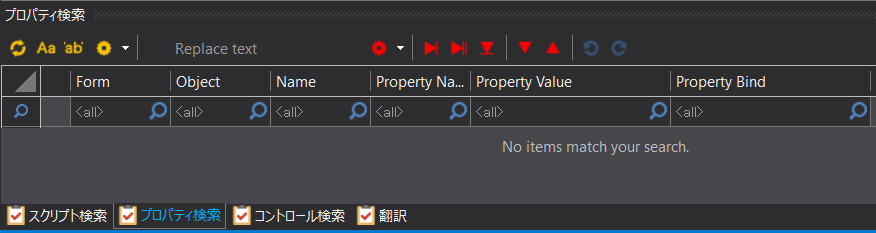
Do a search for the property.
In addition to searching and replacing strings, you can instantly select the target object by selecting it from the displayed list, and edit the properties from the list.
|
|
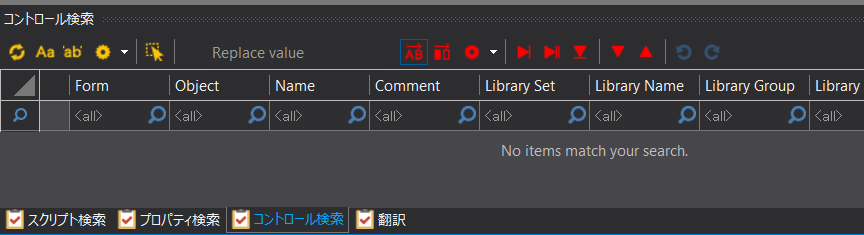
Search for the control.
In addition to searching and replacing strings, you can instantly select the target object by selecting it from the displayed list, and replace the object (replace scripts, properties, and even the control itself).
|
|
The search function introduced in this chapter is limited to client configuration files that can be edited in Panel Editor. Server configuration files in Panel Server are not subject to search processing. |

|
For information on the translation function, please refer to "Internationalization (Browser Edition)".
|

About the Mini Property Box
One of the convenient editing features of Panel Editor is the "Mini Property Box".
The mini property box allows you to display any property of a selected control in the upper left corner of the control. In addition to displaying any selected property in the mini property box, you can also edit the value. In addition, by selecting multiple controls at the same time and displaying the mini property box, you can intuitively operate from the screen when setting the same property for multiple controls.
Below is an example of the mini properties box.
