Slider 2
|
Slider 2 is a component used to write the number entered on the screen to the tag. By operating the slider with the mouse, data is written to the input/output tag, and the current value is displayed in real time on the attached bar meter.
|
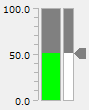
Specify the tag for which the current value is to be input in the input tag (_TagIn) property. This tag value will be used to display the bar meter in real time.
Specify the tag to be used for input and output of tag editing in the input/output tag (_TagInOut) property. The initial value of the slider is only the initial display, and the display will not be updated dynamically even if the tag value changes.
When editing a value, only values within the range specified by the minimum and maximum values will be accepted. You can also specify any numeric format, such as the number of decimal places and whether or not to display delimiters.
In addition, by specifying a tag for fault identification in the fault identification tag (_TagFault) separate from the input tag, a fault can be displayed based on signals such as equipment abnormalities received from downstream.
Custom Properties
Tag configuration |
Input Tags |
_TagIn |
Specify the tag path of the input tag. Used to display the current value of the bar meter. |
Input/Output Tags |
_TagInOut |
Specify the tag path of the input/output tag. Specify the tag to be edited. |
|
Fault Identification Tag |
_TagFault |
Specifies the tag path of the fault identification tag. |
|
Display settings |
Number Format |
_Format |
Specifies the number format. |
Decimal point position |
_DecimalPlace |
Specify the number of decimal points as an integer. |
|
Minimum |
_Min |
Specifies the minimum value. |
|
Maximum |
_Max |
Specifies the maximum value. |
|
Number of value divisions |
_SliderDivisions |
Specifies the number of divisions for the slider value. For example, if the minimum value is 0 and the maximum value is 100, if you want the slider operation to have increments of 1, specify 100. Alternatively, if you want the increments to be 0.1, specify 1000. |
|
Scale Display |
_ShowScale |
Set whether or not to display the scale. |
|
Display color settings |
Slider Color |
_SliderFillColor1 |
Specifies the display color of the slider. |
Slider Background Color |
_SliderFillColor2 |
Specifies the background color of the slider. |
|
Slider border color |
_SliderBorderColor |
Specifies the border color of the slider. |
|
Meter Color |
_MeterColor |
Specifies the meter display color. |
|
Meter Background Color |
_MeterBackColor |
Specifies the meter background color. |
|
Scale Line Color |
_ScaleColor |
Specifies the scale line color. |
|
Scale text color |
_ScaleTextColor |
Specifies the scale text color. |
|
Input assistance settings |
Confirmation screen display |
_IsConfirm |
When enabled, a confirmation dialog will be displayed when you click the Confirm button. |
Confirmation message |
_ConfirmMsg |
Specify the confirmation message to be displayed on the confirmation screen. |
|
Error Message |
_ErrorMsg |
Specifies the error message to be sent when a write error occurs. |
|
Operation history output |
_Log |
If enabled, the operation history will be output when a value is written. If you want to output the operation history in a standard project that uses the standard framework, enable the operation history setting from the system administration settings screen. For details, see "Operation History Settings". If you want to output the operation history in an original project that does not use the standard framework, define Alarm server to record the operation history and set the root DefaultFireAlarm property appropriately. |
|
Operation Message |
_LogMsg |
Specify the message to be output to the operation history. |
Usage Example
1) Input/output tag specified/no fault identification tag
|
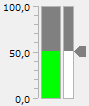
The value of the input/output tag is displayed as the initial value of the slider. The slider part does not automatically update its display even if the value of the input/output tag changes. Additionally, the current value of the input tag is displayed on a bar meter, which is automatically updated whenever the value changes.
|
|
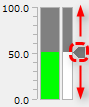
When you edit the slider using the mouse, the edited results are written to the input/output tag.
|
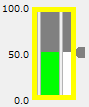
When the quality flag of the input/output tag is BAD, a fault is displayed.
|
The part will be framed in yellow and will flash. When a fault is displayed, the slider is disabled and cannot be edited.
|
|
If the same tag is used for both input and output, specify the same tag path for the input tag and the input/output tag. |

|
By setting the "FocusHover" property of the form to which the component is attached to True, a focus frame will be displayed when you move the mouse cursor over the component to be operated. |
2) Input/output tag specified/fault identification tag
If you specify a fault identification tag, you can receive the fault status of the device via the tag. For example, if you can receive a fault status (such as a sensor abnormality) from the downstream side as a signal separate from the device's measurement value, you can specify the tag path of that signal as the fault identification tag to display the fault along with the state of the quality flag of the input tag.
|
When the fault identification tag is False, the value received by the input/output tag is displayed and can be edited as usual.
|
|
A fault is displayed when the fault identification tag is true or when the quality flag of the input/output tag is bad. When the fault is displayed, the slider is disabled and cannot be edited.
|
3) Change the number format
You can change the number format to display numbers in various formats.
|
In this example, the number format is specified as "@de" (Germany), which displays decimal points as commas instead of periods.
|
4) Confirmation screen display
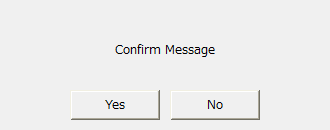
If you enable the confirmation screen display (_IsConfirm), a confirmation dialog (Yes/No) will be displayed when you perform a write operation.
|
If Yes is selected in the dialog, the value will be written to the tag.
|