Video Player
|
The video player is a component for playing streaming video and video files from network cameras.
|
By pasting it into a form and configuring it, you can embed and play back footage from network cameras and video files on the form.
(Display example)
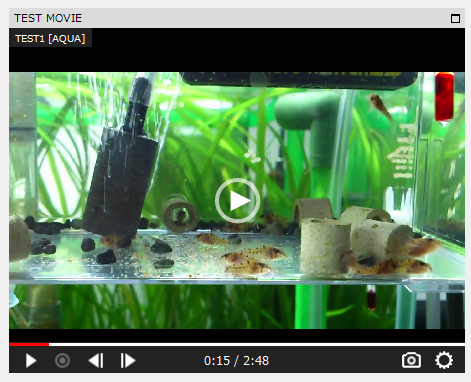
|
This component can be linked to the camera information registered during camera registration. For details on camera registration, please refer to "Camera Registration" in the Surveillance System Construction Guide. |

|
If any of the following client execution methods apply, you will need to resolve the system file path reference issue in order to use this plug-in.
•Running Panel Browser as an embedded Exe •When running Panel Browser in IE •When Panel Browser is embedded in VB and executed
For more information, see "Important) Regarding path references to system files when running the client".
|

Usage Example
For an example of how to use this component, see "Video Player" in the Surveillance System Construction Guide.
Custom Properties
Required Settings |
Use the registered camera information |
_IsUseName |
If you want to use the registration information for camera registration, enable this property. |
|||||||||||
Camera Name |
_Name |
If you enable _IsUseName above, specify the camera name in this property. Specify the camera name registered in Camera Registration. If you specify the camera name, there is no need to enter other required settings. |
||||||||||||
Camera Type |
_FileType |
Specifies the camera type. If you do not use the camera name (if _IsUseName is not enabled), you must specify this property individually. •CAMERA...Specify this if you are using a network camera. •NECAROKU...Specify this in case of Necaroku. •MOVIE - Specify this for video files. •IMAGE - Specify this for image files. |
||||||||||||
Camera URL or file path |
_File |
Specify the URL of the network camera or the path name of the file. If you do not use the camera name (if _IsUseName is not enabled), you must specify this property individually. If the camera type is "CAMERA" or "NECAROKU", specify the URL of the reference destination. If the camera type is "MOVIE" or "IMAGE", specify the path name of the reference destination file.
■ If the camera type is a network camera or a network record
If the camera type is a network camera or a Necarok, please specify the URL of the reference. In the URL setting, depending on the type of network camera or Necarok to be connected, you may need to specify the user name and password to log in to the connection target.
In addition, for general network cameras, the user name and password are specified by including them in the URL in the following format.
http://Username:Password@IP address/・・・
If the URL specification of the camera you want to connect to complies with the above format, you can specify the user name and password on the setting screen as follows.
(Example of URL) http://user1:Ks4g97dT12@192.168.100.121/nphMotionJpeg?Quality=Standard
(Example)
Alternatively, you can specify the user name and password directly in the camera URL as shown below without specifying them in the settings screen. Note that if the URL format for the user name and password for your camera does not conform to the above, please specify them directly in the camera URL without using the user name and password in the settings screen.
(Example of URL) http://user1:Ks4g97dT12@192.168.100.121/nphMotionJpeg?Quality=Standard
(Example)
■ If the camera type is a video file or image file
If the camera type is a video file or image file, specify the file name to reference.
If you want to refer to it using an absolute path, specify the path as follows:
Example) c:\movie\MOV_0680.mp4
If you want to reference it using a relative path, specify the path as follows. In this case, it will be referenced using a relative path starting from the client's current folder (the folder where the client configuration file (such as client.xml) is stored).
Example) movie\MOV_0680.mp4
You can commonly reference files that are imported into the system resource folder by specifying them as follows:
server:\\server_data_cnf\resource\MOV_0680.mp4
In addition, "server:\\server_data_cnf" is the format that refers to the public folder set on the server side, and in the above, the "resource" folder under the public folder is the reference folder. In the above example, the public folder "server_data_cnf" is used.
|
||||||||||||
Username |
_UserName |
Specify the user name to log in to the network camera. If the user name is included in the URL parameter due to the camera specifications, there is no need to specify this parameter.
|
||||||||||||
password |
_Password |
Same as above. Specify the password above. |
||||||||||||
How to play |
_LibType |
Specifies how to play the video when the camera type is "MOVIE". If you do not use the camera name (if _IsUseName is not enabled), you must specify this property individually. If the camera type is other than "MOVIE", it will automatically be fixed to OPENCV. •OPENCV - Select this if you want to use OpenCV (no audio). •DIRECTSHOW - Specify this when using DirectShow (with audio). |
||||||||||||
operation |
Start Actions |
_StartAction |
Specify one of the following as the start action: AUTO, LIVE, PLAY, PAUSE, STOP (default: AUTO). The following actions will occur depending on the camera type (_FileType).
(*1) If _StartTime / _TimeSpan is not specified during PLAY / PAUSE / STOP, _StartTime will be automatically set to 5 minutes before the current time, and TimeSpan will be 5 minutes. Also, if only _TimeSpan is specified, _StartTime will automatically be set to the current time minus _TimeSpan. Also, if only _StartTime is specified, _TimeSpan will be set to 5 minutes.
|
|||||||||||
Play button centered |
_ShowCenterButton |
When enabled, a play button will be displayed in the center of the VideoPlayer control (default: False). |
||||||||||||
View |
Title bar display |
TitleBar |
The display setting for the title bar of the video player component's display frame (default: TOP). •NONE - No display. •TOP - Displayed at the top. •BOTTOM - displayed at the bottom. |
|||||||||||
View Title |
Title |
Specify the title string to be displayed in the title bar above. |
||||||||||||
Show maximize button |
ShowMaxButton |
This setting lets you show or hide the maximize button in the title bar above. |
||||||||||||
Allow Move |
AllowMove |
If enabled, the pane will be movable during runtime by dragging the title bar with the mouse. |
||||||||||||
Allow resizing |
AllowResize |
If enabled, the window can be resized during runtime by dragging it with the mouse. |
||||||||||||
Video title |
Title Display |
_ShowTitle |
The display setting for the title on the video (default: NONE). •NONE - No display. •LEFTTOP - Displayed in the top left (only displayed when initially displayed or on mouse hover). •RIGHTTOP - Displayed at the top right (only displayed when initially displayed or when hovering over with the mouse). •LEFTTOP2 - Always displayed at the top left. •RIGHTTOP2 - Always displayed on the top right. |
|||||||||||
title |
_Title |
Specifies the title display string on the video. |
||||||||||||
subtitle |
_SubTitle |
Specifies the subtitle string, which will be displayed in parentheses at the end of the title string. |
||||||||||||
Specify the title font |
_IsUseTitleFont |
Enable to specify the font for titles on the video. |
||||||||||||
Title Font |
_TitleFont |
Select the font for the title on the video. |
||||||||||||
Video Controller |
Controller Display |
_ShowController |
This is the display setting for the video controller. The video controller is displayed at the bottom of the video display area (default: OVERLAP). ・NONE ・・Do not display. ・SHOW ・・Display. ・OVERLAP ・Overlap display (displayed when mouse is hovered) |
|||||||||||
Playback position text |
_ShowPositionText |
Sets whether to display information about the current playback position (such as the time being played) in the video controller (default: True (display)). The playback position text is only displayed when playing a recording or a video file. |
||||||||||||
Volume Control |
_ShowVolume |
Set whether to display the volume control icon on the video controller (default: True (display)). The volume control icon is displayed only when _LibType is DIRECTSHOW and a video file is being played. |
||||||||||||
Settings button |
_ShowSetting |
Sets whether to show the settings icon on the video controller (default: True (show)). |
||||||||||||
Position Bar |
_ShowPositionBar |
Sets whether to show the position bar (playbar) at the top of the video controller (default: True (show)). |
||||||||||||
reproduction |
_ShowPlay |
Sets whether to show the play icon in the video controller (default: True (show)). |
||||||||||||
Capture |
_ShowCapture |
Sets whether to show the capture icon in the video controller (default: True (show)). |
||||||||||||
Frame Rewind |
_ShowStepBackward |
Sets whether to show the frame-rewind icon on the video controller (default: True (show)). |
||||||||||||
Frame forward |
_ShowStepForward |
Sets whether to display the frame-by-frame icons on the video controller (default: True (display)). |
||||||||||||
Recording |
_ShowRecording |
Set whether to display the recording icon on the video controller (default: False (do not display)). The recording icon is displayed only when _LibType is OPENCV. Note that this recording function is different from the video recorder function, and allows you to individually record the camera video currently displayed on the video player part. |
||||||||||||
download |
_ShowDownload |
Set whether to display the download icon on the video controller (default: False (do not display)). The download icon can only be displayed when _LibType is OPENCV and during recording and playback. |
||||||||||||
Recording Menu |
_ShowRecordingMenu |
Set whether to display the menu item for the recording function in the menu displayed by the setting icon (default: True (display)). This menu item is displayed only when _LibType is OPENCV. |
||||||||||||
Download Menu |
_ShowDownloadMenu |
Set whether to display the menu item for the download function in the menu displayed by the setting icon (default: True (display)). This menu item is displayed when _LibType is OPENCV and during recording and playback. |
||||||||||||
Video files |
Initial Volume |
_Volume |
Specifies the initial volume setting for video playback (default: 1). Specify a value in the range from 0.0 to 1.0. This property is only valid when _LibType is DIRECTSHOW. |
|||||||||||
Initial playback position |
_Position |
Specify the initial playback position (seconds) of the video as a number (default: 0). Specify the number of seconds from the beginning. This property is only valid when playing back recorded content. |
||||||||||||
Playback Speed |
_Rate |
Select the initial playback speed of the video from "0.5", "1", "2", or "3" (default: 1). You can also enter a value directly. This property is only valid when recording and playing back. |
||||||||||||
Recording and playback |
Common Settings |
Play from x seconds ago |
_StartTime |
When playing back a recording, playback will begin from the number of seconds specified in this property. |
||||||||||
Display period |
_TimeSpan |
In Recording Playback, specify the duration in seconds of the recording you want to play. |
||||||||||||
Nekaroku |
Frame rate |
_NecarokuFps |
Specifies the frame rate for streaming playback of the camera connected to NECAROC. A value between 0 and 30 can be specified, up to two decimal places (default: 1). |
|||||||||||
Playback Speed |
_NecarokuSpeed |
Select the playback speed for Nekaroku recordings from "1", "2", or "5" (default: 1). |
||||||||||||
Frame skipping |
_NecarokuInterval |
Specify the frame skipping setting when playing back a recording of Nekaroku with a value between 1 and 30 (default: 1). The number of frames specified in this property will be skipped before playback. |
||||||||||||
Download Maximum Duration |
_NecarokuMaxDownloadSpan |
Specifies the maximum duration in minutes for downloading Nekaroku recordings, with a value greater than or equal to 1 (default: 10). |
||||||||||||
others |
Debug Mode |
_DebugMode |
Run the video player part in debug mode. |
|||||||||||
Maximum Recording Duration |
_MaxRecordingSpan |
Specifies the maximum duration of recording in minutes (default: 10). This setting specifies the maximum recording time for the recording function via the Record icon on the Movie Controller. |




