Output log save settings
The output log is a log that records the operation status of Panel Server and is the information that is displayed in the output view of Panel Server.
The output log storage settings are made for "Output View".
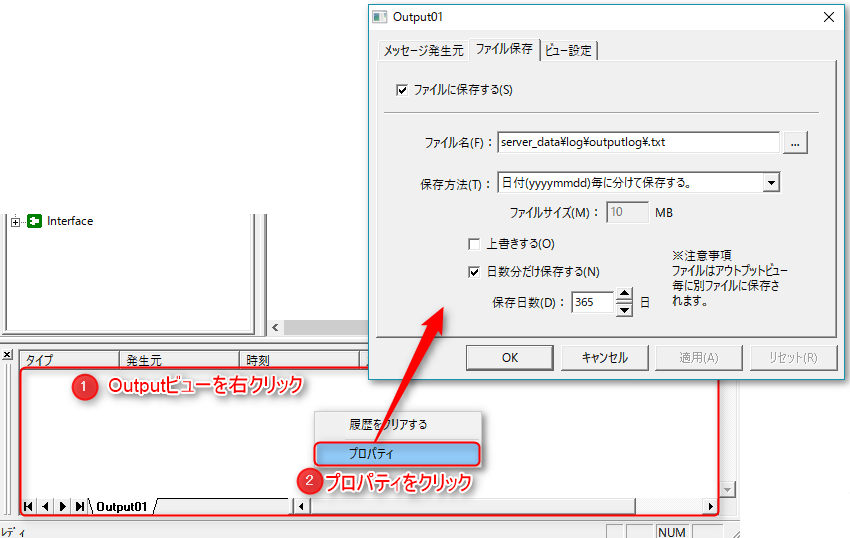
1.Start Panel Server and right-click "Output View" to display its properties.
2.From the "File Save" tab, check "Save to file" and select the file name, save method, etc.
|
If you select "Save by date (yyyymmdd)" as the save method, the log will be saved in one file per day. You can split the files so that the size of each file does not become too large. |

|
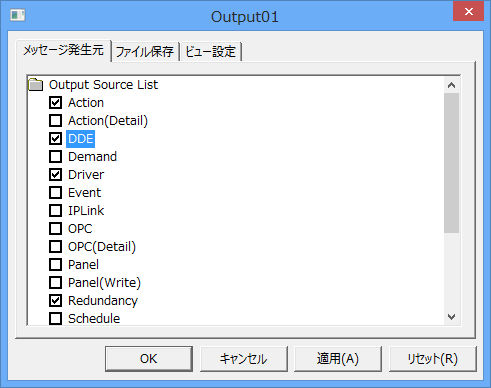
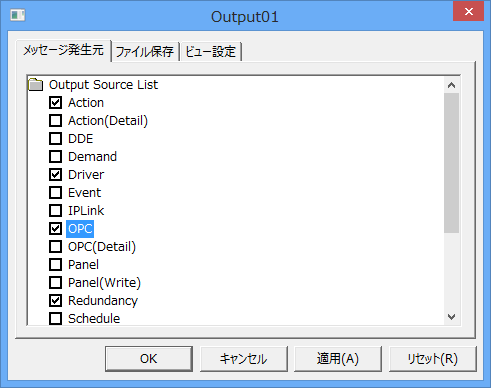
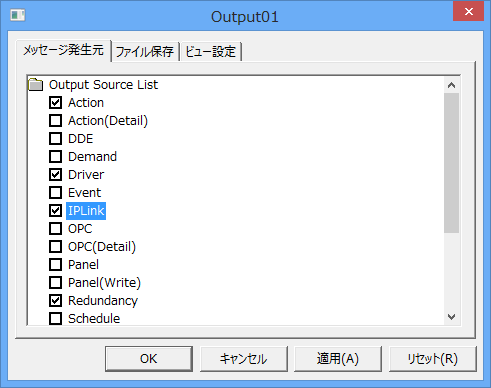
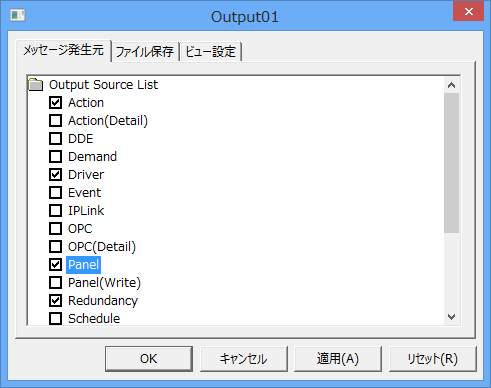
The log information saved in the output log is the information output to the output view. The output view outputs messages for items that have been checked in the "Message Source" tab of the "Output View" properties. Depending on the type of message source, a large amount of logs may be output, so select the targets as necessary. When troubleshooting, the connection status of the client (monitoring screen) may be important information. This log is not checked by default because the amount of log data saved may be large. If you have enough capacity on your HDD, we recommend checking "Panel" to output the connection status of the client (monitoring screen).
|
|
If you are using interface functions such as DDE/OPC/IPLink, we recommend that you output the following log. "DDE"
"OPC"
|