System log retention settings
The system log is a log that records information about the operating environment of FA-Panel.
The system log records information such as resource usage (memory usage, page file usage, number of handles, etc.), whether Send mail terminated abnormally, and whether it automatically restarted if it terminated abnormally.
System log retention settings can be made in the application settings of Panel Server.
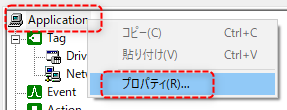
1.Start Panel Server and right-click Application in the tree on the left to display its properties.
2.Configure the following settings from the "Basic Settings" tab.
|
Check "Save application and OS memory and other resource usage."
Specify the folder where the system logs will be saved.
|
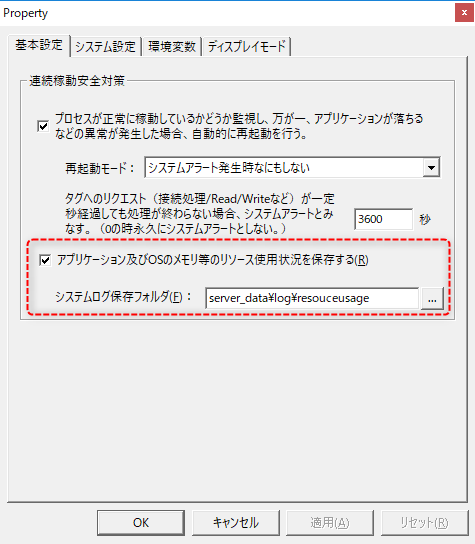
Once you have completed the settings, click the OK button to save them.
About resource usage logs in the system log
The files output to the system log folder contain a log of FA-Panel resource usage. This log is useful information for determining whether or not there is a memory leak due to continuous system operation.
The following is output to the resource usage log:
Total Resource File
*Part of the file name is "total" |
It outputs information related to the resources of the entire PC. The meaning of each column of the output log is as follows, from left to right:
•date •Total memory usage (%) •Physical memory usage (%) •Available Physical Memory (KMB) •Physical memory used (MB) •Virtual Memory Usage (%) •Available Virtual Memory (MB) •Virtual memory used (MB) •Page file usage (%) •Available Page File (MB) •Page file in use (MB)
|
Server Resource Files
*Part of the file name is "server" |
Information related to the Panel Server resource is output. The meaning of each column in the output log is as follows, from left to right: •date •Memory usage (KB) •Maximum memory usage (KB) •Number of handles •Number of threads
|
Client Resource File
*Part of the file name is "browser" |
Information related to Panel Browser resources is output. The meaning of each column in the output log is as follows, from left to right:
•date •Memory usage (KB) •Maximum memory usage (KB) •Number of handles •Number of threads
|