overview
This section explains how to manually embed the "Alarm Summary" and "Alarm History" in the screen library.
If you want to add alarm functionality to a standard framework project later, or if you want to build your own project and incorporate alarms, please refer to this procedure.
|
The screen library comes with samples. You can open the samples from Panel Editor. For details on how to open the samples, please refer to "Screen Library Help / About Samples". |

Manually embedding the alarm screen library
Below are the steps to manually incorporate "Alarm Summary" and "Alarm History" from the screen library.
■ Work procedure
1.Select Screens Library from the Libraries tab
In Panel Editor, select the Library tab and set the type to "Screen Library".
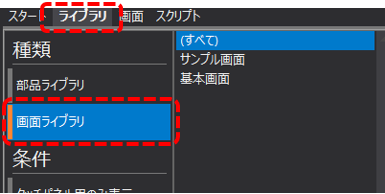
The display in the center of the screen will then switch to the library selection screen.
2.Import "Alarm Summary" and "Alarm History" from the screen library
Select "Alarm Summary" from the screen library list and drag and drop it onto "client.xml" in the project tree.
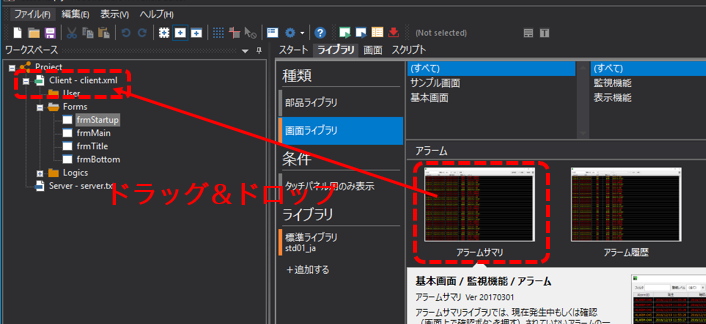
Using the same procedure, select "Alarm History" from the screen library list and drag and drop it onto "client.xml" in the project tree.
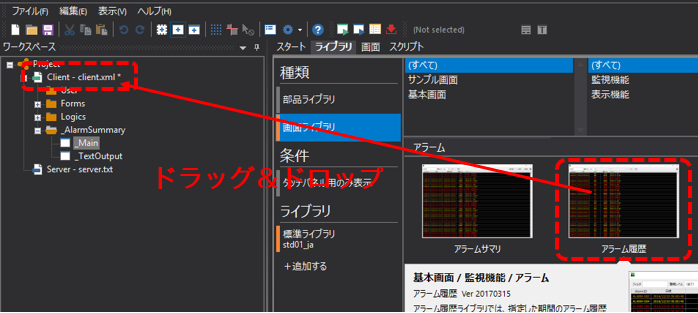
|
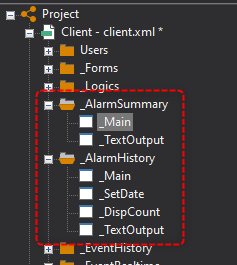
This will create folders called "_AlarmSummary" and "_AlarmHistory" as shown on the left, and copy the necessary forms as screen libraries.
_AlarmSummary - Alarm summary set _AlarmHistory - Complete alarm history
|
3.Describe the screen call process
After embedding a form from the screen library, implement the process to call the screen from the library.
There are several ways to call up screens from the Screen Library. For details on how to call up screens, please refer to "Calling Screens from the Screen Library" in the Screen Creation Guide.