Implementing screen call processing in the screen library
There are several methods available for calling the screen library.
The following explains how to call up a screen from the screen library.
Processing method |
How to implement |
||||||||||||
Call from the standard framework menu
|
The menu settings for the standard framework are configured from the system settings screen while the client is running. Please perform the following operations while both Panel Server and Panel Browser are running online.
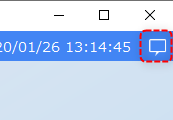
The system settings screen can be accessed from the settings button (settings icon). The settings button is usually located in the information bar. If the information bar is not open, click the following icon (usually located in the top right corner of the screen).
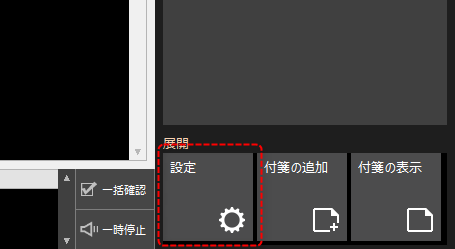
Click the "Settings" icon located at the bottom of the information bar.
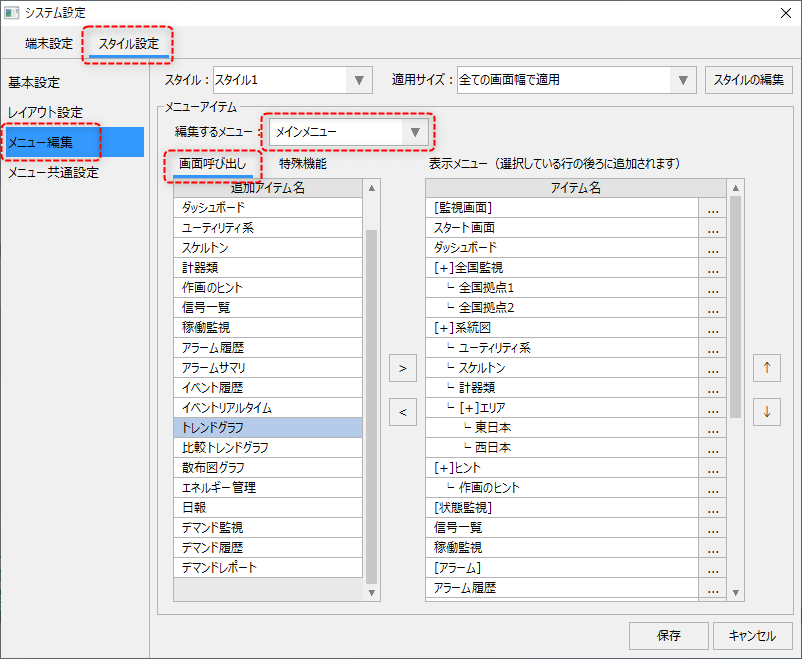
This will bring up a pop-up system settings screen where you can freely edit the display position, display contents, etc. of the standard framework menu.
(System settings screen)
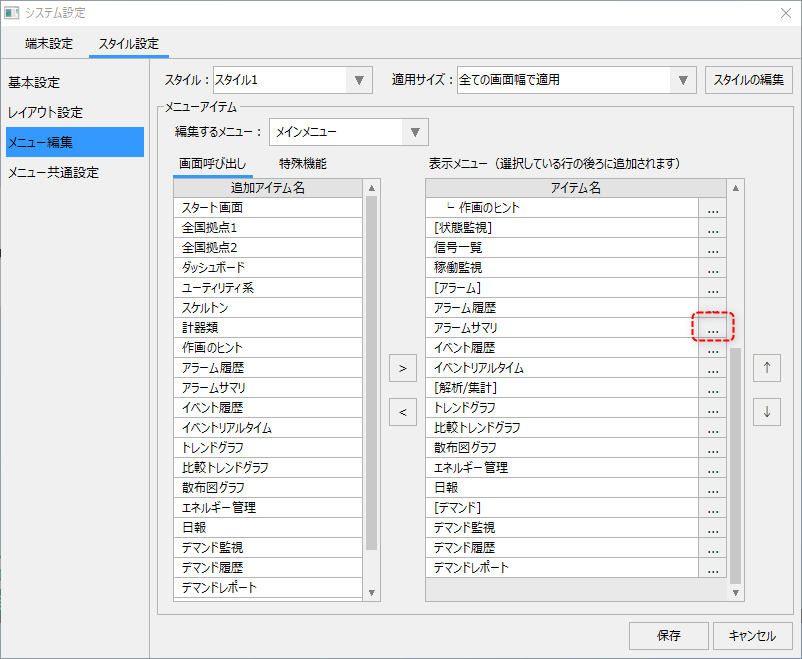
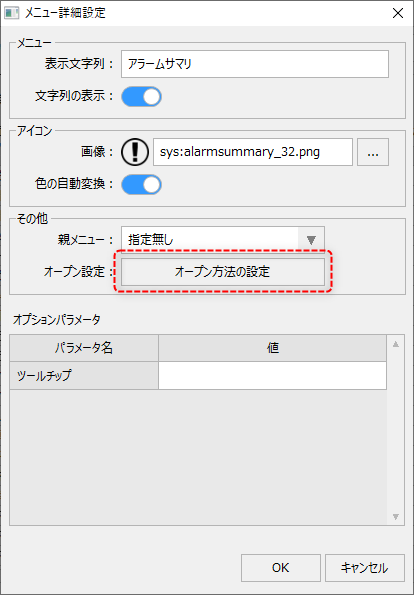
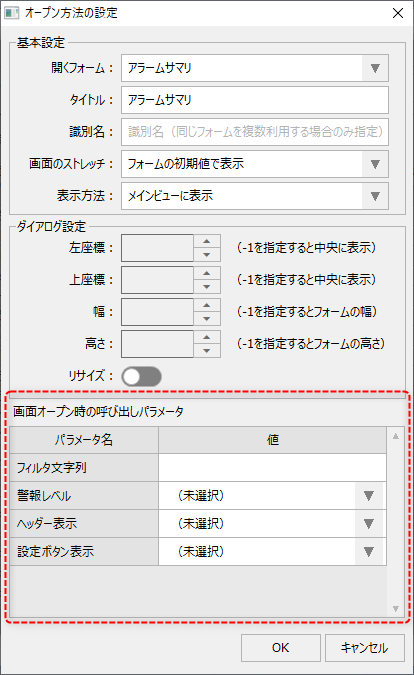
In addition, on the setting screen, you can specify the open parameters when displaying the screen library. By using the open parameters, for example, when displaying alarm history, you can specify an alarm filter or alarm level to narrow down the display to the relevant alarm history, or specify a start and end date range to display.
The open parameters are specified as follows:
The following settings screen will then be displayed.
The following settings screen will then be displayed.
|
||||||||||||
Use the Part Library Screen Display Call Button |
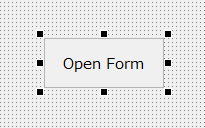
Place a button to call the part library screen display on any form that will be the calling source.
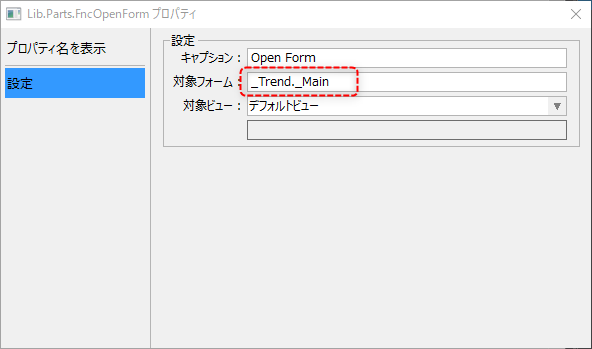
Open the properties of the button part and specify the main form of the screen library you want to display as the target form (_TargetForm custom property). The following is an example of the trend graph screen.
Furthermore, you can also use the dialog display component to display a screen library as a popup dialog.
|
||||||||||||
Display the screen from a script (e.g. Button control) |
Place Button control on any form that will be the caller.
Write the script in the OnMouseUp event of the button.
event OnMouseUp(button)
{
	::OpenViewForm("viewMain","_Trend._Main");
}
Key points for describing the process: •Use the OpenViewForm root method (not OpenForm). •Specify "viewMain" as the first argument. •In the second argument, specify the main form name of the form to be called (e.g., folder name._Main).
|
||||||||||||
Display a dialog from a script (e.g. Button control) |
To display a screen library as a dialog, use the OpenModalDialog method or the OpenDialog method.
First, place Button control on any form that will be the caller.
Write the script in the OnMouseUp event of the button (below is an example of calling the camera registration screen with OpenModalDialog).
event OnMouseUp(button)
{
	::OpenModalDialog("_Video._VideoSetup");
}
Key points for describing the process: •To specify open parameters, specify them as the third argument to the OpenModalDialog method. •If you want to call it in a normal dialog rather than a modal dialog, use the OpenDialog method.
|