About the Open Parameter of the Screen Library
Open parameters are a function that allows you to pass parameters from the caller when displaying a form from a script, etc.
By using open parameters, you can specify the screen display format, search conditions, etc. For example, when displaying alarm history, you can specify an alarm filter or alarm level to narrow down the display to the relevant alarm history, or you can specify a start and end date range to display.
■ Calling from the standard framework menu
In the standard framework menu, you can specify the opening parameters when displaying the screen.
Below is an example of configuring the Alarm Summary Screen Library from the menu.
|
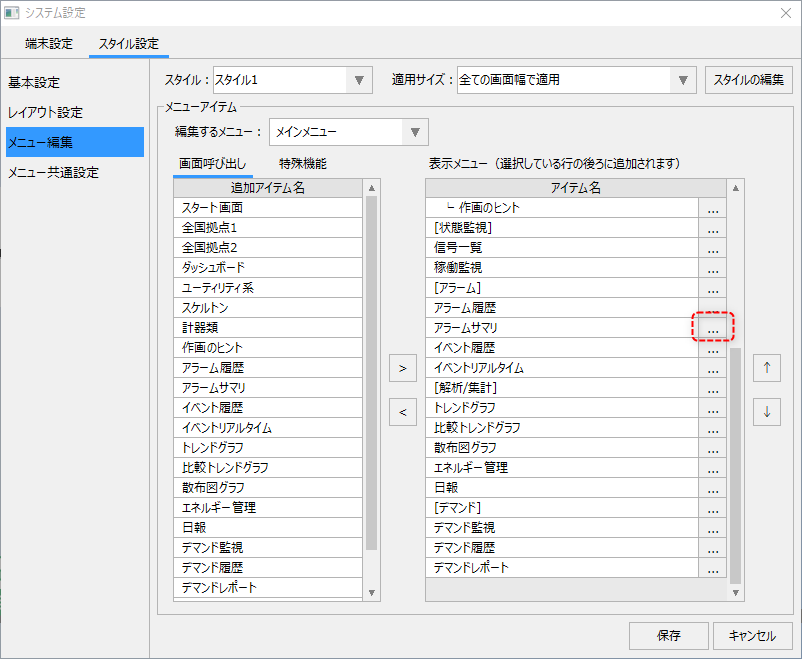
Display the menu editor from the standard framework settings screen.
From the display menu list, click the selection button "..." for the item to which the target screen call is registered (the example on the left is the alarm summary).
|
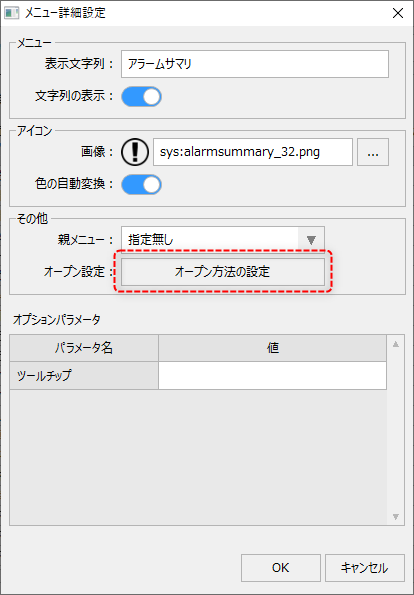
The following dialog will then be displayed:
|
The display string specifies the text to display in the menu.
You can select the type of icon to be displayed in the menu.
In the open settings, you can specify the open parameters to be passed when this menu is selected. To specify the open parameters, click the "Open method settings" button.
|
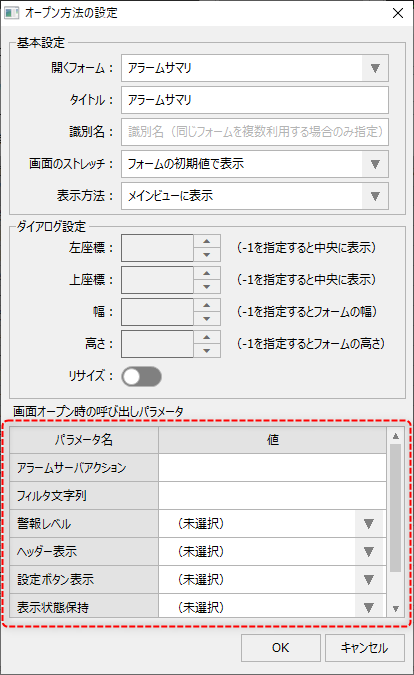
This will then change to the following display:
|
You can specify open parameters from the "Parameters to call when the screen is opened" list at the bottom of the screen.
|
■ Calling from split display
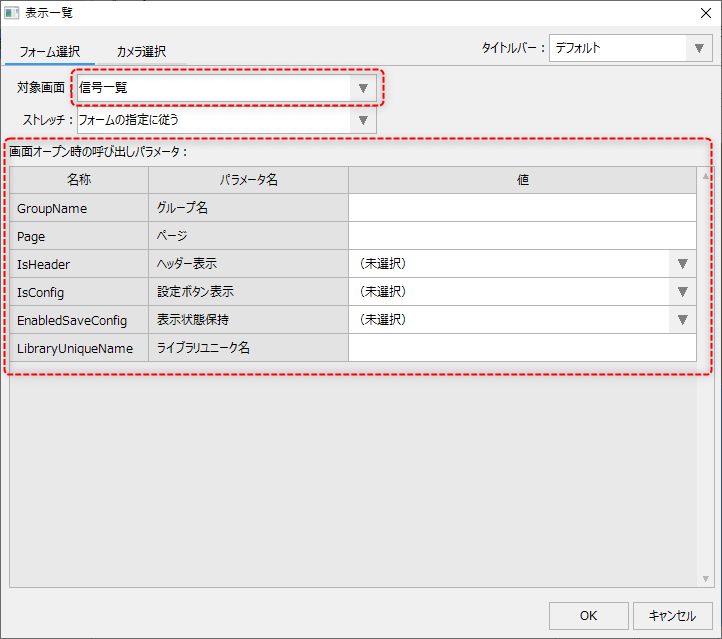
When you select a screen from the screen library by selecting a form from the split display settings screen, you can specify open parameters from the "Call parameters when screen is opened" list at the bottom of the screen.
(Split display setting screen/open parameters)
|
|
■ Calling from related information
You can specify open parameters for the related screen specified from the related information setting screen.
(Related information setting screen)
|
Add a related screen on the related information setting screen and click the setting button for the parameters listed on the left.
|
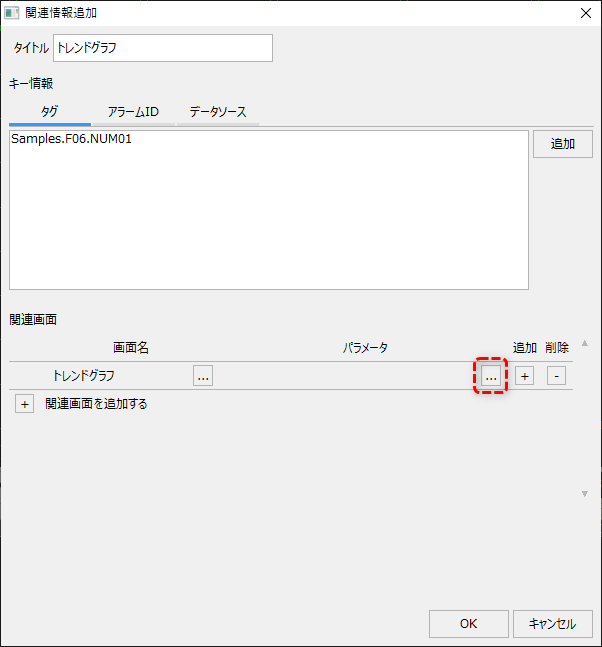
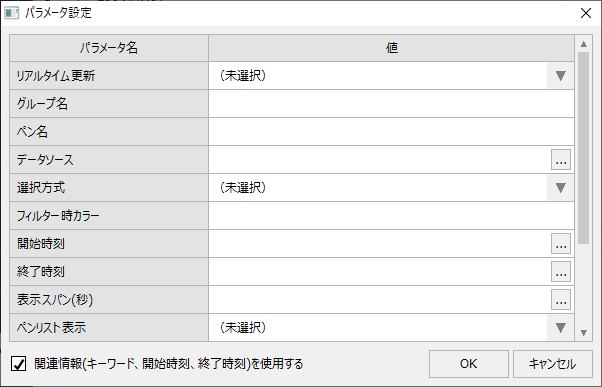
The following dialog will then be displayed:
(Related information setting/parameter setting screen)
|
You can specify the open parameters when displaying the desired screen.
You can choose:
|
■ Calling the parts library from a function button
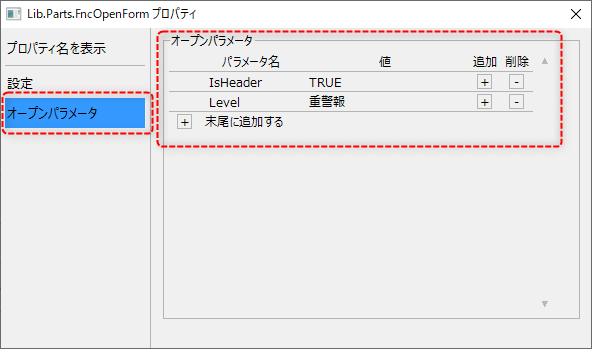
Among the function button parts in the parts library, you can specify open parameters from the form call button (OpenForm) and dialog display button (OpenDialog).
These open parameters are set in the setting dialog provided for the part. The setting dialog is displayed by double-clicking the part.
(Part library setting screen/open parameters)
■ Calling Button control from a script
The following explains how to call a script by specifying open parameters. Here, we use the Alarm History Screen Library as an example.
Example) Hide the settings button (gear icon) in the screen library.
You can hide the setting button by specifying FALSE for the open parameter "IsCoufig".
To specify a parameter, write it as a string in the format "parameter name:value".
Example for
// Button
event OnMouseUp(button)
{
	var vParam = "IsConfig:FALSE";
	::OpenForm("_AlarmHistory._Main", "", vParam);
}
Example: Set the alarm level to "Medium fault" and the filter string to "Overcurrent" to display.
By specifying the alarm level in the open parameter "Level" and the filter string in "Filter", the screen can be displayed with the specified conditions narrowed down.
To specify multiple parameters, use an array like this:
// Example with Button
event OnMouseUp(button)
{
	var vParam = c("Level:Medium fault","Filter:Overcurrent"); //When specifying multiple events, specify them as an array
	::OpenForm("_AlarmHistory._Main", "", vParam);
}
Example: Specify the date range of the search period.
By specifying the start date and time in the open parameter "StartDate" and the end date and time in "EndDate", the screen can be displayed narrowed down to the specified date range.
The date format to be specified must conform to the date and time format set in the _DeteTimeFormat custom property of the screen library.
// Example with Button
event OnMouseUp(button)
{
	var vParam = c("StartDate:2019/12/04 15:52:00","EndDate:2019/12/04 18:59:59");
	::OpenForm("_AlarmHistory._Main", "", vParam);
}
|
For parameters that pass boolean values (Bool values) such as the open parameter "IsConfig", please specify in one of the following formats: T, TRUE, F, FALSE. |

|
In addition to the above OpenForm root method, you can also call a screen with open parameters specified using the OpenViewForm root method, the OpenDialog common method, the OpenForm method of the View control, etc. In any case, you should specify the parameters in the openParam argument provided for each method. |
Screen Library Open Parameter Reference
For details about the open parameters available for each screen library, see the links below.