Split view open parameters
|
For information on how to call a screen library using open parameters, see "About open parameters of screen libraries". |

This screen library provides the following open parameters.
name |
Parameters |
explanation |
||||||||
Show/hide setting button |
IsConfig
|
Specifies whether to show or hide the settings button.
|
||||||||
Enable/disable display state retention |
EnabledSaveConfig |
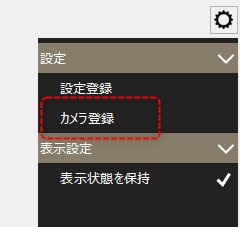
Specifies whether to enable or disable "Keep display state" in the settings menu.
|
||||||||
Group Name |
GroupName
|
Specify the name of the group to be displayed on the screen. |
||||||||
Preferred Type |
PriorityType
|
Specify the type of screen display to be displayed preferentially with this function as a string. This parameter allows you to change the order of display of function selection tabs on the setting screen.
|
||||||||
Total number of columns |
DefaultColCount
|
The initial number of total columns displayed on the layout setting screen can be specified as an integer value between 1 and 10. If this parameter is not specified, the value of the _ColCount custom property will be used as the initial value. |
||||||||
Total number of lines |
DefaultRowCount
|
The initial number of total rows displayed on the layout setting screen can be specified as an integer value between 1 and 10. If this parameter is not specified, the value of the _RowCount custom property will be used as the initial value. |
||||||||
Title Bar |
DefaultShowTitleBar
|
Specifies the initial state of the title bar display mode displayed on the layout setting screen.
|
||||||||
Header Display |
IsHeader
|
Specifies whether to show or hide the various operation UIs (combo boxes, edit boxes, buttons, etc.) located at the top of the screen.
|
||||||||
Library Unique Name |
LibraryUniqueName
|
When registering multiple identical screen libraries at the same time, specify an identifier in this parameter. The specified identifier must be unique across the entire system. |