Split View
How to read the manual
This chapter is for reference information only.
For the main details, please refer to "Split Display" in the Surveillance System Construction Guide.
overview
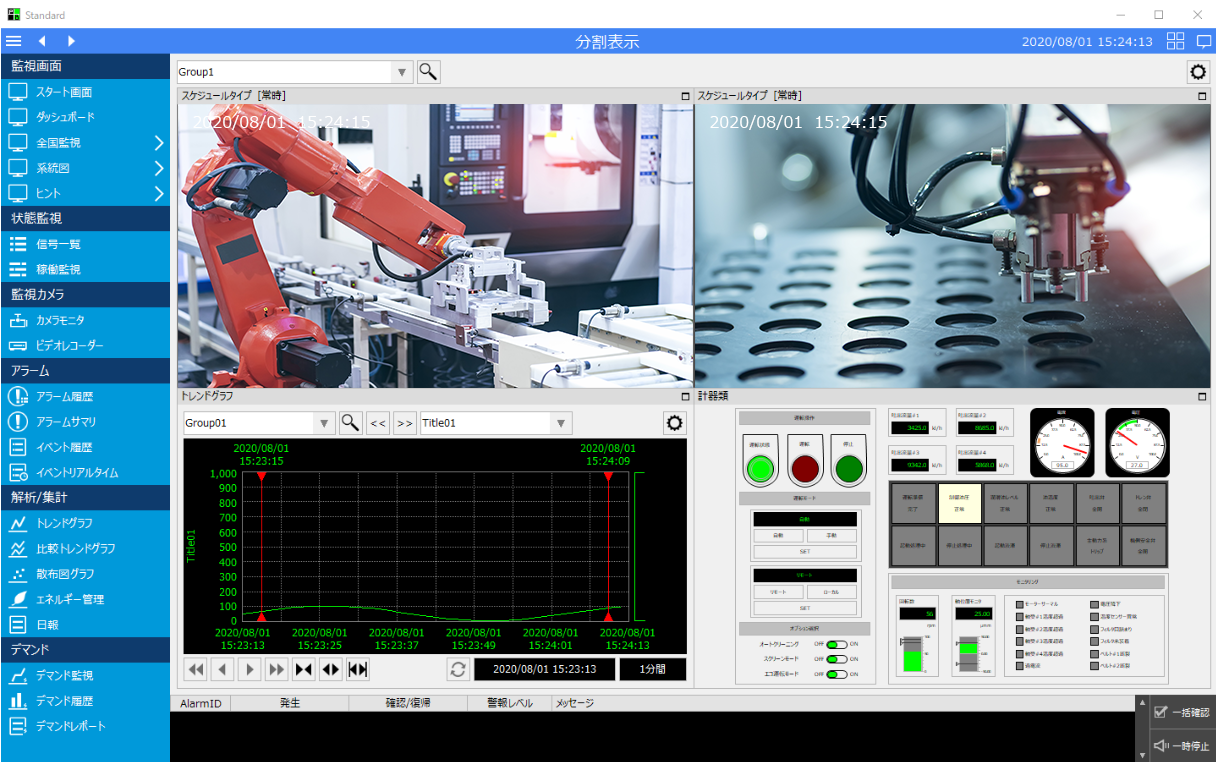
This is a screen library for split screen display. You can set the display frame of the screen (split method, merging, etc.) and specify the screen of your choice to display in each display frame. You can also display network camera images side-by-side by registering the camera.
Please refer to the links below for more details.
|
|
|
If any of the following client execution methods are used, you will need to resolve the issue of system file path references in order to display camera images with this library.
•Running Panel Browser as an embedded Exe •When running Panel Browser in IE •When Panel Browser is embedded in VB and executed
For more information, see "Important) Regarding path references to system files when running the client".
|

|
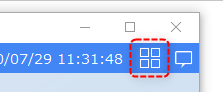
The standard framework has a built-in split screen library, which can be called up by clicking the following icon located in the top right of the header area.
|

|
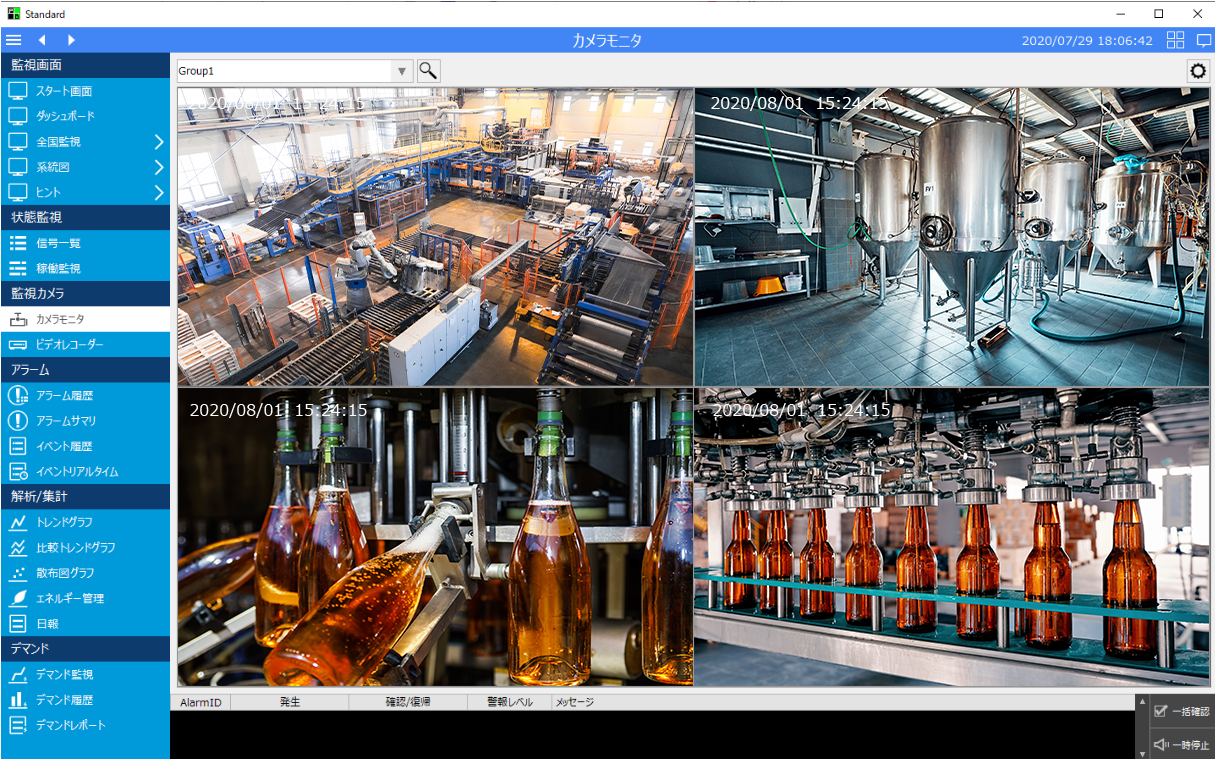
The split screen library can be used to display multiple graphic screens or library screens side by side at the same time, as well as to display images from network cameras, etc. side by side as a "camera monitor." For specific settings for use as a camera monitor, please refer to "Split Display (Camera Monitor)" in the Surveillance System Construction Guide.
|
Connected Action
Destination Action Name |
explanation |
|
|
The split screen layout setting file is saved on the server. There are two ways to save it: via the "public folder" defined in Panel Server's Panel-Interface, or by using the File server action to save the file. The default setting is to save it in the public folder method. If you want to use the File server action, define the File server action in Panel Server and specify the name of the action to connect to in "_FileServerName". |