overview
The split display function is a function that divides the main area into multiple display frames and displays each screen of standard functions such as graphic screens, trends, and alarms side by side. In addition to graphic screens, it can also be used as a camera monitor that displays network camera images side by side. Settings such as the number of screen divisions and screen allocation to display frames can be freely edited during operation.
(Split display)
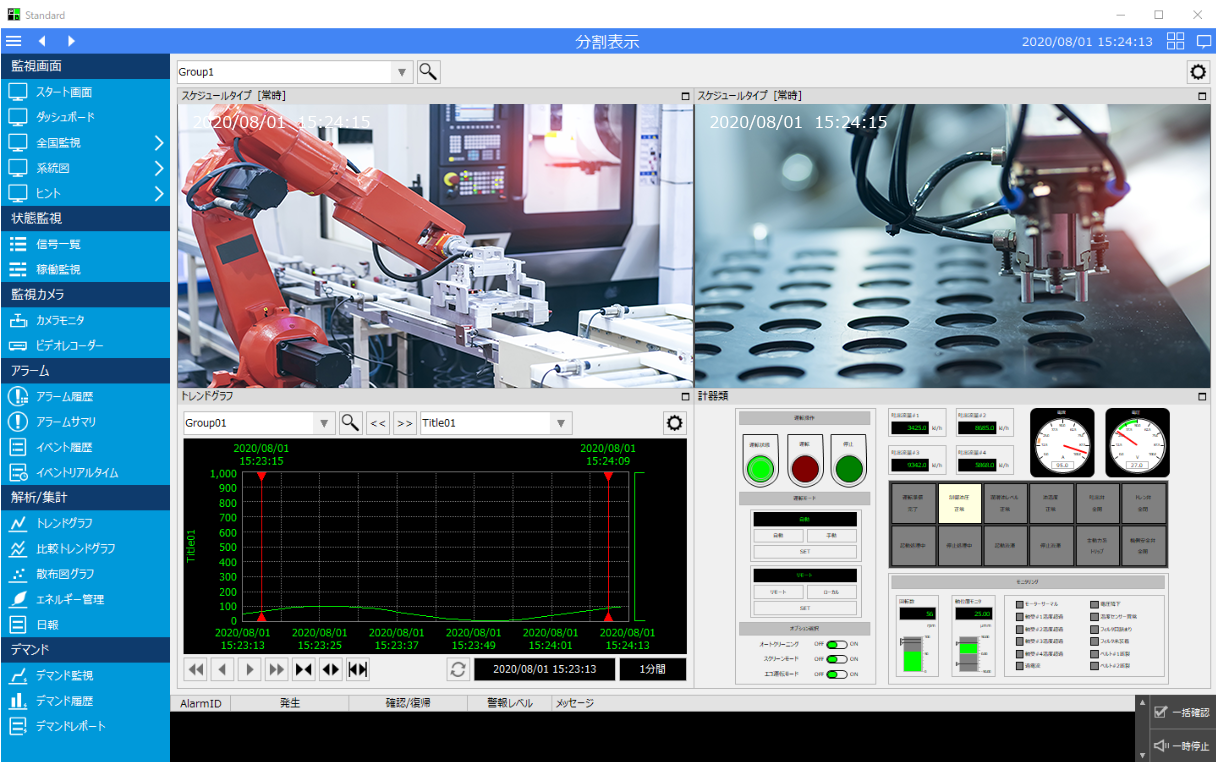
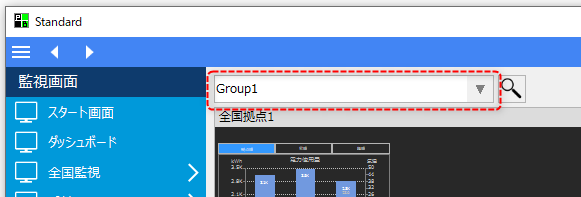
You can register multiple screen split settings as groups. You can switch between split display groups from the combo box at the top of the screen.
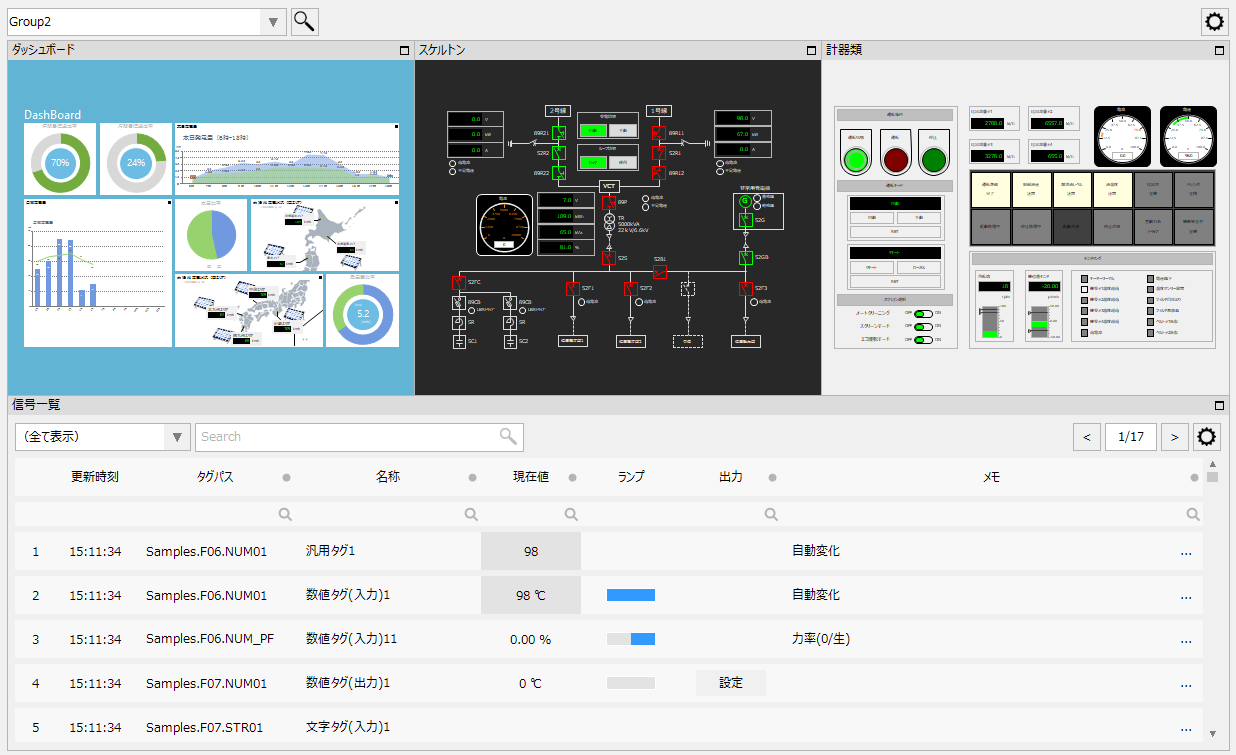
You can freely define the display frame of the split. You can also merge the display frames to allow for flexible split display.
(Example of display where the upper half is merged into three screens and the lower half into one screen)
Below we explain the basic concept of split screen.
content |
overview |
About the split screen library
|
A brief introduction to the split screen library. |
Relationship between split display and server functions
|
This article explains the relationship between the split screen library and Panel Server. |
|
The standard project has the split screen library built in. You can access the split screen by clicking the following icon located on the right side of the header area of the standard project.
(Standard project split view icon)
|

|
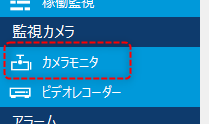
The "Camera Monitor" standard menu item is realized by the split screen library. You can assign network cameras to the display frames of the split screen and display the video from multiple cameras side by side at the same time. The camera monitor and split screen have exactly the same functions.
(Example of "Camera Monitor" displayed as a menu item)
|
|
In addition to using the split screen (camera monitor) to display video from network cameras, etc., you can also use the "Video Player Part" from the parts library. By attaching this part to a form, you can play videos from network cameras, video files, etc. on the form. For details, see "Video Player".
|