User permission settings
You can define authority settings for user information. The authority settings are defined in the following dialog box for registering user information.
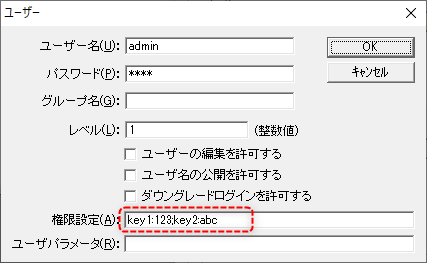
When a user logs in, the value set in the permission settings is stored as a string in the PSUserAuth root property.
You can use the PSUserAuth root property as a string directly from a script, but there is also a way to easily obtain the permission values by generating a map value of all permissions from the permission settings.
Below are two implementation examples.
•Example 1) Get the permission setting string as is
•Example 2) Generate and use a map value for all permissions from the permission settings
Example 1) Get the permission setting string as is
Here is a simple example of how to reference PSUserLevel from a script to obtain the permission setting string.
As an example, we will assume that the following user information is registered.
Username |
Permission Settings |
admin |
123 |
senior |
456 |
operator |
789 |
guest |
321 |
(Example of settings in the User Settings dialog)
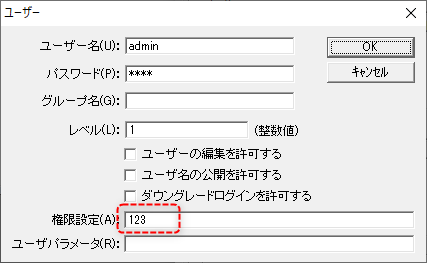
■ Script implementation example
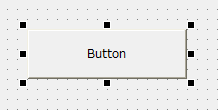
1.Place a button on the screen.
2.Open the button's script page and add a OnMouseUp event.
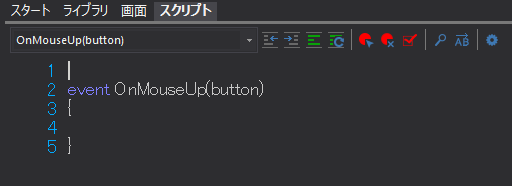
3.Write the script.
As an example, we will display the contents of the PSUserAuth root property in a message box.
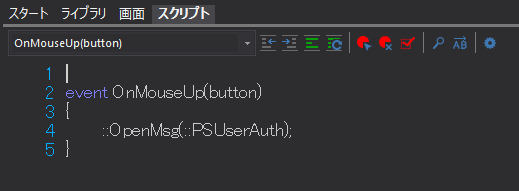
(Description)
event OnMouseUp(button) { ::OpenMsg(::PSUserAuth); } |
4.Operation check
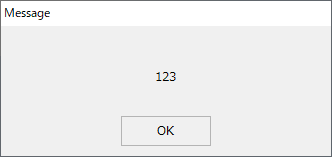
Run the project and log in as the admin user.
When you click the button above, the permission setting for the admin user, "123," will be displayed.
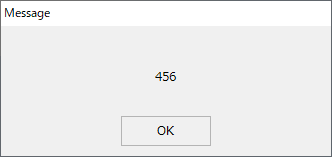
Next, if you log in as the senior user and click the button in the same way, the permission setting for the senior user, "456," will be displayed.
In this way, the permission information registered as custom permissions can be easily obtained by referencing the PSUserAuth root property from a script.
Based on the obtained string, you can implement processing according to the permission value.
However, because the above method obtains the permission information as a single string, if you want to include multiple attributes in the permission information, you will need to parse the string yourself while keeping in mind the order of the string, which can make the process complicated. Also, if you define multiple attributes by simply listing them with commas between them, you will need to modify the code every time you add, delete, or change the order of attributes.
Therefore, in the next Example 2, we will explain how to generate a map value of authorization information, register it in the system, and make it easy to retrieve using the GetAuth route method.
Example 2) Generate and use a map value for all permissions from the permission settings
This example introduces an implementation example that receives permission settings defined in map format via the PSUserLevel root property, and generates and uses a map value of all permissions.
As an example, we will assume that the following user information is registered.
Username |
Permission Settings |
admin |
key1:123;key2:abc |
senior |
key1:456;key2:def |
operator |
key1:789;key2:ghi |
guest |
key1:321;key2:cba |
The above permission definition format is called the "map format." The map format is written according to the following rules.
(Map format)
•Define the permission key and permission value separated by a colon ":".
•When defining multiple options, list them separated by semicolons (;).
Example) key1:123;key2:abc
■ Script implementation example
1.Open the root script page and add the OnLogin event.
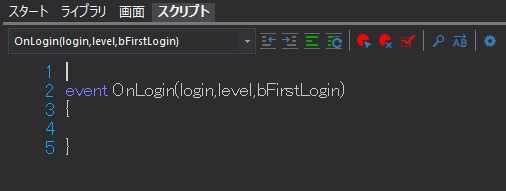
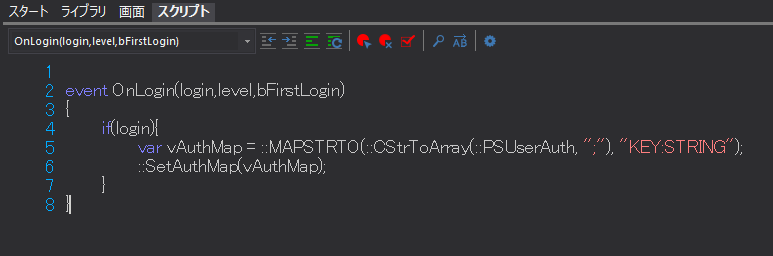
2.Write the following script in the OnLogin event.
(Description)
event OnLogin(login,level,bFirstLogin) { if(login){ var vAuthMap = ::MAPSTRTO(::CStrToArray(::PSUserAuth, ";"), "KEY:STRING"); ::SetAuthMap(vAuthMap); } } |
(Explanation)
The OnLogin event occurs every time a login occurs. When a login occurs, the argument "login" is passed True. Therefore, by describing the processing within this event, the above processing will be called automatically every time a login occurs. Furthermore, the PSUserAuth root property stores the permission settings defined for the user as a string each time a login occurs.
The key point of the process is that the map format (e.g. "key1:123;key2:abc") stored in the PSUserAuth property is converted to an array of map strings using the CStrToArray method with a semicolon ";" as a separator, and then passed to the MAPSTRTO method. This generates a map value consisting of the authority keys and values of the user authority, and temporarily stores it in the vAuthMap variable. Next, by passing the map value to the SetAuthMap method, the map values of all authorities are set in the system. The map values of all authorities set in the system can be accessed and used by the GetAuth method.
3.Next, place a button on the form.
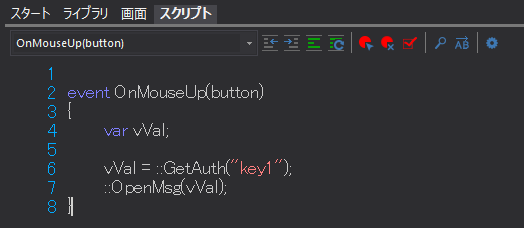
4.In this button, we will write a process to get the value of the permission key "key1". Open the script page of the button and add the OnMouseUp event.
In the OnMouseUp event, write a code that gets the value of key1 using the GetAuth method and displays it on the screen.
(Description)
event OnMouseUp(button) { var vVal;
vVal = ::GetAuth("key1"); ::OpenMsg(vVal); } |
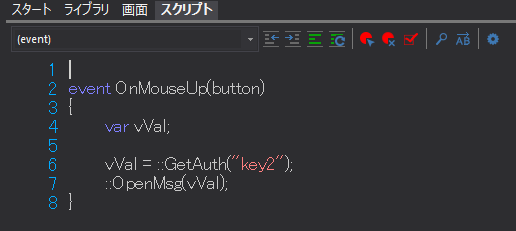
5.Using the same procedure, create a button to get the permission key "key2". Place another button and add an OnMouseUp event from the script page.
In the OnMouseUp event, write a code that gets the value of key2 using the GetAuth method and displays it on the screen.
(Description)
event OnMouseUp(button) { var vVal;
vVal = ::GetAuth("key2"); ::OpenMsg(vVal); } |
6.Operation check
Run the project and log in as the admin user.
When you click the button to get key1, the value "123" set for the authority key "key1" of the admin user will be displayed.
(admin's "key1")
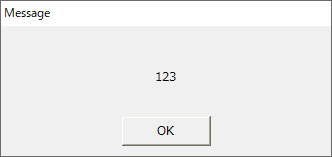
When you click the Get key2 button, the value "abc" set for the admin user's authority key "key2" will be displayed.
(admin's "key2")
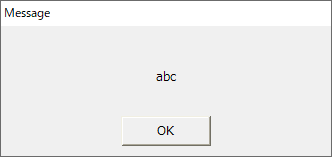
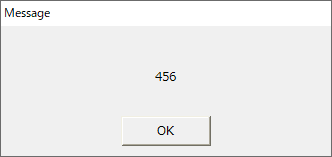
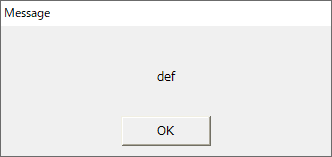
Next, log in as the senior user and click the button in the same way, and confirm that key1 displays "456" and key2 displays "def".
(senior's "key1")
(senior's "key2")
In this way, by defining the authority settings in map format and setting all authority map values to the system using the SetAuthMap root method, you can specify the authority key using the GetAuth method to obtain the authority value.