What is a video player?
The video player is a function that allows you to embed and display video from network cameras, video files, etc. into forms.
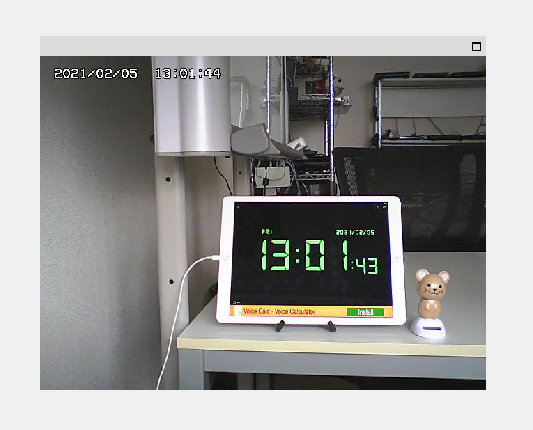
(Network camera display example)
The video player function is provided as a video player part in the parts library. By pasting the part onto a form and configuring it, you can embed and play videos from network cameras, video files, etc. into the form.
(Panel Editor / Library tab / Select Part Library)
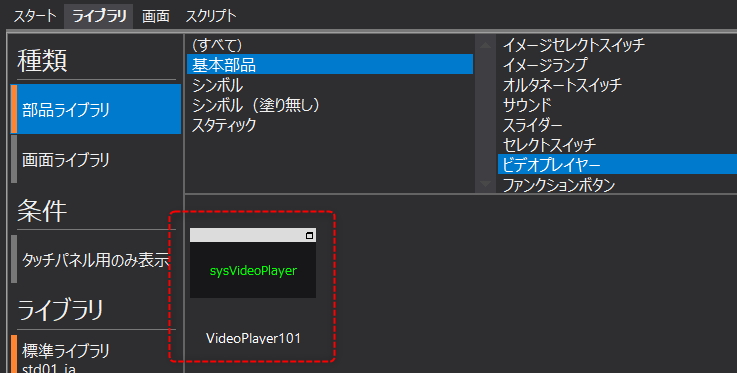
(Video player component attached to the form)

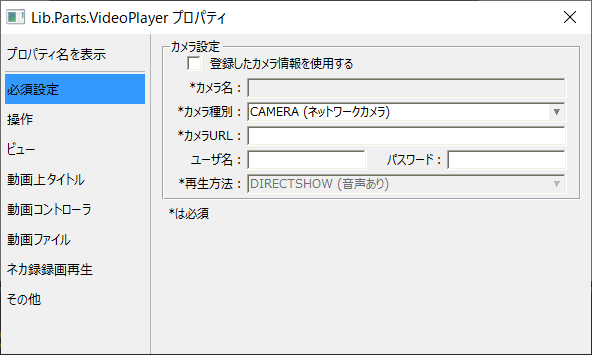
The video player settings are made in the property settings dialog of the video player part, which can be displayed by double-clicking the part in Panel Editor, or you can edit the settings directly from the property page of the part.
(Example of the property setting dialog)
Camera types and playback methods
Important settings for a video player include "camera type" and "playback method."
■Camera type
The camera type is a setting that defines the connected camera or video file, etc. In addition to connecting to a network camera, you can browse and display various videos and images.
Camera Type |
Contents |
||
Network Camera
|
Specify this for network cameras. "MJPEG" or ""H.264" image compression formatYou can connect to a network camera and display the camera's video on the video player. When connecting to a network camera, specify the URL of the connection destination in the Camera URL setting. |
||
Video files
|
You can specify a video file and play it on the video player. To play a video file, specify the path name of the file in the Camera URL setting.
|
||
Image files
|
If you select an image file, you can display the image data on the video player.The image formats that can be used are "JPEG format", "GIF format", "BMP format" and "PNG format". However, "GIF format" animations are not supported. ImageTo display a file, specify the path name of the file in the Camera URL setting. |
||
Nekaroku
|
By connecting to "Nekaroku," a recording and distribution server for network cameras, you can display video from cameras connected to Nekaroku and play recording data stored on Nekaroku on a video player.
|


■ How to play
This setting defines how to play videos. For network cameras and recordings, this is fixed to "OpenCV". For video file playback, you can choose between "OpenCV" and "DirectShow".
How to play |
explanation |
OpenCV(No Audio) |
It is possible to play video files and view network cameras (KMJPEG/H.264). It is characterized by its light processing, and multiple video players can be displayed side by side at the same time. However, audio is not supported. |
DirectShow(With audio) |
It can be used to play video files. DirectShow supports audio, so it is suitable for playing video files that require audio, such as device guidance and operation manuals. However, because DirectShow places a high processing load, it is not possible to create a screen that displays multiple video players simultaneously. For playing video files that do not require audio, we recommend OpenCV. |