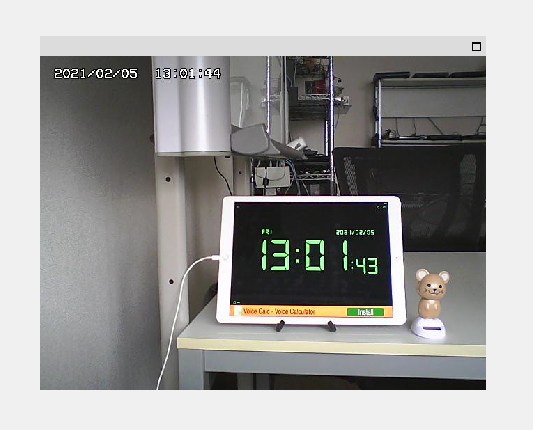
Video player integration steps
The video player is provided as a part library. You can embed it in your form from Panel Editor.
■ Work procedure
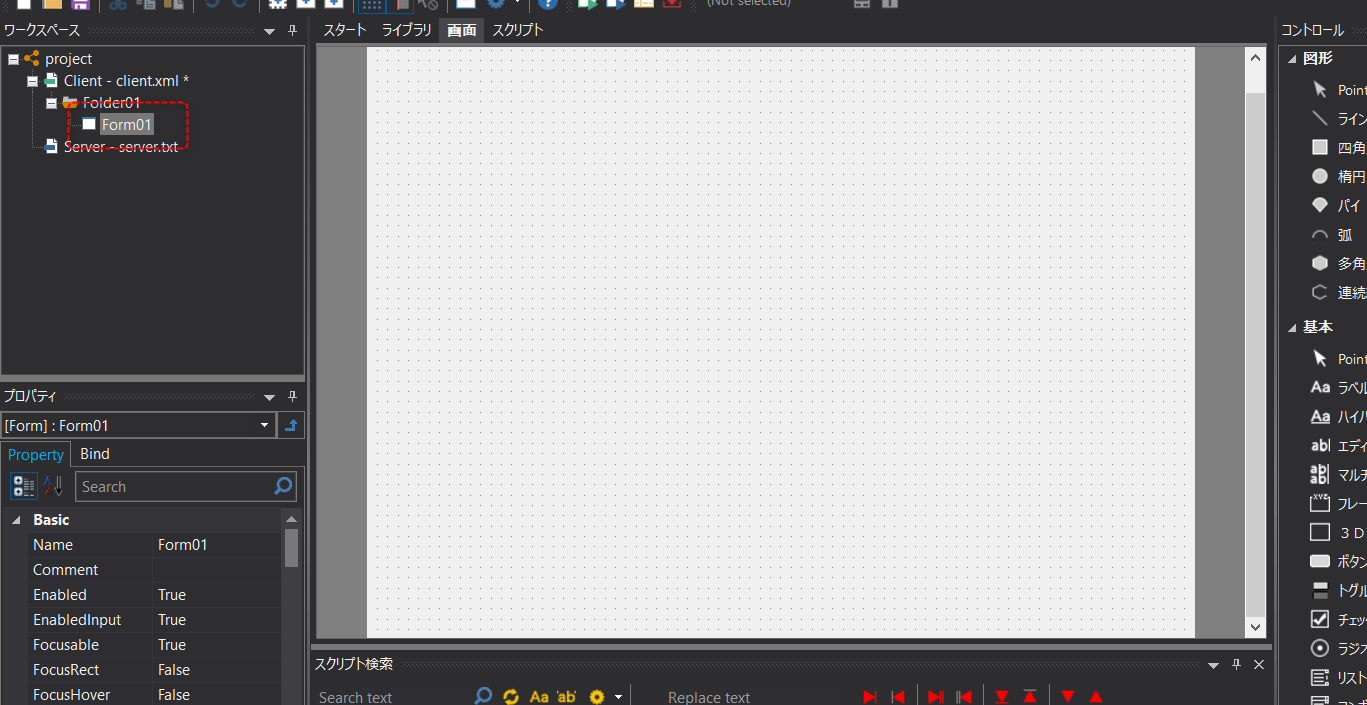
1.Open the desired client configuration file in Panel Editor and select any form in which you want to embed the video player.
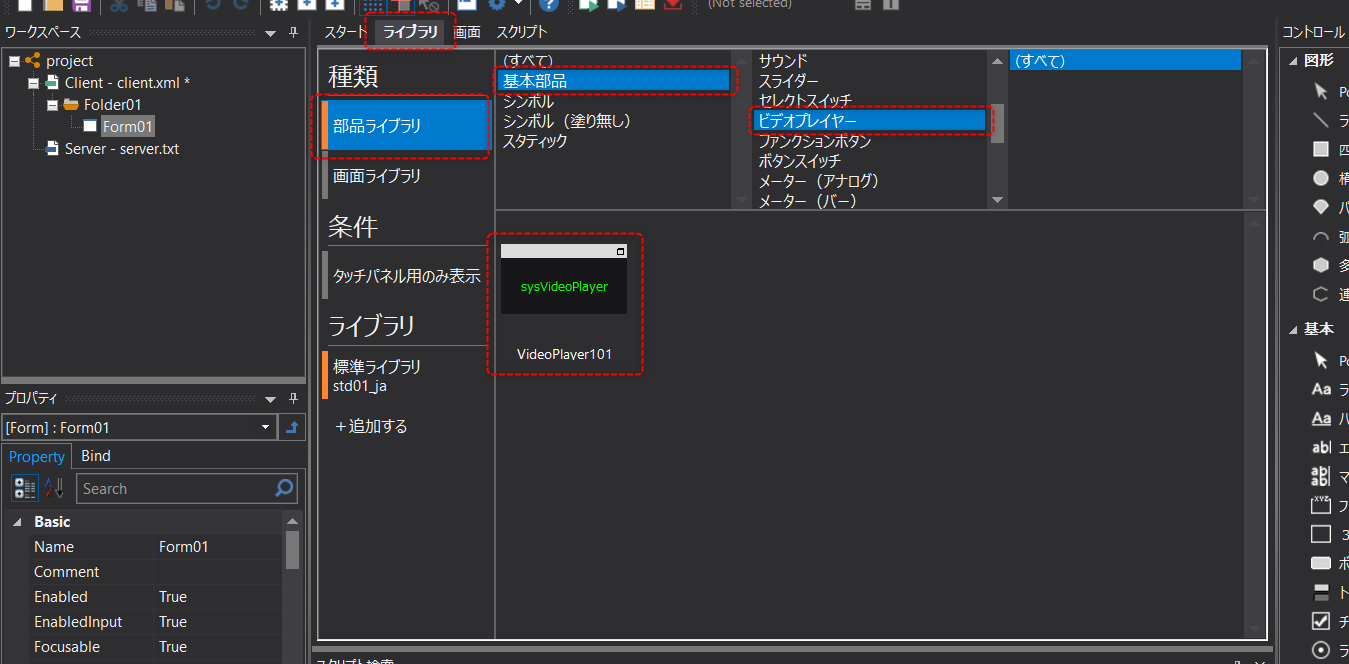
2.Select the Library tab in Panel Editor and select the basic part Video Player from the Parts library.
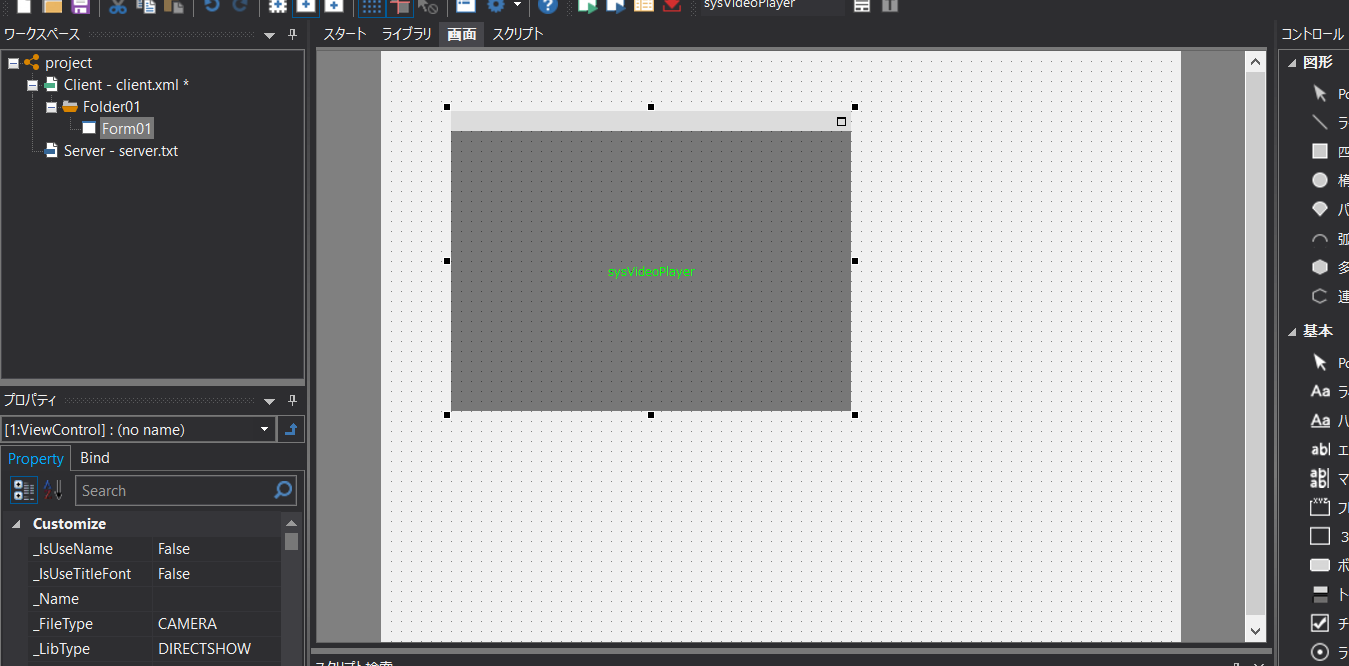
3.Video player part placement
Paste the video player part anywhere on the form and arrange it at any size. For detailed instructions on how to import the parts library, see "How to use the parts library" in the Screen Creation Guide.
4.Video player property settings
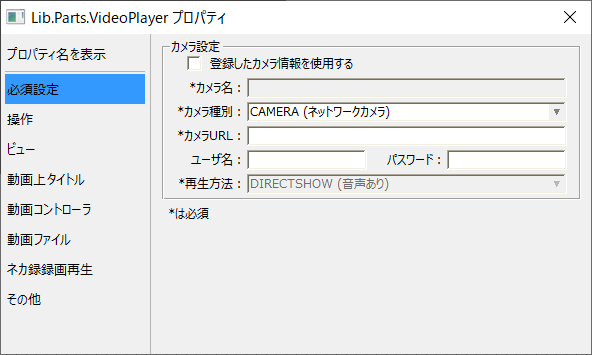
Double-clicking the video player component will display the properties setting dialog.
(Property Settings Dialog)
|
In the video player settings, you can choose to use the camera information registered on the camera registration screen or to set each parameter individually.
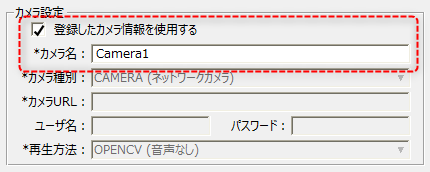
If you want to use the registered camera information, check "Use registered camera information" below and specify the camera name you set when registering the camera. Most of the video player settings can be done on the camera registration side.
|
If you do not use the camera registration information, you can connect to the camera by specifying the URL of the network camera individually.
|
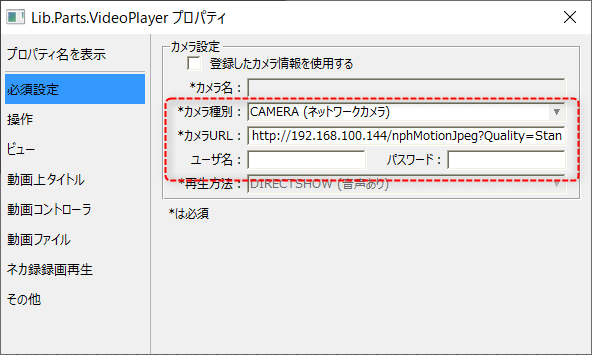
The following is the setting procedure when connecting to a network camera without using the camera registration information. Please set according to the specifications of the network camera you will actually connect.
•Uncheck "Use registered camera information." •Set the camera type to "CAMERA(Network Camera)". •Specify the URL for accessing the network camera in the Camera URL field. Also, if necessary, set the user name and password for connecting to the camera.
|
5.Operation check
Bring Panel Server online.
Next, run Panel Browser from Panel Editor.

When Panel Browser is launched, the video from the target network camera will be displayed in the display frame of the video player placed on the form.