Frame rate setting in recording settings (fps)
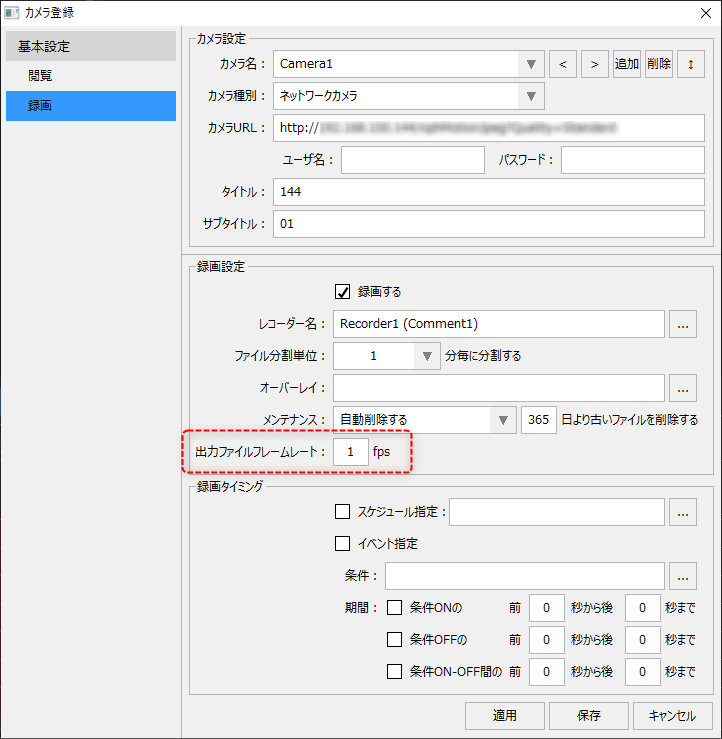
In the recording settings for camera registration, you can specify the frame rate (fps) of the recorded file.
(Camera registration/recording settings output file frame rate)
|
The frame rate is the number of frames per second, and is expressed in units of "fps". The higher the value, the smoother the video will be, but the processing load during recording and playback will be higher.
The frame rate is an important setting that affects the quality of the recorded data and the processing load of the video recorder or player. When setting the frame rate, please refer to the following precautions and set it carefully according to your purpose.
|

Notes on setting output file fps
Important points to note |
explanation |
||
When recording from multiple cameras
|
If you connect many cameras at the same time and want to record, you need to set the fps value low. For example, if you want to record video from 30 cameras at the same time with one recorder device, the recording fps value for each camera registration should be "5" or less.The fps value that can be handled depends on the specifications of the recorder PC. To check whether you can record without any problems, check the load on the PC using Windows Task Manager while actually recording, and check whether there are any gaps or skips in the recorded data. If you determine that the load is too high, tune the recording fps to lower it.
•Estimated fps when recording 30 cameras simultaneously on one recorder PC: "5" fps or less
|
||
If you want to record in high quality
|
If you need to record in high quality (recording at a high fps value), you need to limit the number of cameras connected at the same time. When recording at high fps with a single recorder terminal PC with general specifications (for example, when the fps value is about "20"), the number of cameras that can record at the same time should be limited to "3".The fps value and number of cameras that can be supported depend on the specifications of the recorder PC. To check whether recording can be performed without problems, check the load on the PC using Windows Task Manager while actually recording, and check that there are no gaps or skips in the recorded data.If you need to record from more cameras than the processing capacity of a single recorder PC can handle, consider using multiple recorder terminal PCs and configuring the system to distribute the recorders.
•When recording simultaneously at high fps, the number of cameras that can be handled by one recorder PC is approximately 3 cameras.
|
||
Recording file size
|
The higher the fps value in the recording settings, the larger the recording file size will be. Also, the higher the image quality (image resolution and image quality) sent from the camera, the larger the image data for each frame recorded, and the larger the recording file size will be. If you record with a high fps value, please be careful about the disk capacity of the storage destination.
|
